# Glean Plugin
> **Availability:** DataHub Cloud only
> **Note**: Ask DataHub Plugins is currently in **Private Beta**. To enable this feature, please reach out to your DataHub customer support representative.
The **Glean Plugin** connects Ask DataHub to your organization's [Glean](https://www.glean.com/) instance, bringing enterprise knowledge search into your data conversations.
## Why Connect Glean?
With the Glean plugin enabled, Ask DataHub can:
- **Search organizational knowledge** — find relevant documentation, wikis, Slack threads, and other content indexed by Glean
- **Supplement metadata with context** — answer questions that require both data catalog knowledge and organizational documentation
- **Bridge the gap** between your data ecosystem and your team's tribal knowledge stored across tools
**Example prompts:**
- _"Find our internal documentation about the data retention policy"_
- _"Search for any runbooks related to the revenue pipeline"_
- _"What does our wiki say about the customer segmentation methodology?"_
- _"Find Slack discussions about the recent data migration"_
## Prerequisites
- A Glean account with the MCP server enabled (see [Glean's MCP documentation](https://developers.glean.com/guides/mcp))
- DataHub Cloud with Ask DataHub Plugins enabled
- Platform admin access in DataHub to configure the plugin
## Admin Setup
The Glean plugin is the simplest to set up. DataHub supports **OAuth discovery and automatic client registration** for Glean — meaning DataHub will automatically discover the OAuth endpoints, available scopes, and register a client on your behalf. No manual OAuth configuration is required.
### Step 1: Get the Glean MCP Server URL
Obtain the MCP server URL from your Glean instance. You can find this in your Glean settings under **MCP Configurator** (accessible from your profile settings), or refer to [Glean's MCP setup guide](https://developers.glean.com/guides/mcp).
### Step 2: Create Plugin in DataHub
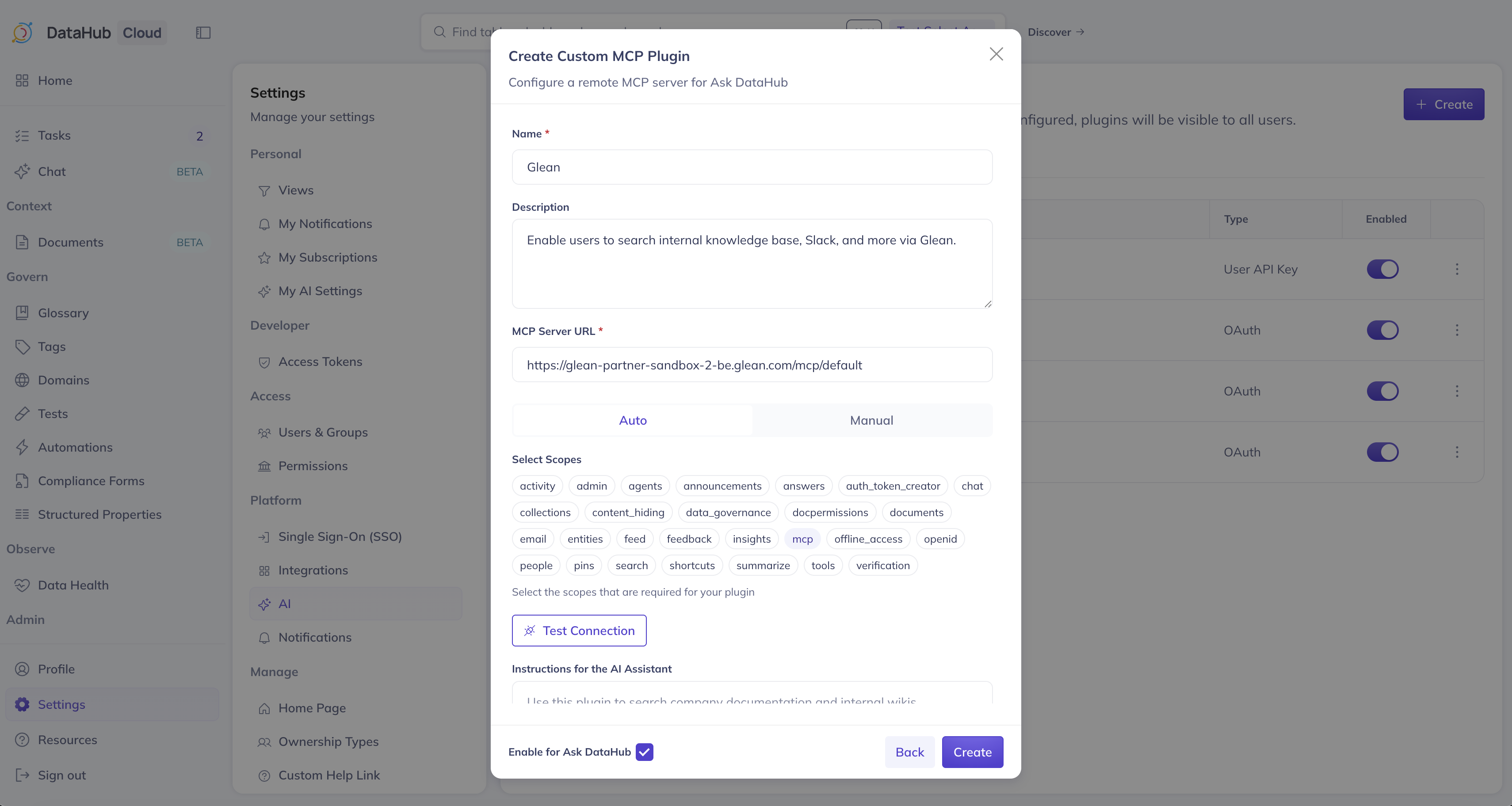
1. Navigate to **Settings > AI > Plugins** in DataHub
2. Click **+ Create** and select **Custom MCP**
3. Fill in the plugin details:
| Field | Value |
| ----------------------- | -------------------------------------- |
| **Name** | `Glean` |
| **Description** | A description for the plugin |
| **MCP Server URL** | Your Glean MCP server URL |
| **Authentication Type** | `User OAuth (Each user authenticates)` |
4. DataHub will automatically discover the OAuth configuration from Glean and register a client — no manual OAuth setup is required. This includes:
- Authorization and token endpoints
- Available scopes
- Client registration
5. Review the discovered scopes. All scopes are selected by default. **Ensure the `mcp` scope is selected** — this is required for the plugin to function.
:::warning Required Scope
The **`mcp`** scope must be selected for the Glean plugin to work. Without it, the MCP server will return a `401 Unauthorized` error when Ask DataHub tries to use the plugin. If you see this error after setup, edit the plugin and verify that the `mcp` scope is enabled.
:::
6. Optionally add **Instructions for the AI Assistant**, ensure **Enable for Ask DataHub** is on, and click **Create**
## User Setup
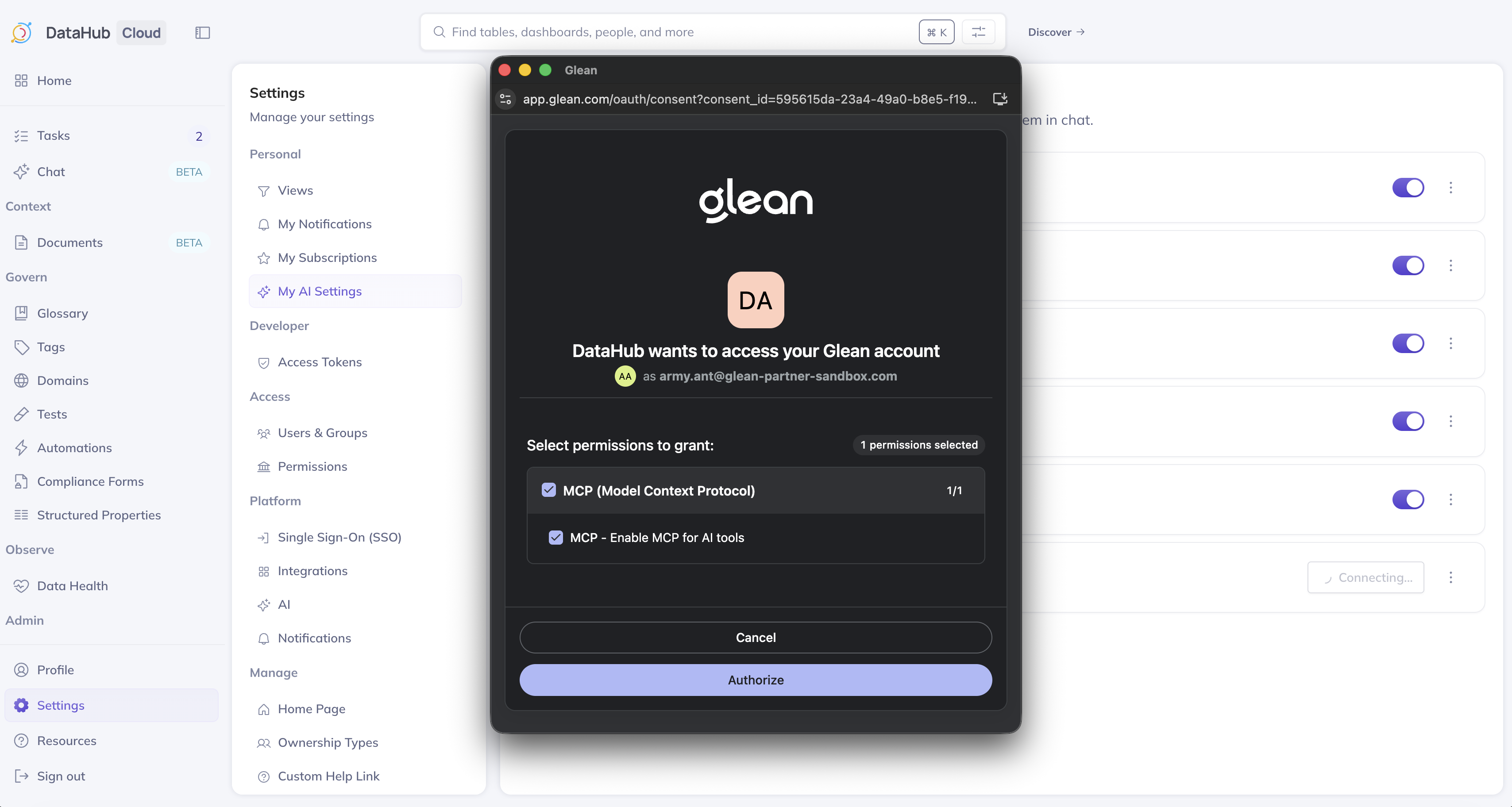
Navigate to **Settings > My AI Settings**, find the **Glean** plugin, and click **Connect**. You'll be redirected to Glean to authenticate, then back to DataHub. See the [overview](./overview.md#user-setup-enabling-plugins) for more details.
## Usage Tips
- Glean plugin complements DataHub's [Context Documents](../context/context-documents.md) — use Context Documents for curated, governable knowledge and Glean for broader organizational search
- The AI will automatically decide when to use Glean vs. DataHub's built-in search based on the question
- Be specific in your prompts about what kind of documentation you're looking for
## Troubleshooting
### 401 Unauthorized Error
If you see `OAuth succeeded but MCP server returned 401: Client error '401 Unauthorized'`, the `mcp` scope is not selected for the plugin. Edit the plugin in **Settings > AI > Plugins**, ensure the `mcp` scope is enabled, and save.
### OAuth Discovery Fails
- Verify the Glean MCP server URL is correct and accessible
- Ensure your Glean instance supports OAuth discovery and dynamic client registration
- Contact your Glean administrator to verify MCP server access is enabled
### No Results
- Verify that Glean has indexed the content sources you expect
- Try broader search terms
- Check that the authenticated user has access to the relevant content in Glean