# Context Generation
> **Availability:** DataHub Cloud only
:::caution Public Beta
Context Generation is part of the DataHub Cloud **Context** add-on and is in Public Beta. Details on this page may change as the feature evolves.
:::
Your team has already answered most of its analytics questions. The answers live in warehouse query history, BI tools, and semantic models, but rarely in documentation an agent can use. Context Generation turns that analytics exhaust into **context documents**, called **Semantic Anchors**, each of which shows an agent how your team answers a recurring business question: which tables to use, how they connect, and what the business calls the result.
Hand-written documentation covers the questions everyone asks. Context Generation covers the long tail, across every domain, so your experts refine a draft instead of starting from a blank page.
## How Context Generation works
1. **You choose a scope,** such as a domain or a set of databases or schemas.
2. **DataHub reads your analytics activity** for that scope: warehouse query history, BI and semantic definitions such as Looker explores and Snowflake semantic views, and the descriptions, owners, and usage it already knows. It works only from metadata and never reads the data in your tables.
3. **It finds recurring patterns,** the analyses your team runs again and again, and sets aside one-off queries.
4. **It writes a context document for each pattern,** describing the business questions it answers and the general shape of the query behind it.
5. **Documents are published,** automatically or after review, and refreshed as your data and usage change.
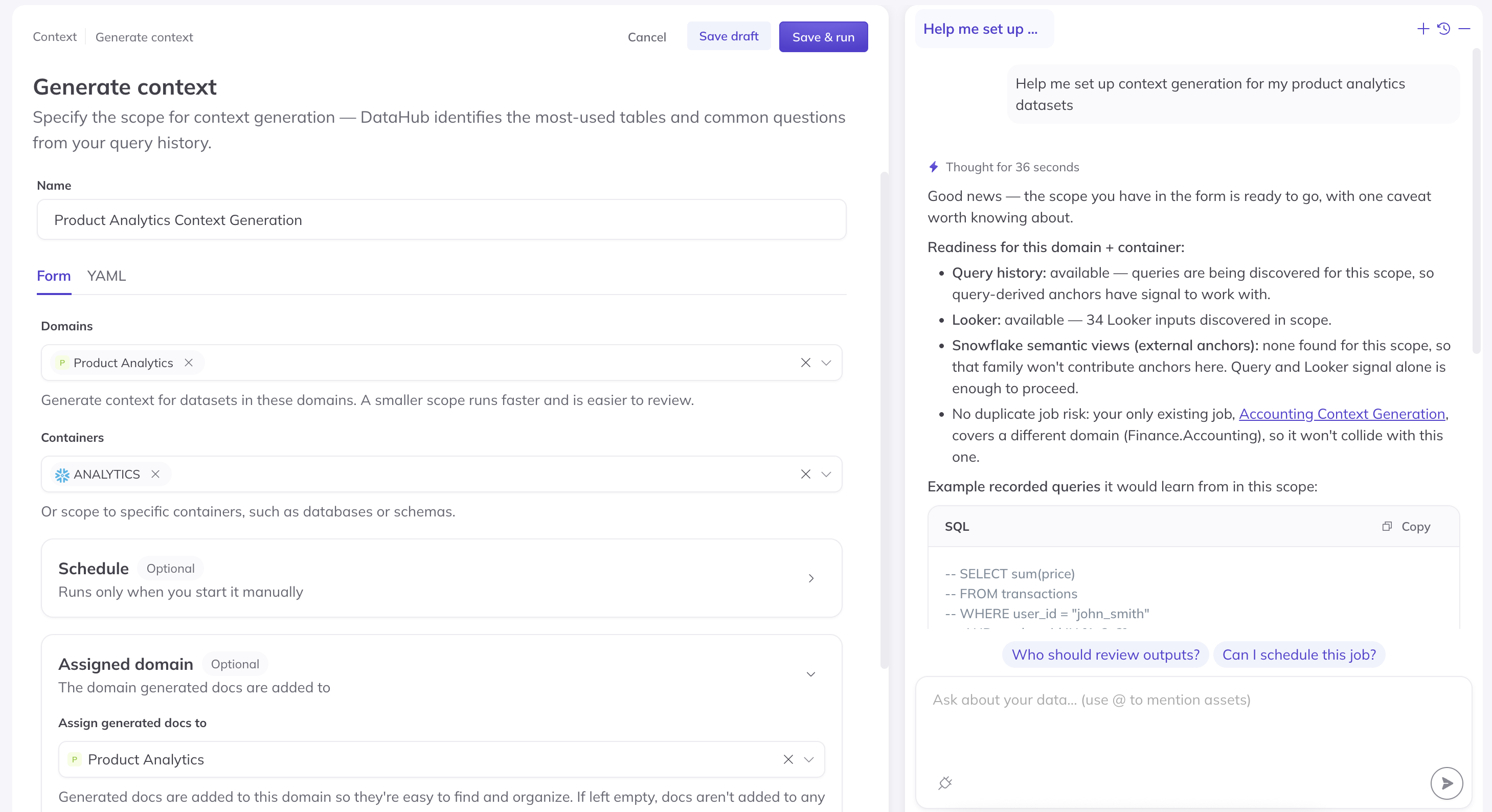
_Screenshot: configuring a Context Generation job in Settings > Context._
## Setting up Context Generation
Context Generation runs as jobs, which you manage under **Settings > Context**. Setting up a job requires the **Manage Platform Settings** privilege. For each job, you choose:
- **The scope** to cover, such as a domain or specific databases or schemas
- **Where documents go:** the domain to assign them to, so domain agents can see them, and optionally a folder in **Documents**
- **How documents are published:** automatically, or after approval by the reviewers you choose
- **How often the job runs,** so context keeps pace as your data and usage change
Start with one domain, check the results against your evals, then expand. See [Step 3: Generate context](../../../managed-datahub/build-a-data-agent/generate-context.md) in the Build a Data Agent guide.
## Publishing and validating documents
We recommend publishing generated documents automatically and validating them with [evals](./context-evals.md). A single run can produce many documents, and evals tell you quickly whether they help. If an eval gets worse, edit or unpublish the documents behind it. For sensitive domains, you can require approval before anything is published. See [Reviewing Context Changes](./context-review.md).
## Editing generated documents
Generated documents are yours to edit. Once you edit one, it's **detached** from Context Generation: later runs never overwrite it, it isn't removed during cleanup, and your version is the one agents use. Documents nobody has edited continue to update as your data and usage change.
## Before you begin
Context Generation depends on warehouse query history. Make sure your warehouse's data source collects queries and query usage statistics over a representative period of analytical work. Connecting your BI tools and dbt improves the business language in generated documents.
### Reference recipes
Context Generation depends on two things your warehouse ingestion emits:
- **Query entities** (`queryProperties`): the SQL text and the datasets it reads and writes
- **Query usage statistics** (`queryUsageStatistics`): how often each query ran
Set `start_time` so the window covers a representative stretch of analytical work. Use CLI version **1.6.0.9** or later. In UI ingestion, set it under **Advanced Settings**.
**Snowflake**
```yaml
source:
type: snowflake
config:
account_id: ""
warehouse: ""
username: "${SNOWFLAKE_USER}"
password: "${SNOWFLAKE_PASS}"
role: datahub_role
start_time: "-7 days"
include_queries: true # default true -> Query entities
include_query_usage_statistics: true # default true -> queryUsageStatistics
include_operational_stats: false # default true; off = no DDL/write operations
```
Requires Snowflake Enterprise Edition and `IMPORTED PRIVILEGES ON DATABASE SNOWFLAKE`. Query extraction reads `ACCOUNT_USAGE.QUERY_HISTORY` and `ACCESS_HISTORY`, which lag real time by roughly 45 minutes to 3 hours.
**Databricks**
```yaml
source:
type: unity-catalog
config:
workspace_url: https://.cloud.databricks.com
token: "${DATABRICKS_TOKEN}"
warehouse_id: "" # recommended
start_time: "-7 days"
include_usage_statistics: true # default true -> runs query extraction
include_queries: true # default true -> Query entities
include_query_usage_statistics: true # default true -> queryUsageStatistics
include_operational_stats: false # default true; off = no DDL/write operations
```
The service principal needs `CAN_USE` on the warehouse and `SELECT` on `system.query.history` and `system.access.table_lineage`. System tables keep about 365 days of history; the REST API fallback keeps about 30.
**BigQuery**
```yaml
source:
type: bigquery
config:
project_ids: [""]
start_time: "-7 days"
include_queries: true # default true -> Query entities
include_query_usage_statistics: true # default true -> queryUsageStatistics
# Query extraction runs only if lineage or usage is on (both default true)
include_table_lineage: true
include_usage_statistics: true
usage:
include_operational_stats: false # nested under usage on BigQuery
```
**Redshift**
```yaml
source:
type: redshift
config:
host_port: ..redshift.amazonaws.com:5439
database:
username: datahub
password: "${REDSHIFT_PASS}"
email_domain: example.com # required when include_usage_statistics is on
start_time: "-7 days"
lineage_generate_queries: true # default true -> Query entities
include_usage_statistics: true # default FALSE -> enables the usage path
include_query_usage_statistics: true # sub-flag of include_usage_statistics
include_operational_stats: false # default true; off = no DDL/write operations
```
Redshift keeps only a few days of query history (often two to five), so a `start_time` older than that returns nothing. Each database needs its own recipe, and the ingestion user needs `SYSLOG ACCESS UNRESTRICTED` to read other users' queries.
## API access
You can also manage Context Generation programmatically with the [DataHub GraphQL API](../../../api/graphql/overview.md), including creating jobs and working with the documents they generate.
## FAQ
**Does Context Generation read our data?**
No. It works from metadata DataHub has already collected, such as query history, schemas, and BI and semantic definitions. It never reads the data in your tables, and raw query logs aren't sent to a language model.
**Does Context Generation use AI Credits?**
Yes. Context Generation runs consume AI Credits, as do evals, Ask DataHub, and custom agents. Scoping jobs to the domains you need keeps usage focused.
**A run created fewer documents than expected.**
Context Generation needs recurring query patterns to work from. Check that query history is being ingested for the tables in scope, over a long enough window. The assistant in **Settings > Context** can help diagnose a run.
## Related
- [Build a Data Agent: Generate context](../../../managed-datahub/build-a-data-agent/generate-context.md)
- [Context Documents](./context-documents.md)
- [Context Evals](./context-evals.md)
- [Reviewing Context Changes](./context-review.md)