# Filtering Grouped Lineage
> **Availability:** DataHub Cloud only — _Private Beta_
:::caution Private Beta
Lineage filters are in Private Beta. Features, UI, and configuration options are subject to change.
:::
Filters limit a grouped lineage graph to assets that match specific criteria, e.g. dashboards, assets containing PII, or assets with failing assertions.
A filter determines which assets are **grouped and counted**. Assets that don't match a filter are passed through: they are not displayed or counted, but lineage continues through them. Matching assets further away, e.g. a dashboard five hops downstream, are therefore still shown.
Available in DataHub Cloud **v2.4.0** and later. Filters require a lens to be selected under [Group by](using-group-by.md).
## Adding a Filter
1. Open the lineage controls panel and select a lens under **Group by**.
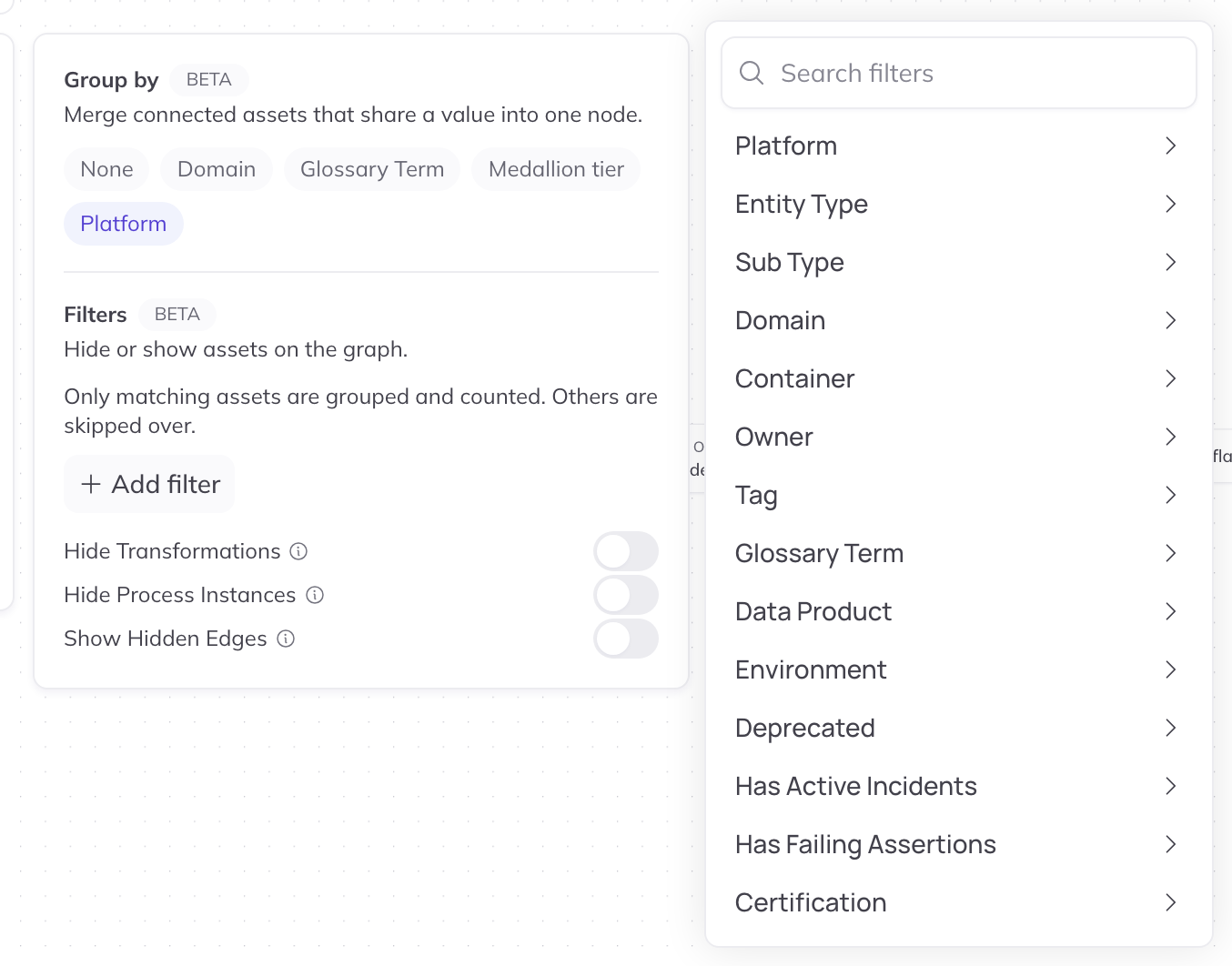
2. Under **Filters**, click **Add filter** and select a field.
3. Select the values to match. Values present in the asset's lineage are listed first, along with the number of assets that have each value. Use the search box to find other values of the field.
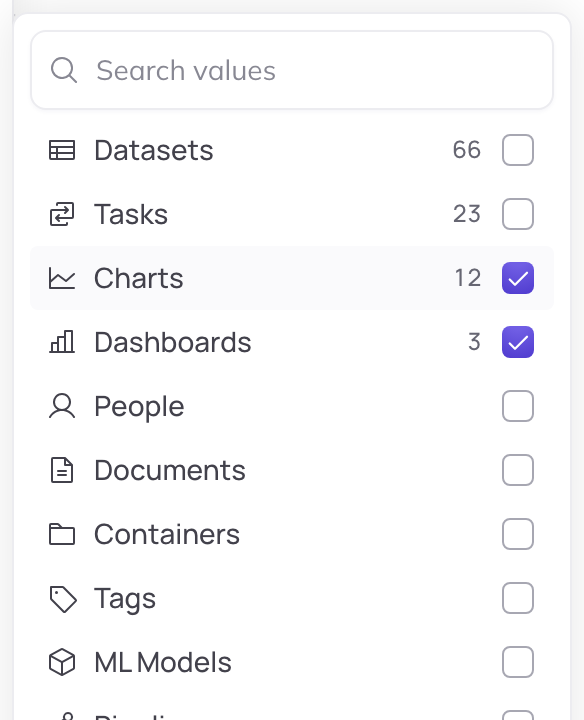
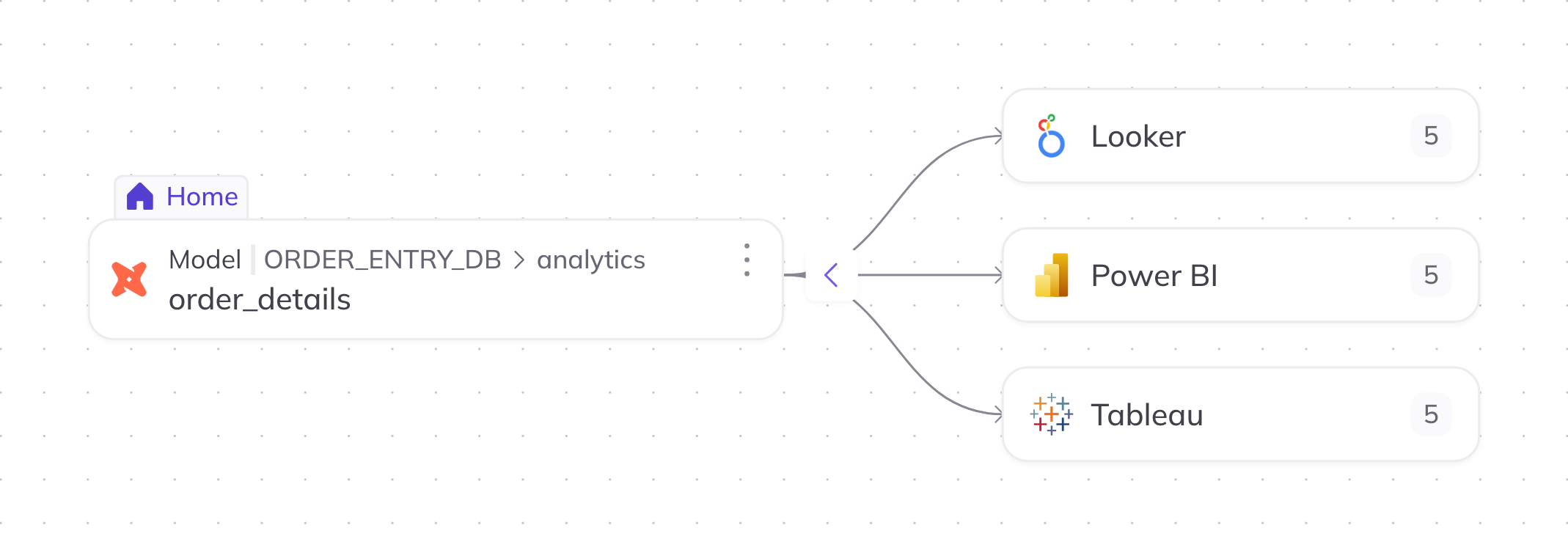
The filter is applied as soon as a value is selected, and appears as a chip, e.g. **Entity Type is any of Dashboards, Charts**. In the example below, this filter limits an asset's downstream lineage to the charts and dashboards it feeds, grouped by BI tool.
## Fields and Operators
Filters support the same fields as search, including **Platform**, **Domain**, **Entity Type**, **Owner**, **Tag**, **Glossary Term**, **Data Product**, **Container**, **Deprecated**, **Has Active Incidents**, **Has Failing Assertions**, **Certification**, and structured properties.
Click the operator on a chip to change it:
| Operator | Matches Assets That |
| ------------------ | -------------------------------- |
| **is** | Have any of the selected values |
| **is not** | Have none of the selected values |
| **exists** | Have any value for the field |
| **does not exist** | Have no value for the field |
When multiple values are selected, **is** and **is not** are displayed as **is any of** and **is none of**.
Each field can have one filter. When multiple filters are applied, you can choose whether assets must match **all** or **any** of them.
## Filters and Lenses
- Filters only apply while a lens is selected. Setting **Group by** to **None** keeps your filters but stops applying them until a lens is selected again.
- Filters are included in the page URL, so shared links open the same filtered view.
- **Hide Transformations** and **Show Hidden Edges** work alongside filters.
## Enabling This Feature
Lineage filters require both `LINEAGE_GROUP_BY_ENABLED` and `LINEAGE_FILTERS_ENABLED`. See [Enabling This Feature](overview.md#enabling-this-feature).