# Views
> **Availability:** Self-Hosted DataHub & DataHub Cloud
**Views** let you save a set of filters and reuse them across DataHub. When you activate a View, search results, browse pages, recommendations, and other asset lists are automatically narrowed to only the matching assets.
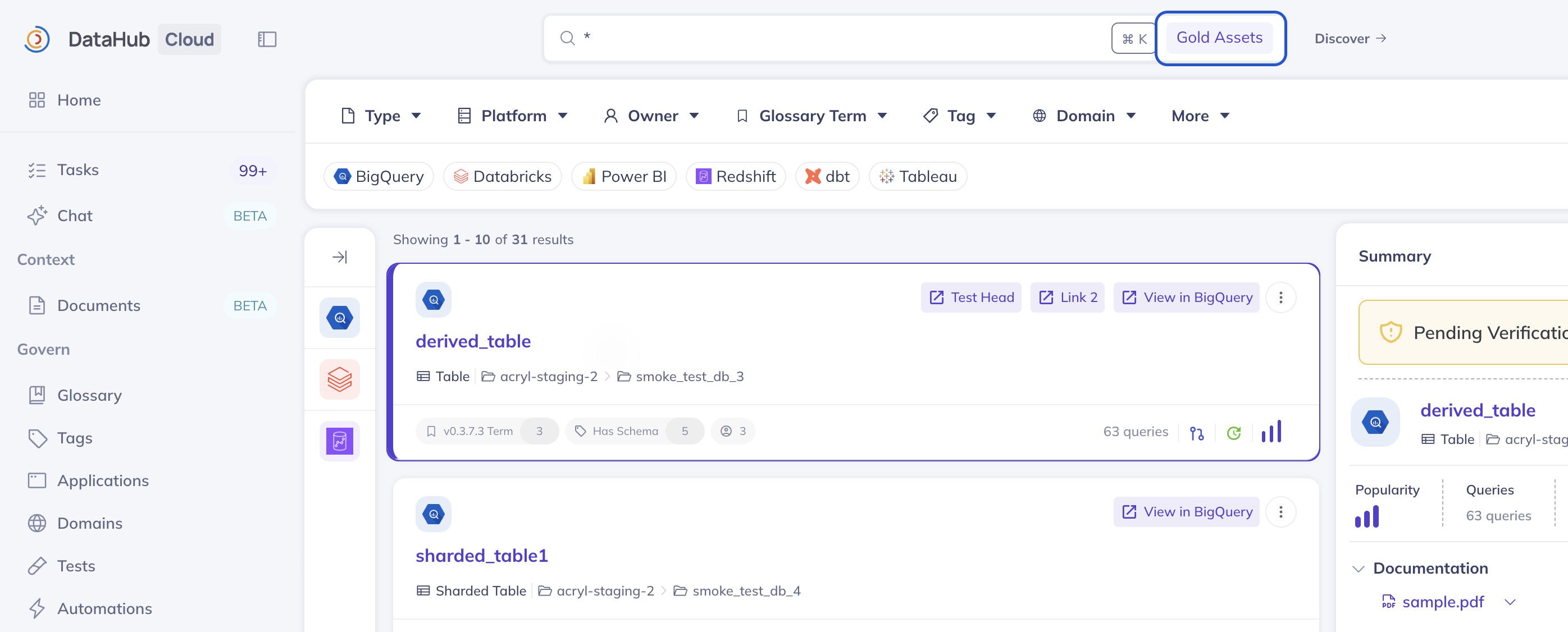
**Why use Views?**
- **Focus on what matters** — show only the assets owned by your team, within a specific domain, or on a particular platform.
- **Onboard new users faster** — set an organization-wide default so new users land on a curated, relevant slice of the catalog.
- **Scope AI agents** — assign a View to a [service account](/docs/features/feature-guides/service-accounts.md) so that [MCP server](/docs/features/feature-guides/mcp.md) searches stay within a defined boundary.
## Public vs. Personal Views
| Type | Visible to | Who can create | Can be set as |
| ---------------------- | ---------------- | -------------- | ------------------------------------- |
| **Public (Global)** | All users | Admins only | User, org, or service account default |
| **Personal (Private)** | Only the creator | Any user | User default only |
Any user can create **personal** views for their own use. **Public** views are shared across the organization and require the **Manage Public Views** platform privilege, which is granted to admins by default.
## Creating a View
1. Click the **View selector** in the search bar
2. Click **+ Create View** and choose **Public** or **Personal**
3. Name the View, pick your filters (entity types, platforms, domains, tags, owners, etc.), and click **Save**
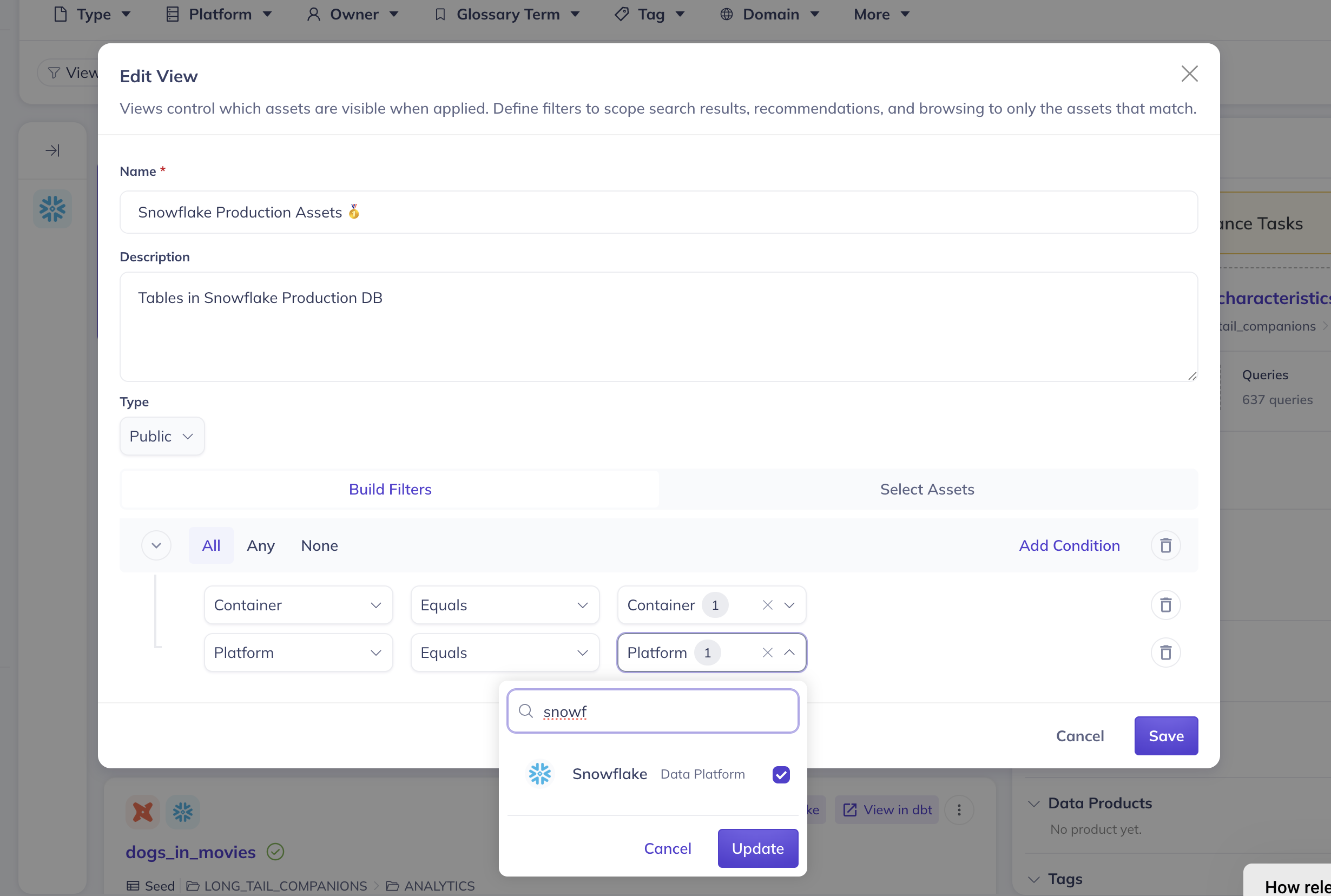
You can also save your current [search](/docs/how/search.md) filters as a View directly from the search results page.
## Editing and Deleting Views
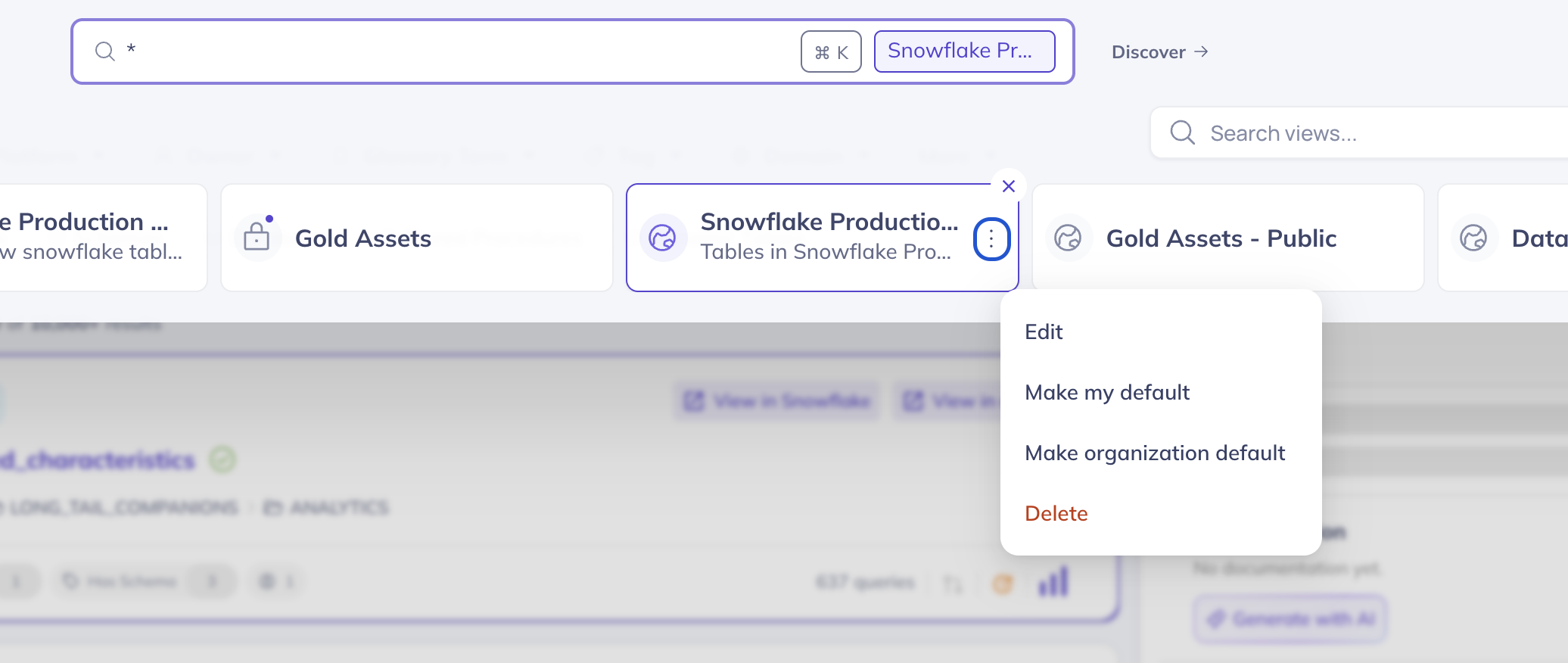
Open the View selector and click the **...** menu next to any View to rename it, update its filters, or delete it. Personal views can only be modified by their creator. Public views can be managed by any admin with the **Manage Public Views** privilege.
## Where Views Are Applied
An active View filters what you see across search results, the home page, domain pages, data product pages, quick filters, and entity counts in the navigation bar.
## Default Views
You can set a default View so it's applied automatically whenever you open DataHub, start an [Ask DataHub](/docs/features/feature-guides/ask-datahub.md) conversation, or query through the [MCP server](/docs/features/feature-guides/mcp.md). Defaults work at two levels.
### Personal Default
Any user can pick their own default via the **...** menu > **Make my default**. This can be any public or personal View.
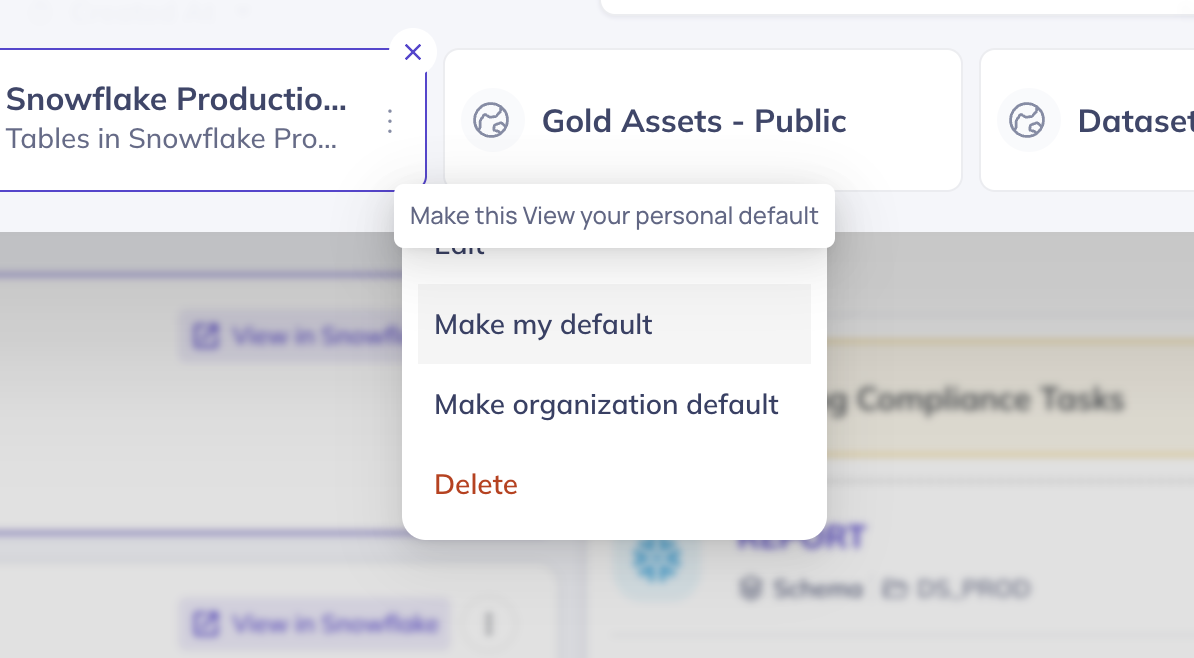
A personal default always takes priority over the organization default.
### Organization Default
Admins can designate one public View as the organization-wide default via the **...** menu > **Make organization default**. This kicks in for any user who hasn't chosen their own default. Requires the **Manage Public Views** privilege.
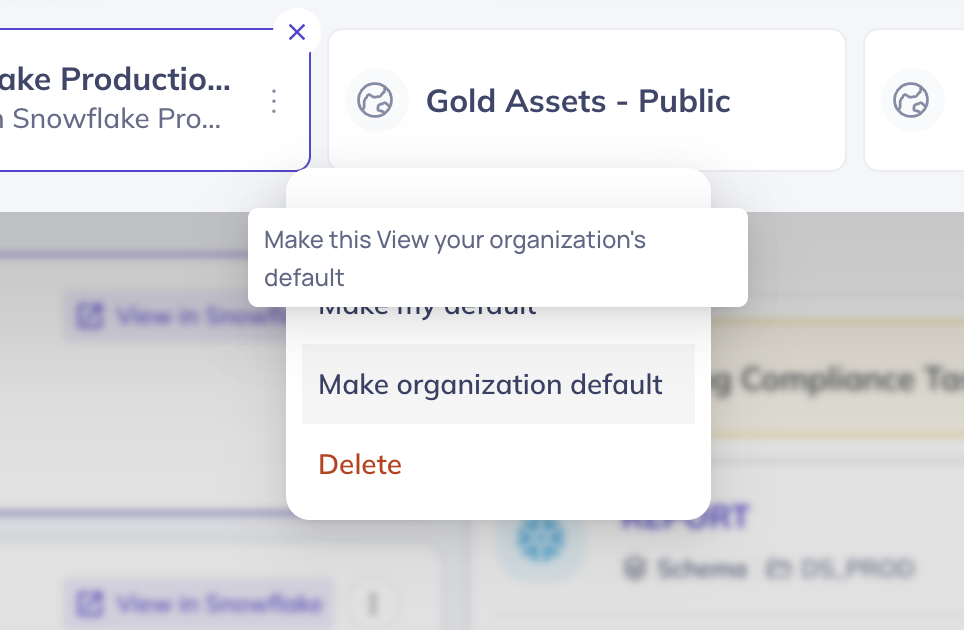
You can always switch or clear the active View during a session.
## Views in Ask DataHub
In [Ask DataHub](/docs/features/feature-guides/ask-datahub.md), click the **View selector** next to the chat input to pick any personal or public View. That View will scope every search the AI assistant makes during the conversation.
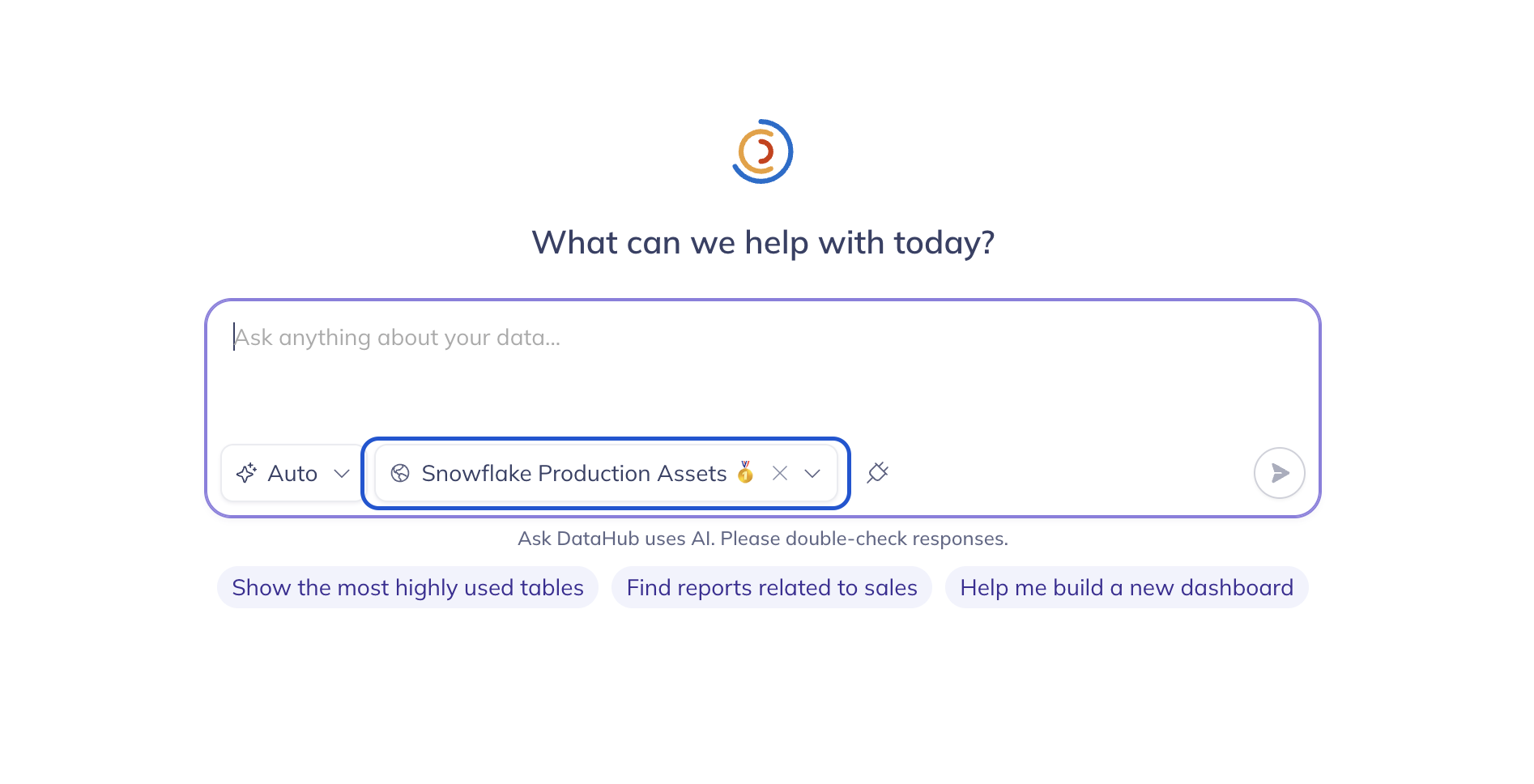
If you don't select a View, the organization default is used (when one is set).
:::note Slack & Microsoft Teams
In Slack and Microsoft Teams, the organization default View is always applied automatically.
:::
## Views for Service Accounts
You can assign a View to a [service account](/docs/features/feature-guides/service-accounts.md) so that all searches made through the [MCP server](/docs/features/feature-guides/mcp.md) are scoped to that View.
1. Go to **Settings > Users & Groups > Service Accounts**
2. Use the **Default View** dropdown to pick a public view
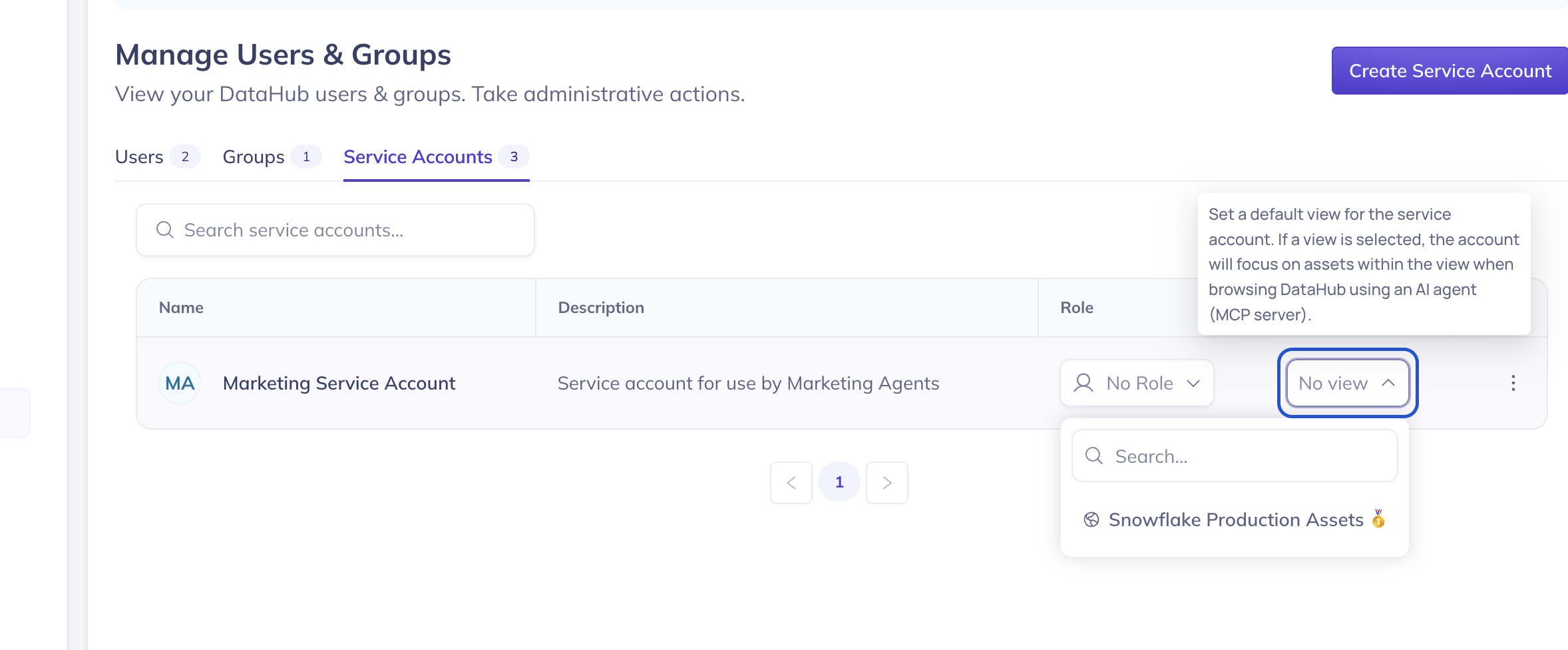
If no view is set on the service account, the organization default is used instead.
:::info Public Views Only
Only **public (global) views** can be assigned to service accounts. Personal views are not supported.
:::
**Example use cases:**
- Assign a "Marketing Data" View to your marketing team's AI agent.
- Create a "Production Only" View so an agent only searches production assets.
- Limit an agent to a single platform like Snowflake.
## Managing Views
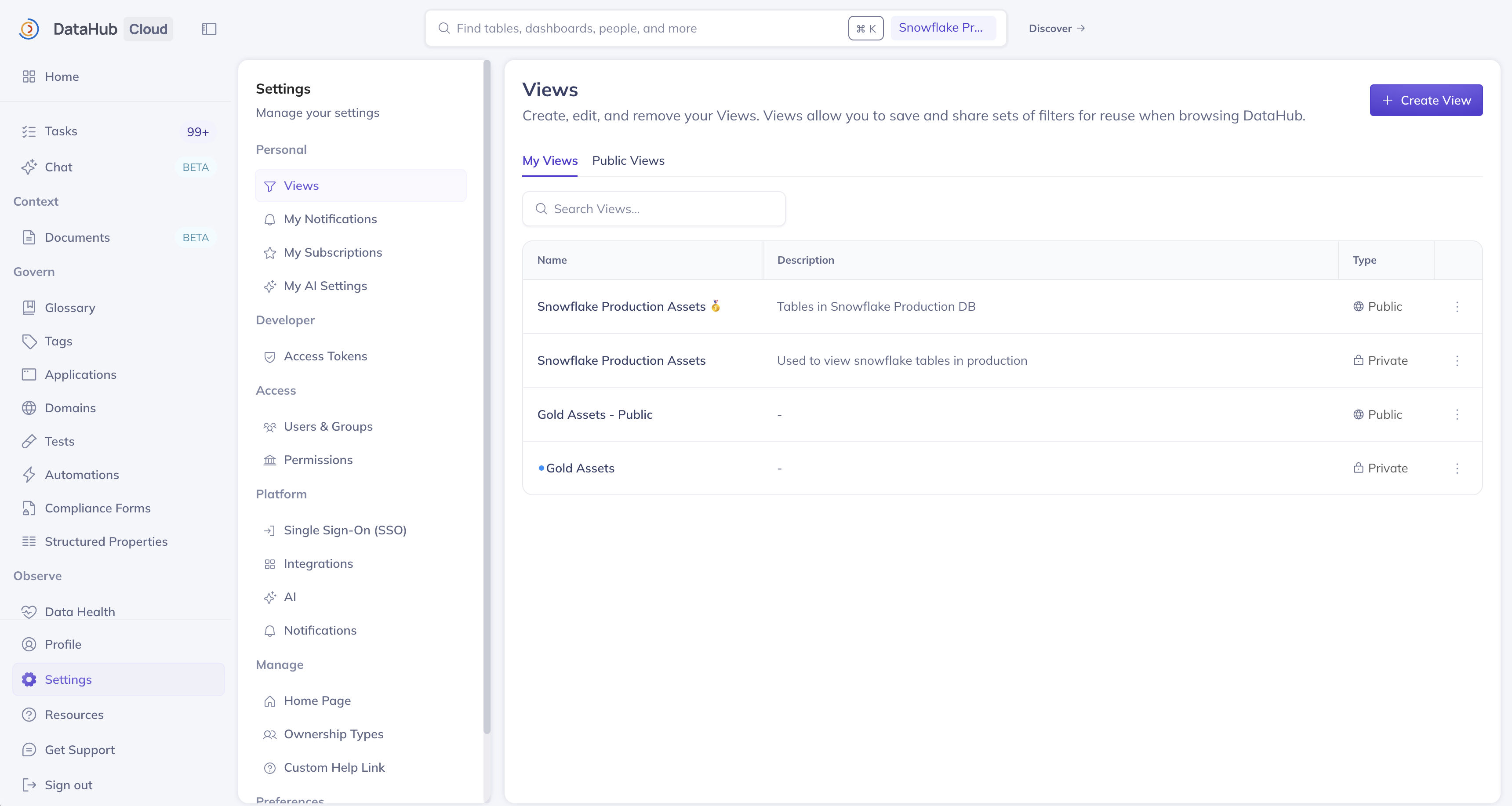
Go to **Settings > My Views** to see all your personal and public views in one place. From here you can create, edit, delete, or change defaults.
## Permissions
| Action | Who can do it |
| -------------------------------- | --------------------------------------- |
| Create a personal view | Any user |
| Create a public view | Admins with **Manage Public Views** |
| Edit / delete a personal view | The user who created it |
| Edit / delete a public view | Admins with **Manage Public Views** |
| Set personal default | Any user (for themselves) |
| Set organization default | Admins with **Manage Public Views** |
| Set service account default view | Admins with **Manage Service Accounts** |
## Advanced Usage
When using the CLI or GraphQL API directly, default Views are **not** applied automatically — you need to pass the View URN explicitly.
### CLI
Use the `--view` flag when searching:
```bash
datahub search "*" --view "urn:li:dataHubView:my-view-id"
```
See the [CLI search documentation](/docs/cli-commands/search.md) for more details.
### GraphQL API
Pass the `viewUrn` parameter on any search query:
```graphql
{
searchAcrossEntities(
input: { query: "*", count: 10, viewUrn: "urn:li:dataHubView:my-view-id" }
) {
total
searchResults {
entity {
urn
type
}
}
}
}
```
`viewUrn` is supported on `searchAcrossEntities`, `scrollAcrossEntities`, `aggregateAcrossEntities`, `browseV2`, and other search-related queries.