Search Access Controls
Search Access Controls with query-time filtering are a DataHub Cloud feature. On OSS, set VIEW_AUTHORIZATION_ENABLED=true for entity page gating — this does not filter search at query time. See Designing policies for view-based access control in the Policies Guide.
Search Access Controls allow organizations to restrict which entities users can discover through search results. This feature uses the View Entity permission to filter search results based on policies, ensuring users only see metadata they are authorized to access.
Key Concepts
View Entity Permission
The View Entity permission controls whether a user can discover and access an entity. When Search Access Controls are enabled:
- Users will only see entities in search results that they have been granted access to view
- Users cannot access restricted entities via direct URL
- Access control applies consistently across search, browse, and direct access
This unified approach ensures that access control is applied consistently regardless of how a user attempts to discover or view an entity.
Default Behavior
Without Search Access Controls enabled:
- All users can see all entities in search results
- No filtering is applied based on policies
When Search Access Controls are enabled:
- Search results are filtered based on the user's applicable policies
- Only entities matching at least one policy with the "View Entity" privilege are returned
- This creates a "default deny" model where explicit permission grants are required
Entity types that bypass view checks
When Search Access Controls are enabled, some entity types still bypass view authorization entirely and can appear
in search without a View Entity grant. The lean baseline is declared on entities in entity-registry.yml via
viewUnrestricted: true. Optional overlays use VIEW_UNRESTRICTED_ENTITY_TYPES (stock application CSV;
replacing it overrides that CSV, not the registry baseline) plus _ADD / _REMOVE. The add/remove overlays
mutate the effective defaults. All other types are restricted by default.
The effective defaults include the previous unrestricted CSV minus types already flagged in
entity-registry.yml. They do not include document, schemaField, or container — those types are
view-restricted by default when view authorization is on (container is no longer viewUnrestricted in the
registry). Do not add them via VIEW_UNRESTRICTED_ENTITY_TYPES_ADD unless you intentionally want view bypass.
These are GMS environment variables (see Environment Variables). The same list
applies to core view authorization when VIEW_AUTHORIZATION_ENABLED=true on DataHub Core deployments — that only
gates entity pages / post-search masking on OSS; query-time search filtering remains DataHub Cloud–only (see the
note at the top of this page). Breaking-change details: updating DataHub.
Columns (schemaField) after you restrict them
With schemaField view-restricted (the stock default), two different paths apply:
- Entity page / schema tab (VBAC) — Viewing a column inherits View Entity from the parent dataset encoded
in the schemaField URN (
urn:li:schemaField:(<datasetUrn>,<fieldPath>)), then falls back to a direct grant on the column URN. Users who can open a dataset can open its columns even when the column itself has no domains, owners, or containers. - Search results (SBAC, Cloud only) — Query-time filters still evaluate facets on the indexed hit. Column documents generally do not store parent domain, container, or owner fields, so those policy criteria do not match columns the way they match datasets.
Cloud SBAC limitations for schemaField:
| Policy shape | Datasets in search | Columns (schemaField) in search |
|---|---|---|
| Domain / container / resource-owner filters | Matched via facets on the dataset doc | Not matched — column docs lack those facets; there is no parent-domain/container/owner pushdown |
TYPE = dataset (alone or ANDed with other filters) | Matched | Excluded — the type clause requires dataset, so schemaField hits fail even if a sibling URN clause would match |
URN equals / starts-with on a dataset (and type is unset or includes schemaField) | Matched | Matched — Cloud expands URN filters with a prefix on urn:li:schemaField:(<datasetUrn>, |
So domain-scoped “View Entity on datasets in Finance” policies correctly hide Finance datasets from unauthorized
users and still allow authorized users to browse columns on the dataset page, but they will not list those
columns as separate search hits. To surface columns in search under SAC, use URN-scoped grants (without a
TYPE = dataset-only constraint), an explicit TYPE = schemaField policy, or keep schemaField unrestricted
(not recommended if columns must not leak in search).
DataHub Core does not implement this URN-prefix search pushdown; its VIEW_AUTHORIZATION_ENABLED only gates
entity pages / post-search masking.
Policy-Based Filtering
Search results are automatically filtered based on:
- Active policies that grant the "View Entity" privilege
How It Works
When a user performs a search:
- DataHub identifies all active policies that grant the "View Entity" privilege to the user
- For each policy, the resource filters are evaluated (domains, tags)
- Only entities matching at least one applicable policy are included in the search results
- The filtering happens at query time, ensuring consistent results across all search interfaces
The feature is enabled by your DataHub Cloud administrator. Contact your admin to enable Search Access Controls for your organization.
Peer Group Recommendations
When Search Access Controls are enabled, the "Most Popular" recommendations on the home page can also be filtered to prevent information leakage.
How Peer Groups Work
The peer group setting controls how "Most Popular" recommendations are calculated:
| Setting | Behavior |
|---|---|
| Peer Group Enabled | Recommendations show what users in your same groups have been viewing. This allows you to see popular assets among your peers while preventing visibility into what other teams are accessing. |
| Peer Group Disabled | Recommendations are based only on your own activity. You will only see assets you have previously viewed. |
This prevents scenarios where users could infer the existence of sensitive data by seeing it appear in "Most Popular" recommendations, even if they cannot access it directly.
Practical Scenario: Two Groups, Three Domains
This section walks through a complete example of setting up Search Access Controls for an organization with two teams that need different levels of access.
Business Context
An organization wants to ensure:
- Engineering can only discover engineering-related data
- Finance can only discover financial data
- Both teams need access to shared company metrics
Access Matrix
| Domain | Engineering Team | Finance Team |
|---|---|---|
| Engineering Data | Can View | Cannot View |
| Finance Data | Cannot View | Can View |
| Company Metrics | Can View | Can View |
Step 1: Create the Domains
Navigate to Settings > Domains and create the following domains:
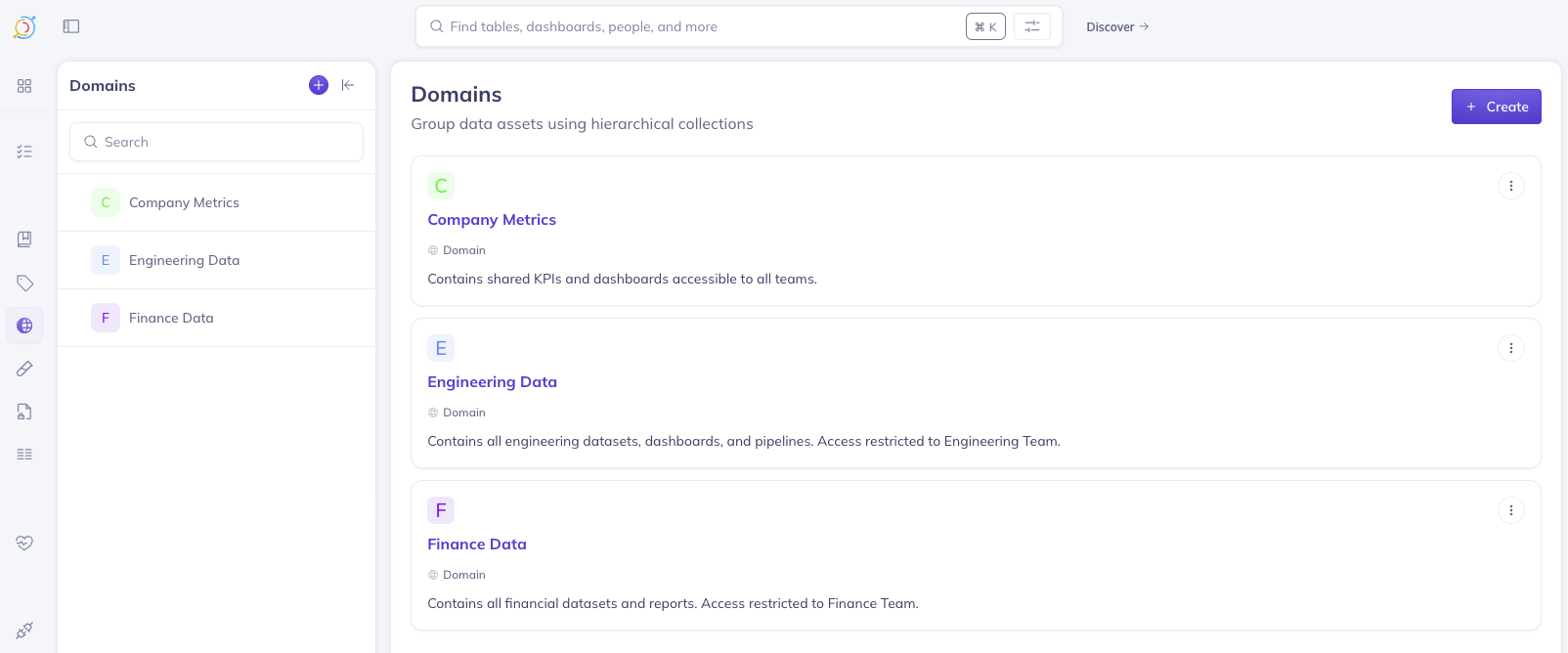
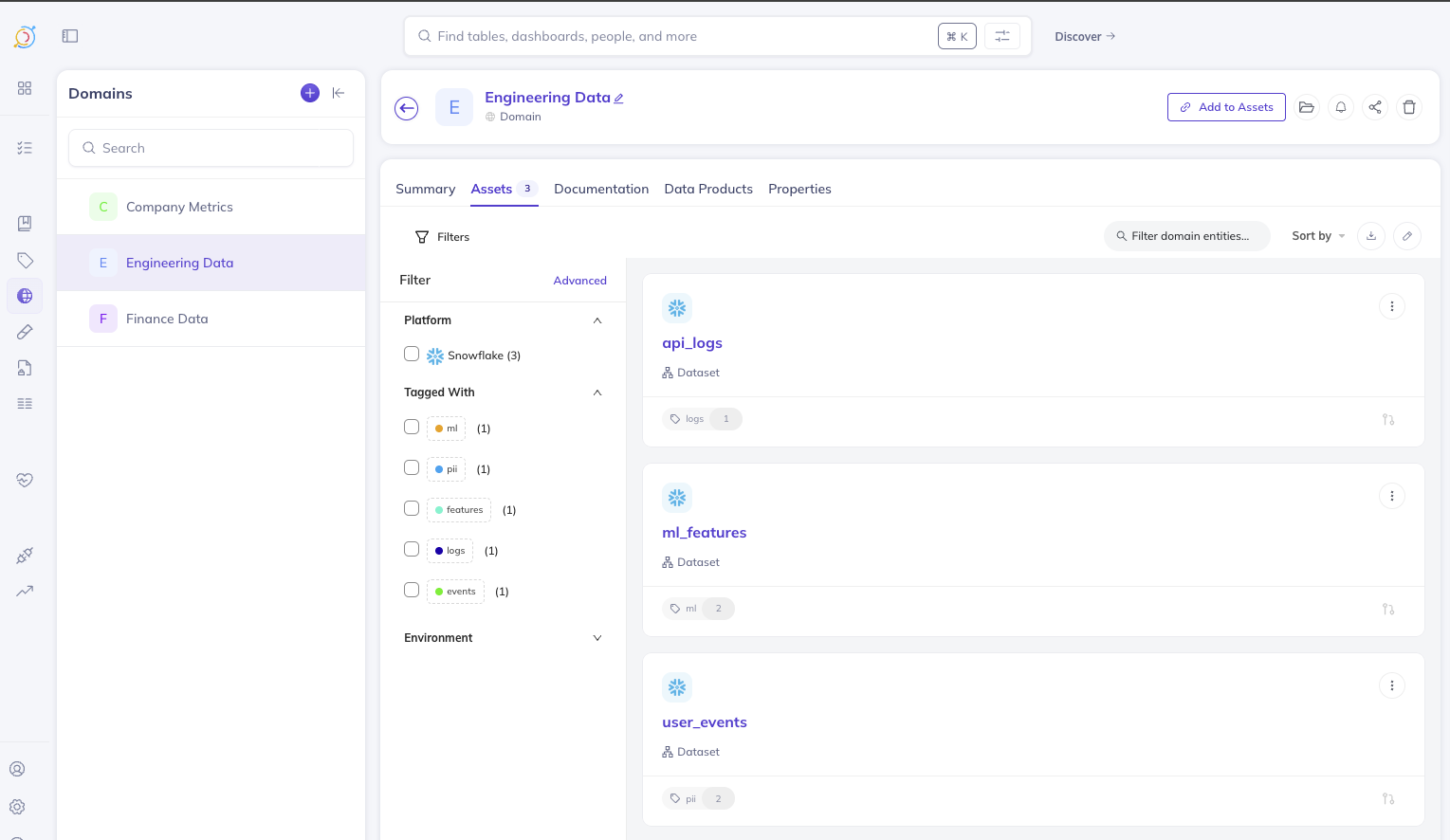
Engineering Data
- Description: Contains all engineering datasets, dashboards, and pipelines
- Assign all engineering-related assets to this domain
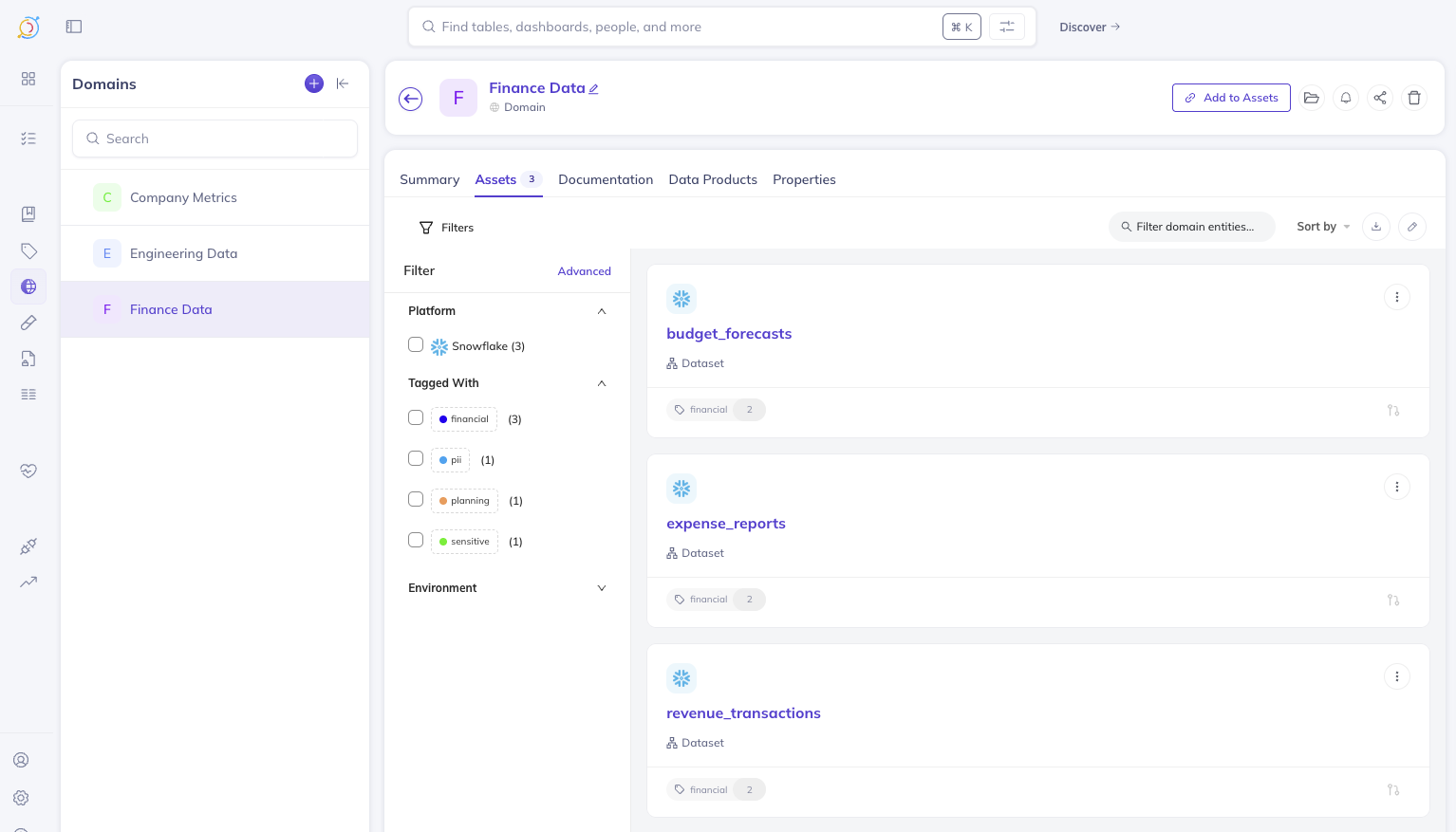
Finance Data
- Description: Contains all financial datasets and reports
- Assign all finance-related assets to this domain
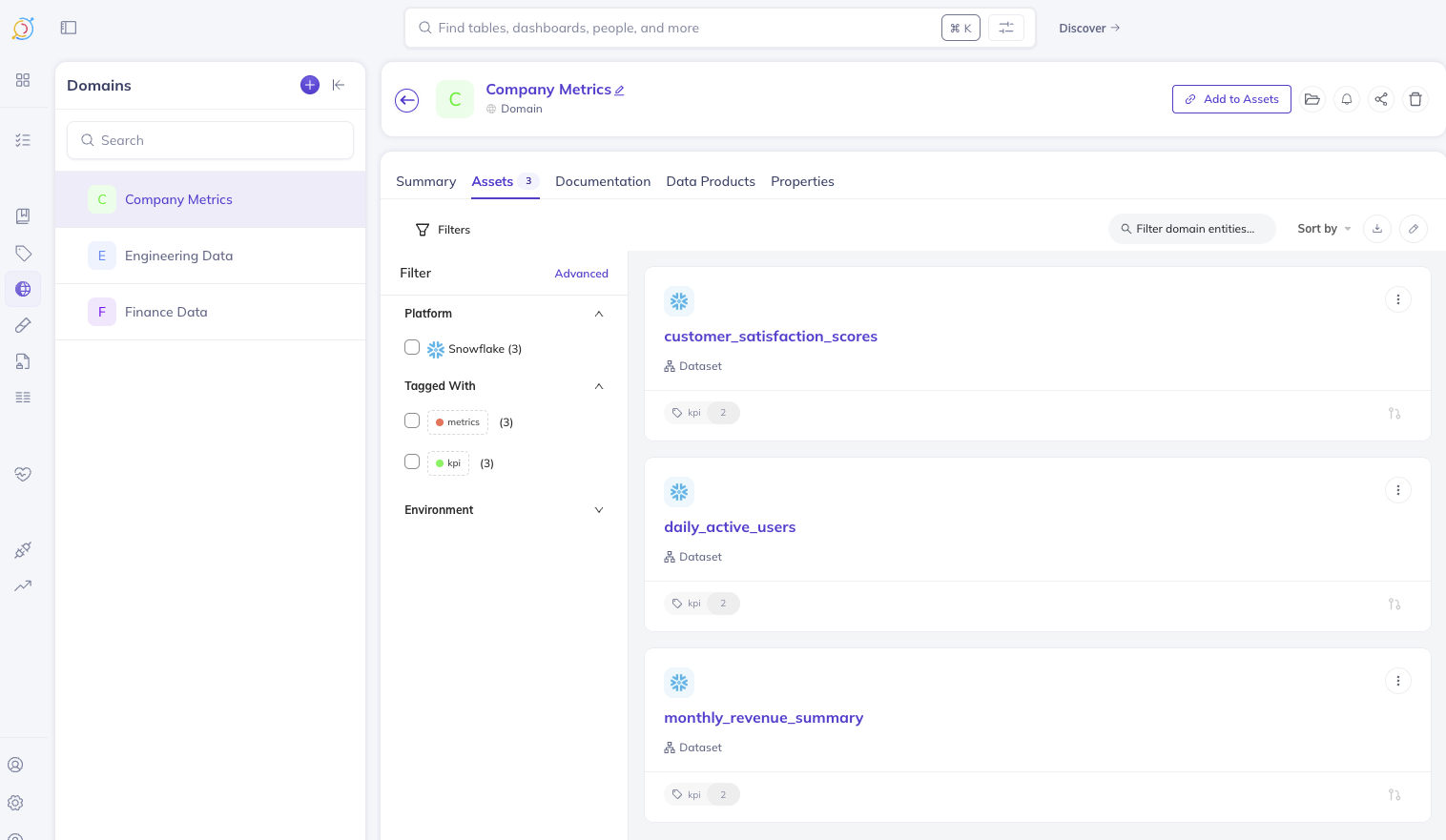
Company Metrics
- Description: Contains shared KPIs and dashboards accessible to all teams
- Assign cross-functional assets to this domain
 |  |  |
Step 2: Create the Groups
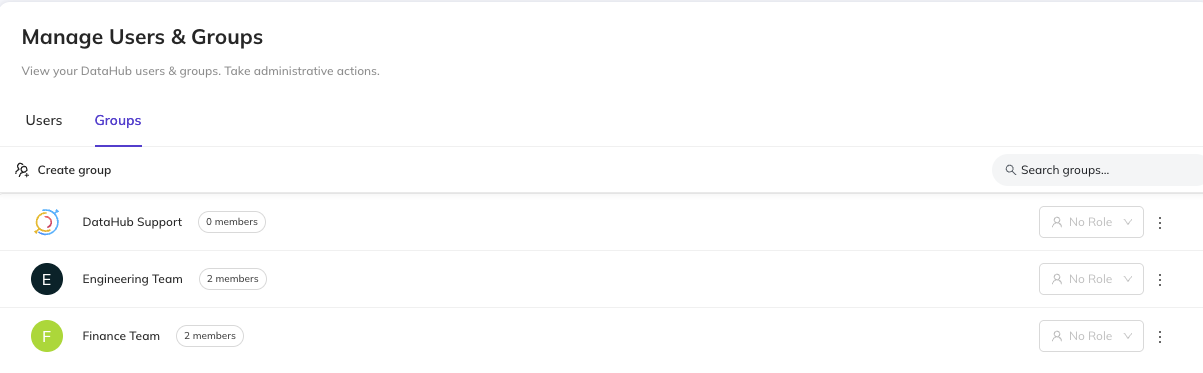
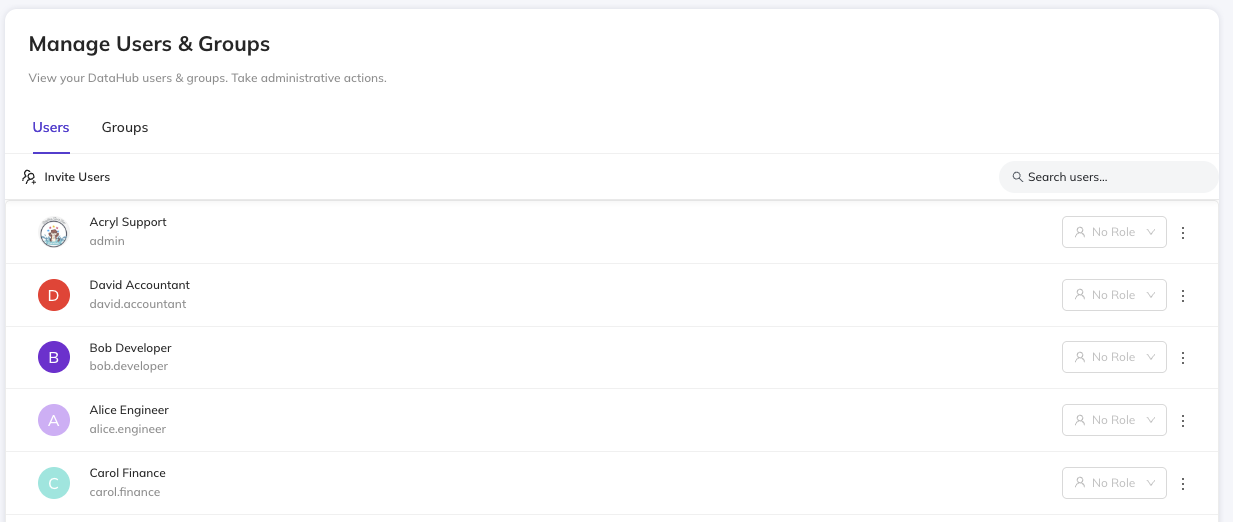
Navigate to Settings > Users & Groups > Groups and create:
- Engineering Team
- Add all engineering users as members
- Finance Team
- Add all finance users as members
 |  |
Step 3: Remove Default Read Access Policies
To ensure users can only see what they are explicitly granted access to, you must disable or remove the default read access policies:
- Navigate to Settings > Permissions > Policies
- Locate the default policies that grant "View Entity" to "All Users"
- Disable or delete these policies
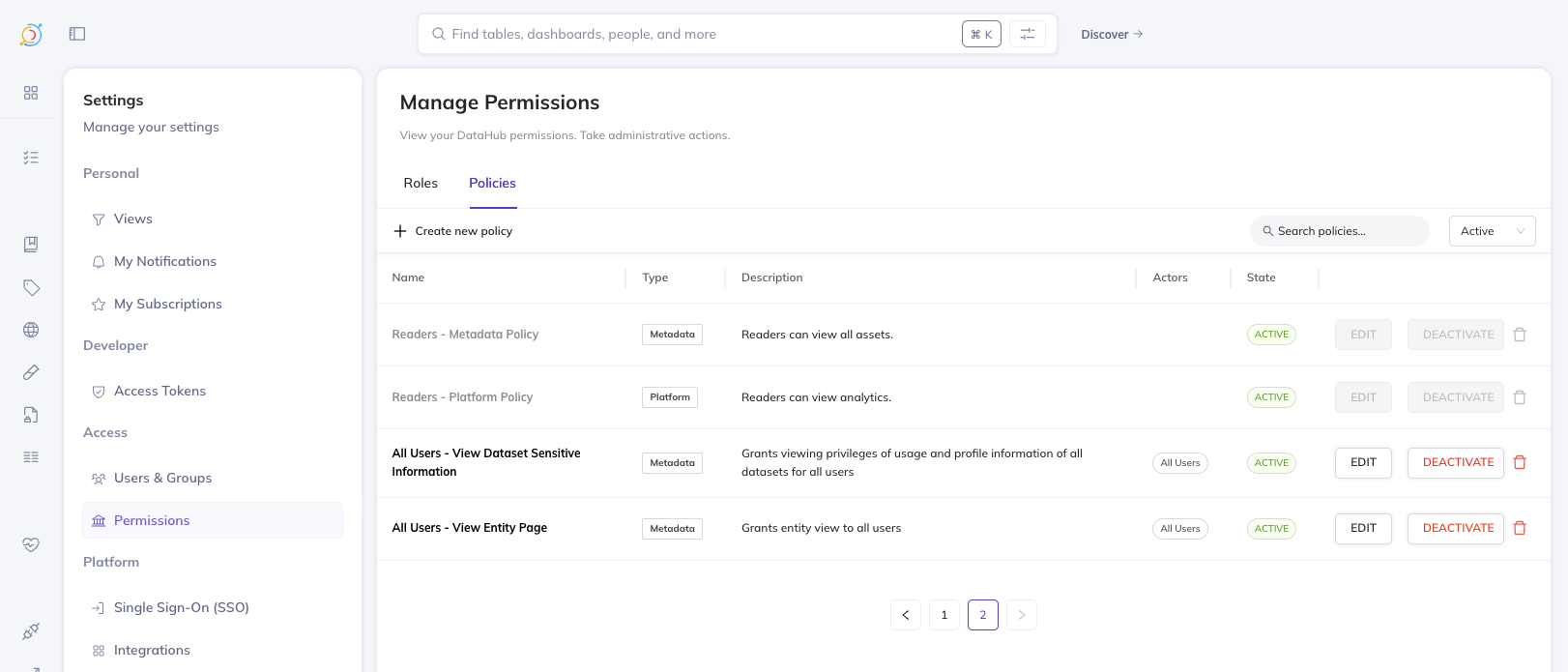
Removing the default read access policies means users will not see any entities in search results until you create explicit access policies. Plan your access policies before making this change.
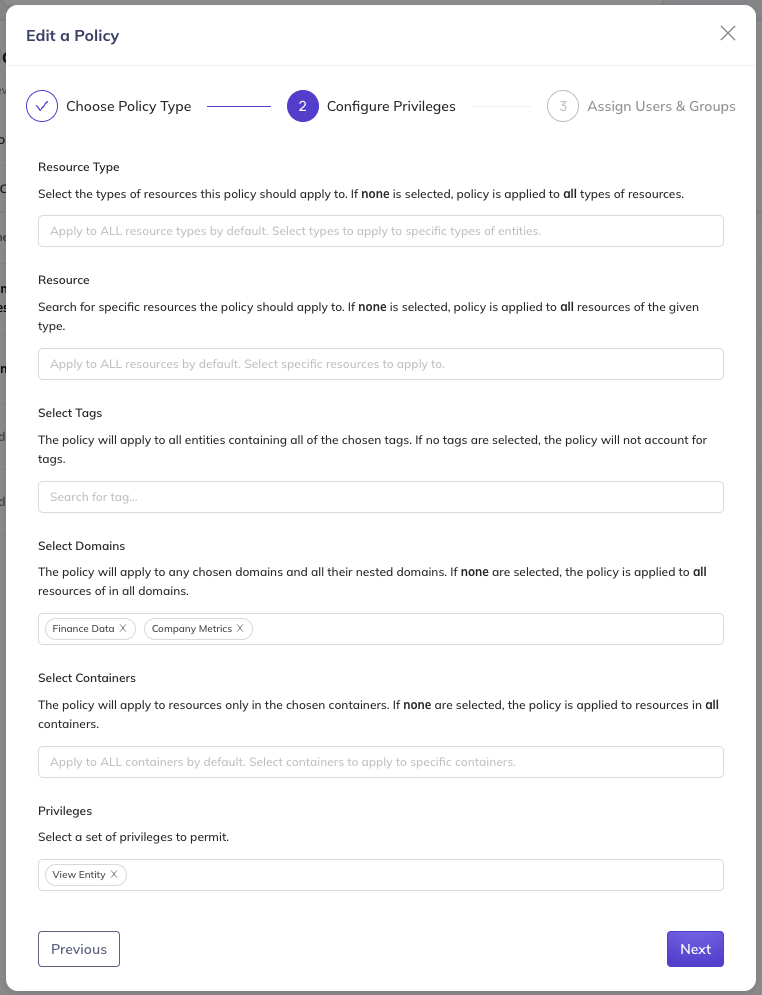
Step 4: Create Engineering Access Policy
Navigate to Settings > Permissions > Policies and click Create Policy:
- Policy Name: Engineering Team - View Access
- Policy Type: Metadata Policy
- Privileges: Select View Entity
- Actors:
- Select the Engineering Team group
- Resources:
- From the Domain list, select Engineering Data and Company Metrics
- Click Save
Step 5: Create Finance Access Policy
Create another policy with:
- Policy Name: Finance Team - View Access
- Policy Type: Metadata Policy
- Privileges: Select View Entity
- Actors:
- Select the Finance Team group
- Resources:
- From the Domain list, select Finance Data and Company Metrics
- Click Save
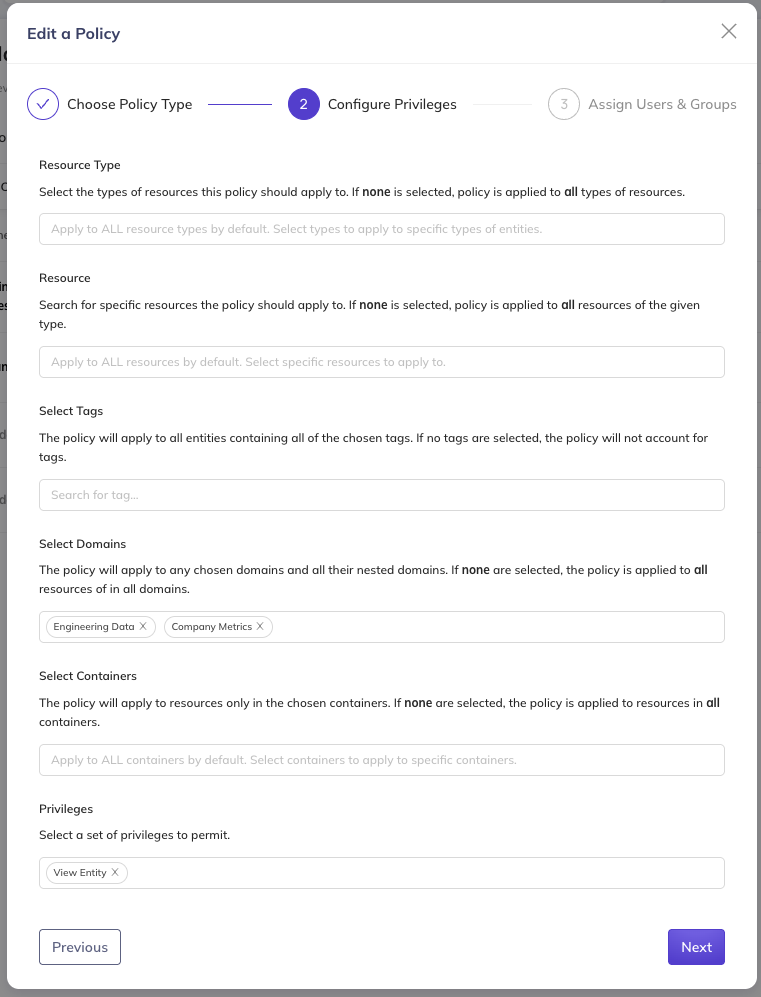 |  |
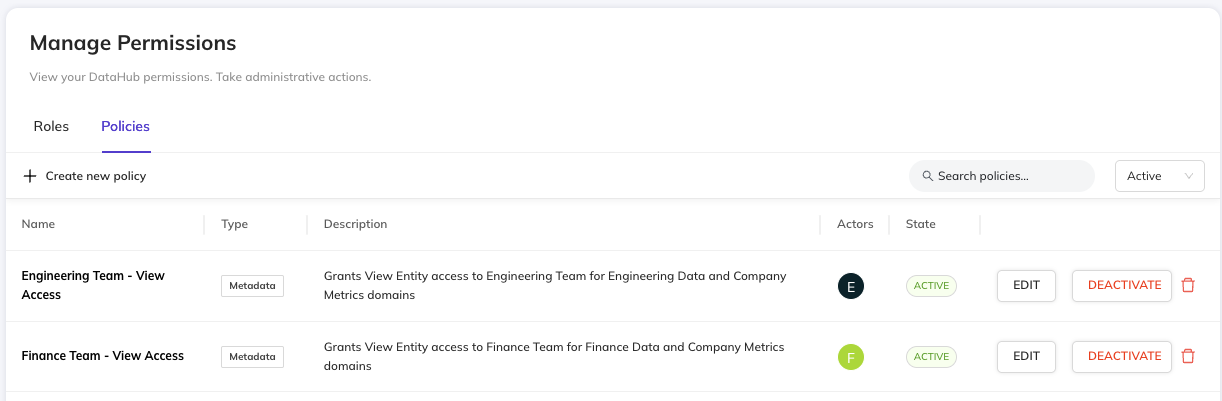
After creating both policies, you can view all configured view access policies:
Step 6: Verify the Configuration
Now let's verify that the access controls are working correctly by logging in as users from each group.
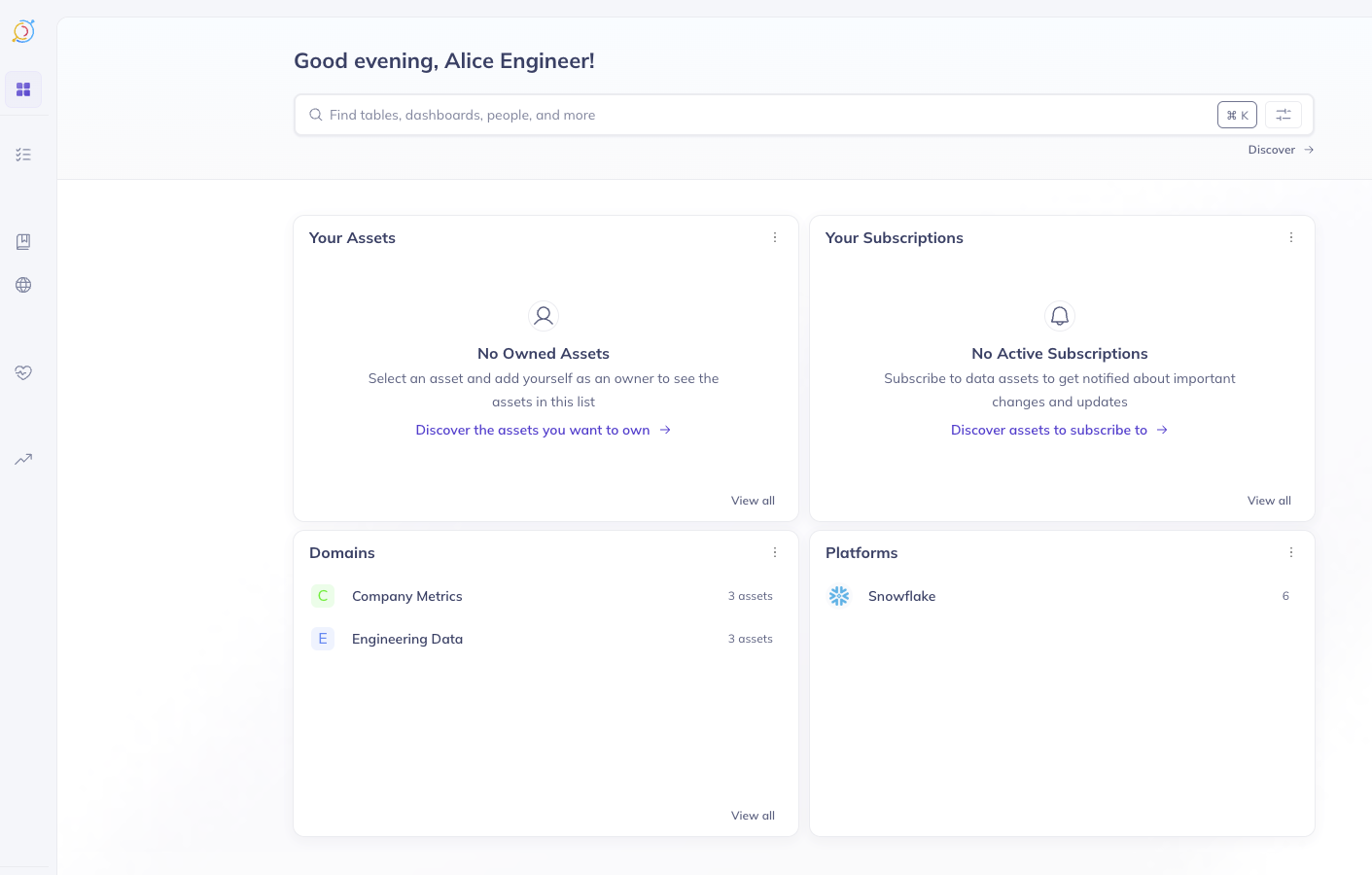
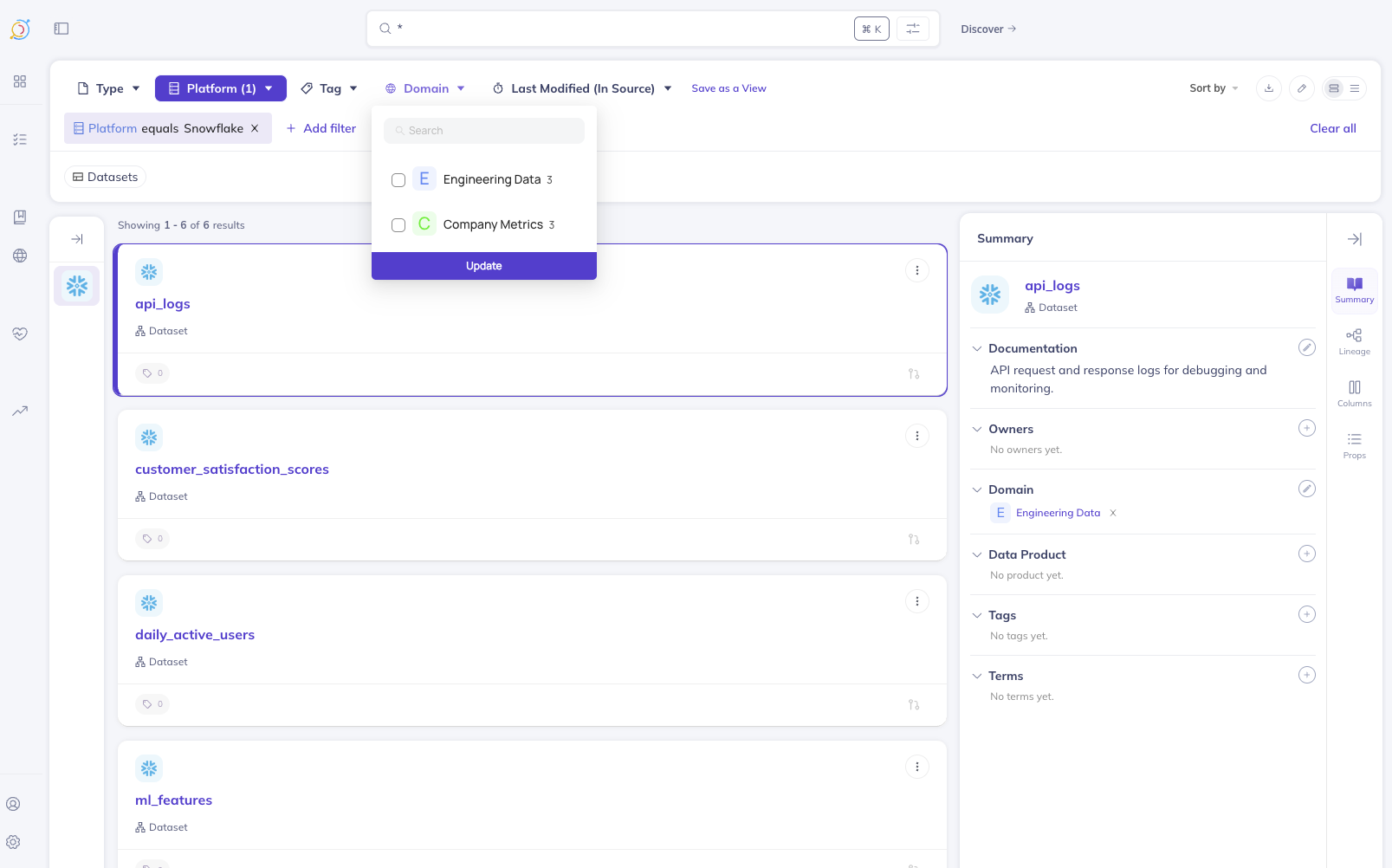
Alice (Engineering Team)
When Alice logs in and searches, she can only discover entities in the Engineering Data and Company Metrics domains:
 |  |
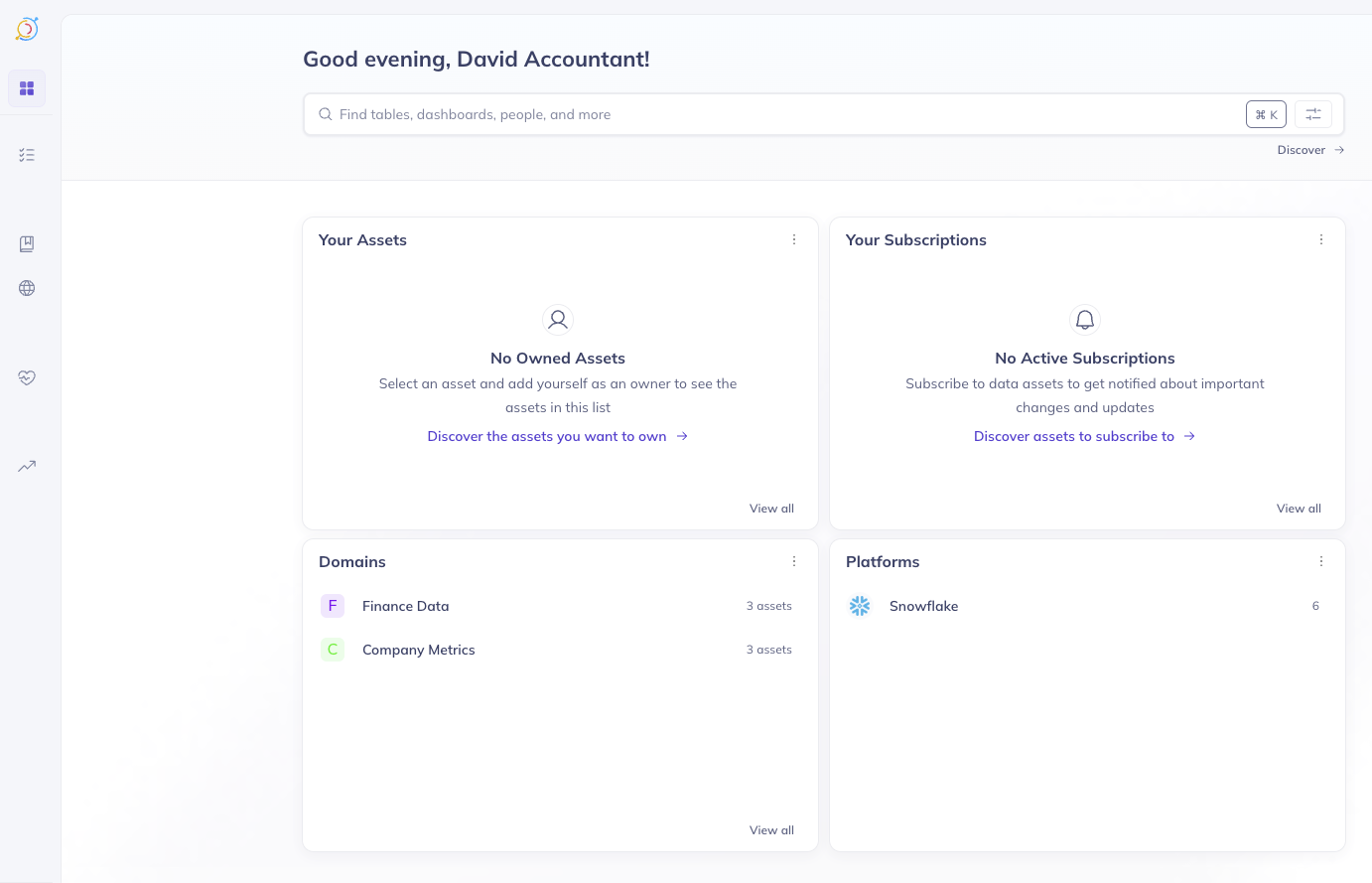
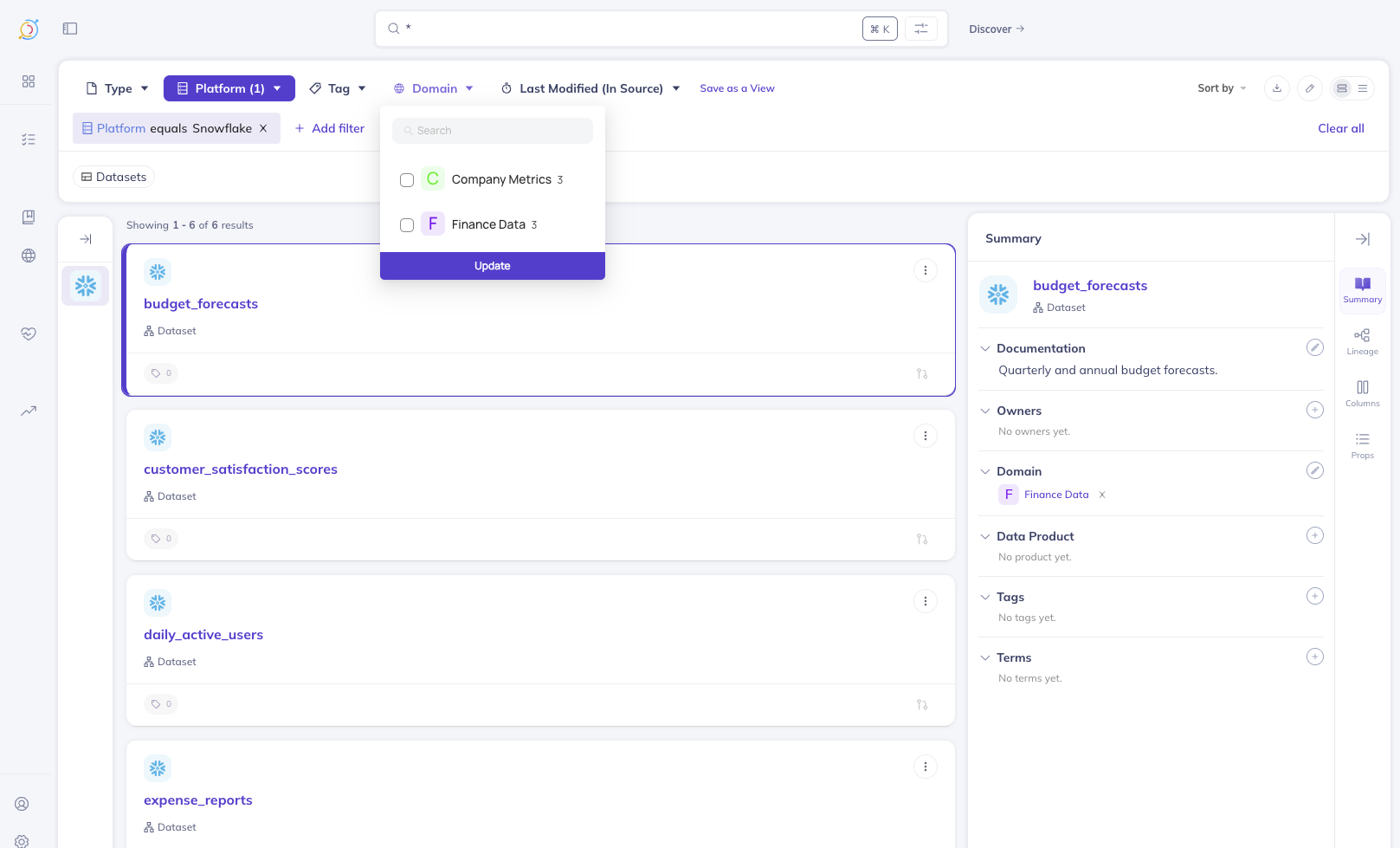
David (Finance Team)
When David logs in and searches, he can only discover entities in the Finance Data and Company Metrics domains:
 |  |
Important Considerations
Domain Assignment
- All entities should be assigned to domains for this approach to work effectively
- Entities without a domain assignment will not be matched by domain-based policies
- Consider creating a catch-all policy or default domain for unassigned entities
Platform Administrators
- Users with platform administrator privileges bypass Search Access Controls
- Admin users will see all entities regardless of policies
- Use admin accounts only when necessary
Roles
- All roles (Admin, Editor, Reader) override view-based access policies
- Users assigned any role will be able to see all entities regardless of domain-based View Entity policies
- When configuring Search Access Controls, ensure users are not assigned any role if you want to restrict their access
Consistent Access Control
- The View Entity permission applies to both search results and direct URL access
- Users without permission cannot discover entities in search or access them via direct link
- This ensures consistent access control regardless of how users attempt to view entities
Resource Filter Types
Policies can filter resources by:
- Domain: Most common for organizational boundaries
- Tag: Useful for classification-based access (e.g., PII, Confidential) or granting access to specific entities
FAQ
What happens if an entity has no domain assigned?
Entities without a domain will not match domain-based policies. These entities will only be visible to users with policies that:
- Grant access to all resources (no resource filter)
- Use other filter types (tags) that match the entity
How do I grant access to specific entities rather than domains?
Use tags to identify specific entities that should be accessible. Create a tag (e.g., "Finance Approved") and apply it to the entities you want to grant access to. Then create a policy with a tag-based resource filter. This approach is more maintainable than URN-based policies since you can easily add or remove entities by updating tags.
Can I use tags instead of domains for access control?
Yes. Instead of domain filters, select "Tag" as the resource filter type. This is useful when your access boundaries align with data classification rather than organizational structure.
How do I troubleshoot when a user cannot see expected results?
- Verify the user is a member of the correct group
- Check that the policy is active (not disabled)
- Confirm the entity is assigned to the correct domain/has the correct tags
- Verify the policy includes the "View Entity" privilege
- Check that no conflicting deny policies exist
- Remember that platform admins see all entities regardless of policies
Do Search Access Controls affect the GraphQL API?
Yes. The same filtering applies to programmatic access via the GraphQL API. Users will only receive entities they have permission to view.
Why do users still see columns (schemaField) without View Entity grants?
Stock unrestricted overlays omit schemaField (and document / container). If users can still open columns
without a grant, check whether schemaField was re-added through VIEW_UNRESTRICTED_ENTITY_TYPES or _ADD, or
whether they inherit View Entity from the parent dataset encoded in the schemaField URN. See
Entity types that bypass view checks.
Why don’t columns appear in search for users who can see the parent dataset?
Entity-page access inherits from the parent dataset, but Cloud search filtering does not. Domain, container,
and resource-owner policies match facets on the search document; column docs usually lack those facets.
Policies that set TYPE = dataset also exclude schemaField hits. URN-scoped dataset grants can match columns
via a Cloud-only URN prefix. See
Columns (schemaField) after you restrict them.
Can I create a policy that denies access instead of granting it?
DataHub policies are grant-based. To deny access, you must remove the grant. Note that you also need to disable or remove the default read access policies that grant "View Entity" to all users (see Step 3 above). Once the default policies are removed and Search Access Controls are enabled, users have no access until explicitly granted.