Asset Profiles
Every asset in DataHub — datasets, dashboards, charts, pipelines, ML models, domains, glossary terms, and more — has a profile page. The profile brings together everything known about the asset in one place, so you can understand what it is, where it comes from, who owns it, and whether you can trust it.
What's on an Asset Profile
Header
The header shows the asset's name, platform, type, and container path (for example, the database and schema a table lives in). The Sync Status indicator in the header shows when the asset was last seen by an ingestion run, so you can tell at a glance whether its metadata is fresh.
Tabs
The tabs available depend on the asset type and the metadata that has been ingested. For a dataset, these typically include:
| Tab | What it shows |
|---|---|
| Summary | A curated overview of the asset. See Asset Summaries. |
| Columns | The schema, with column-level descriptions, tags, glossary terms, and schema history. |
| View Definition | The SQL definition, for views. |
| Documentation | Rich-text documentation, including images and file attachments (see below), plus related links. |
| Lineage | Upstream and downstream dependencies. See Lineage. |
| Properties | Custom and Structured Properties. |
| Queries | Popular and recent queries run against the asset. See Dataset Usage and Query History. |
| Stats | Profiling statistics and usage over time. |
| Quality | Assertions and Data Contracts. |
| Governance | Results of Metadata Tests. |
| Incidents | Open and resolved Incidents. |
Tabs that have no data yet (for example, Queries or Stats before usage has been ingested) are greyed out.
Sidebar
The sidebar summarizes key context about the asset: Ownership, Domain, Data Product, Tags, Glossary Terms, Structured Properties, and more. You can edit most of these directly from the sidebar if you have the appropriate privileges.
Attaching Files to Documentation
You can enrich asset and column documentation with images, diagrams, and other supporting files. Images are displayed inline; other file types appear as download links.
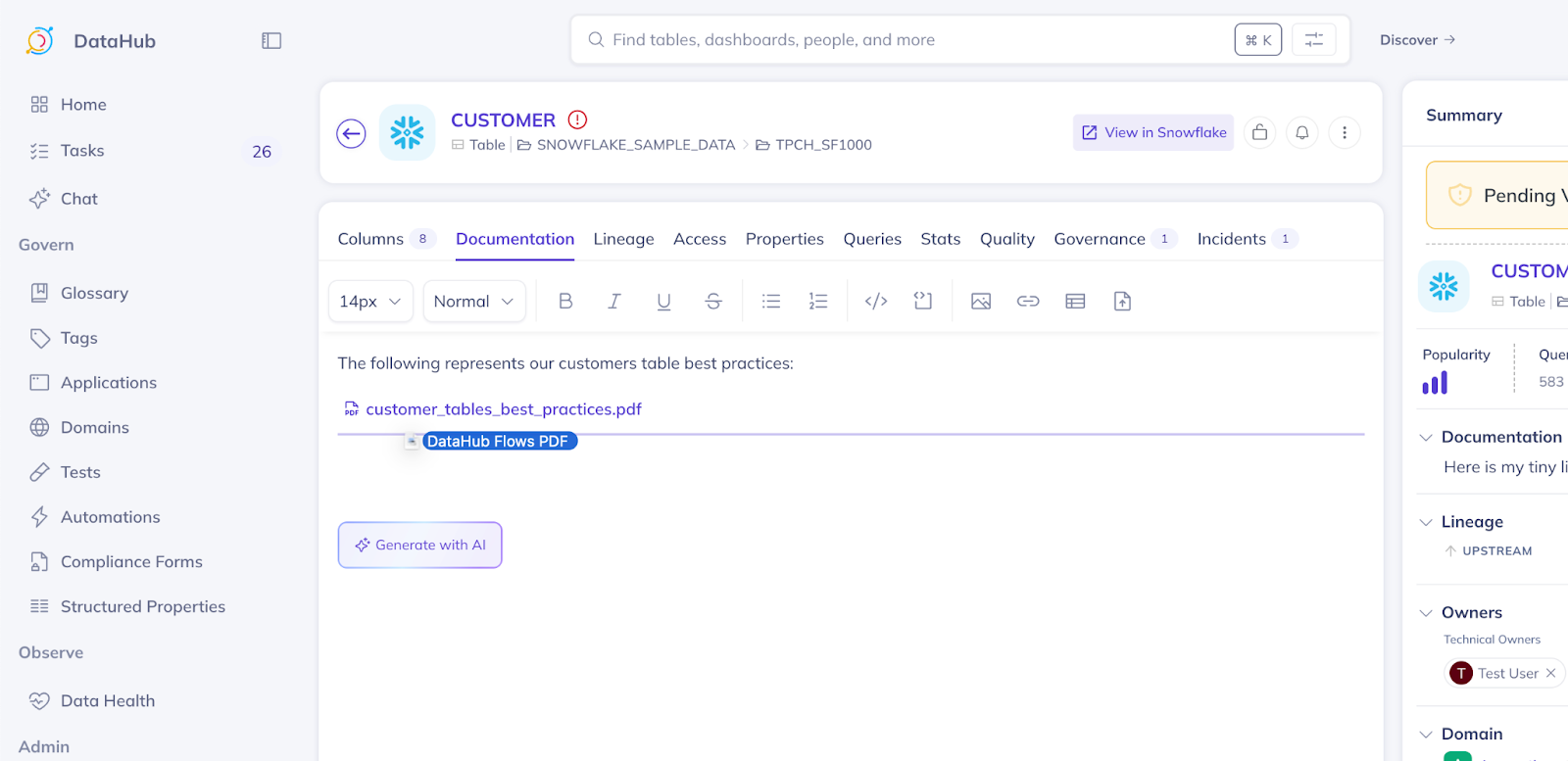
Uploading Files
- Navigate to the asset or column you want to document and open the documentation editor.
- Drag and drop a file into the editor, or click the upload button in the toolbar and choose a file.
- Save your documentation changes.
Files are uploaded as soon as they are added to the editor, even before you save.
How Files Are Stored and Secured
Each uploaded file is tracked as a dataHubFile entity that records its MIME type, size, original filename, and the asset or column it was uploaded to. Files are stored in S3.
When a user downloads a file, DataHub checks that they have permission to view the asset or column the file was uploaded to. Users without that permission cannot download the file, even with a direct link.
Setting Up File Uploads
File uploads require DataHub to be deployed on AWS with access to an S3 bucket. Set the following environment variables on the GMS service:
# S3 bucket where uploaded files are stored
DATAHUB_BUCKET_NAME=your-datahub-files-bucket
# IAM role DataHub assumes to read and write files in the bucket
DATAHUB_ROLE_ARN=arn:aws:iam::123456789012:role/DataHubFileAccessRole
The IAM role must:
- Grant
s3:PutObject,s3:GetObject, ands3:DeleteObject(used to clean up unused files) on the bucket. - Have a trust relationship that allows the identity GMS runs as to assume the role.
The bucket also needs a CORS policy that accepts uploads from your DataHub host URL.
Troubleshooting File Uploads
- Uploads fail: Check that
DATAHUB_BUCKET_NAMEnames an existing bucket,DATAHUB_ROLE_ARNpoints to an existing role, the role's trust relationship lets GMS assume it, the role hass3:PutObject, and the bucket's CORS policy allows your host URL. - Downloads fail: Confirm the user can view the asset the file was uploaded to, the role has
s3:GetObject, and the file still exists in S3. - AWS authentication errors: Confirm DataHub is deployed on AWS and GMS has credentials or an instance profile that can assume the role.