Analytics Agent
An open-source agent that lets you ask data questions in plain English and get SQL, results, and charts back — grounded in your DataHub catalog. Apache 2.0, bring your own LLM. Read the announcement blog post.
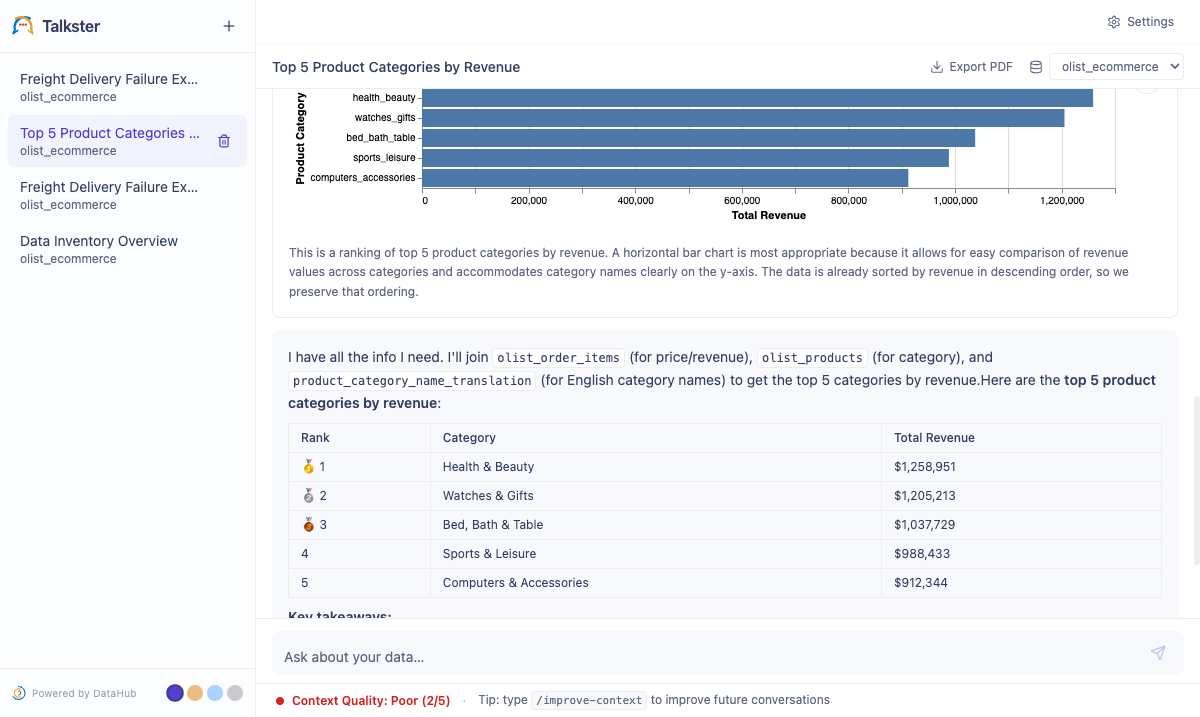
What you can do
| Capability | What it does |
|---|---|
| Plain English → SQL → Chart | Ask "Top 5 categories by revenue last quarter" — the agent searches DataHub for context, writes SQL, runs it, and auto-renders a chart. No SQL required. |
| Follow up naturally | "Make it a pie chart", "filter to Q3", "break that down by region" — the agent maintains full conversation context across turns. |
| See why the answer is what it is | Every tool call and SQL step is visible and expandable. No black box. |
| Know when to trust it | A live context quality score (1–5) tells you how well your DataHub catalog supported each answer. Hover for the LLM's reasoning. |
| Improve your catalog from chat | Type /improve-context to get a numbered list of documentation improvements the agent wishes it had. Approve the ones you want, and the agent writes them back to DataHub. |
Quickstart
There are two ways to try Analytics Agent. Option A is the fastest — it installs the agent as a CLI tool and runs it against your own warehouse. Option B spins up a local DataHub instance preloaded with sample data, so you can try the full DataHub-grounded experience end-to-end without connecting anything of your own.
Option A — pip / uvx (recommended, no Docker)
You'll need: Python 3.11+ and an LLM API key (Anthropic, OpenAI, or Google).
pip install datahub-analytics-agent
analytics-agent quickstart

# Or with uv (no virtualenv to manage):
uvx datahub-analytics-agent quickstart
This starts the server at http://localhost:8100 and opens a browser setup wizard where you pick a provider, model, and API key. Config and the local database live under ~/.datahub/analytics-agent/. Re-running analytics-agent quickstart relaunches without prompting; use analytics-agent quickstart --reconfigure to reopen the wizard.
This path launches the agent on its own — it does not stand up a DataHub instance or load demo data. Connect your own DataHub and warehouse from Settings → Connections, or use Option B to explore with sample data first.
Option B — Docker + sample data (full demo)
The script spins up a local DataHub instance, loads a sample retail dataset, and launches the agent — so you can try it end-to-end without connecting your own data.
You'll need:
- Docker (running)
- Python 3.11+
- DataHub CLI —
pip install acryl-datahub uv—brew install uvor install from docs.astral.sh/uv- An LLM API key from Anthropic, OpenAI, or Google
Analytics Agent is tested on macOS and Linux. Windows users should run setup through WSL2 — the quickstart script is bash-based.
git clone https://github.com/datahub-project/analytics-agent.git
cd analytics-agent
bash quickstart.sh
Most of that time is Docker pulling DataHub images on first run. Subsequent runs take 3–6 minutes.
When it finishes, open http://localhost:8100. A two-step setup wizard will:
- Ask you to name your agent
- Ask you to pick a provider, model, and API key
(If you already have ANTHROPIC_API_KEY, OPENAI_API_KEY, or GOOGLE_API_KEY set in your shell, the agent will be pre-configured with that provider when the browser opens.)
Try your first question:
"What are the top product categories by number of orders?"
You should see the agent search DataHub, write SQL, and render a chart in 10–20 seconds.
Manual setup
Use this when you're connecting Analytics Agent to your own DataHub instance and warehouse — instead of running the bundled local DataHub + sample data demo from Quickstart.
Quickstart (Option B) spins up a local DataHub instance and loads sample data inside Docker. Manual setup runs the agent natively (no Docker) against an existing DataHub instance and warehouse you already have. Use Quickstart to evaluate; use Manual for real deployments.
Step 1 — Clone and install
You'll need Python 3.11+, uv, mise (manages Node 22 and pnpm), and make.
git clone https://github.com/datahub-project/analytics-agent.git
cd analytics-agent
mise install        # installs Node 22 + pnpm (reads .mise.toml)
make install        # runs: uv sync + pnpm install
Without make
uv sync
cd frontend && pnpm install && cd ..
Copy the config templates:
cp .env.example .env
cp config.yaml.example config.yaml
All secrets go in .env. The config.yaml holds connection topology — no credentials there.
Step 2 — Connect to DataHub
Analytics Agent works with any DataHub instance. Cloud users get additional context capabilities (automations, semantic enrichments) that improve answer quality.
- DataHub Cloud
- DataHub Core
# Authenticate via the DataHub CLI (writes to ~/.datahubenv)
datahub init --sso \
  --host https://your-org.acryl.io/gms \
  --token-duration ONE_MONTH
Analytics Agent reads ~/.datahubenv automatically. No extra config needed.
# Authenticate via the DataHub CLI
datahub init \
  --host http://your-datahub-host:8080 \
  --username datahub \
  --password datahub
Or set the environment variables directly in .env:
DATAHUB_GMS_URL=http://your-datahub-host:8080
DATAHUB_GMS_TOKEN=your-token-here
Step 3 — Configure your LLM
Add one of the following to your .env:
- Anthropic (recommended)
- OpenAI
- AWS Bedrock
LLM_PROVIDER=anthropic
ANTHROPIC_API_KEY=sk-ant-...
Get an API key at console.anthropic.com.
LLM_PROVIDER=openai
OPENAI_API_KEY=sk-...
Get an API key at platform.openai.com.
LLM_PROVIDER=google
GOOGLE_API_KEY=...
Get an API key at aistudio.google.com.
LLM_PROVIDER=bedrock
AWS_REGION=us-west-2
LLM_MODEL=us.anthropic.claude-sonnet-4-5-20250929-v1:0
Bedrock requires full inference-profile model IDs (e.g. us.anthropic.claude-sonnet-4-5-20250929-v1:0). The standard AWS credential chain (env vars, ~/.aws/credentials, IAM role) is used by default. To override, set AWS_ACCESS_KEY_ID / AWS_SECRET_ACCESS_KEY (and optionally AWS_SESSION_TOKEN for STS).
Step 4 — Add a SQL engine
Define a connection upfront in config.yaml, or add one from the Settings UI after starting.
- Snowflake
- BigQuery
- MySQL
- DuckDB
- Hive
- SQLAlchemy (other)
# config.yaml
engines:
  - type: snowflake
    name: prod
    connection:
      account: "${SNOWFLAKE_ACCOUNT}" # e.g. xy12345.us-east-1
      user: "${SNOWFLAKE_USER}"
      warehouse: "${SNOWFLAKE_WAREHOUSE}"
      database: "${SNOWFLAKE_DATABASE}"
      schema: "${SNOWFLAKE_SCHEMA}"
Snowflake authentication options
Snowflake supports five authentication methods:
| Method | How to configure |
|---|---|
| Password | Username + password in the connection form or .env |
| Private key (RSA) | Generate a key pair, upload the public key to Snowflake, then set SNOWFLAKE_PRIVATE_KEY (base64-encoded PEM) in .env |
| SSO (browser) | Settings → Connections → Authentication → SSO — opens a browser login flow |
| PAT (Personal Access Token) | Settings → Connections → Authentication → PAT |
| OAuth | Settings → Connections → Authentication → OAuth — browser-based OAuth flow |
# config.yaml
engines:
  - type: bigquery
    name: prod
    connection:
      project: "${BIGQUERY_PROJECT}"
      dataset: "${BIGQUERY_DATASET}" # optional default dataset
      credentials_path: "${BIGQUERY_CREDENTIALS_PATH}"
project is required; dataset is optional. Provide credentials with exactly one of three keys (checked in this priority order): credentials_json (raw JSON), credentials_base64 (base64-encoded JSON), or credentials_path (path to a JSON key file). Set the matching BIGQUERY_CREDENTIALS_* value in .env — see .env.example for all three.
# config.yaml
engines:
  - type: mysql
    name: analytics_db
    connection:
      host: "${MYSQL_HOST}"
      port: 3306
      user: "${MYSQL_USER}"
      password: "${MYSQL_PASSWORD}"
      database: "${MYSQL_DATABASE}"
Add a DuckDB connection from Settings → Connections → Add Connection. Point it at a local .duckdb file. No authentication required.
Add a Hive connection from Settings → Connections → Add Connection. Supply the host, port, and auth mode (NONE, NOSASL, LDAP, PLAIN, or KERBEROS) in the form — no config.yaml entry required.
# config.yaml
engines:
  - type: sqlalchemy
    name: my_db
    connection:
      url: "postgresql+psycopg2://${DB_USER}:${DB_PASSWORD}@${DB_HOST}:5432/${DB_NAME}"
Any dialect supported by SQLAlchemy works — PostgreSQL, Redshift, and more.
Step 5 — Start the server
make start
Without make
cd frontend && pnpm build && cd ..
uv run analytics-agent bootstrap
uv run uvicorn analytics_agent.main:app --port 8100
Database migrations and config seeding run automatically via the bootstrap step (included in make start) — no manual alembic upgrade needed for first launch.
Open http://localhost:8100, complete the setup wizard if prompted, and start asking questions.
Using Analytics Agent
Writing good questions
The agent performs best when your DataHub catalog has documentation. But even without it, these practices help:
- Be specific about the metric — "Revenue by product category" is clearer than "show me sales data".
- Mention the time range — "Last 30 days", "Q3 2024", "year to date".
- Name the dimensions you care about — "Broken down by region and platform".
- Follow up freely — you don't need to repeat context. "Filter that to mobile only" works after a chart is on screen.
Context quality score
Every answer shows a context score from 1 to 5 in the chat status bar (visible after the second message in a conversation).
| Score | What it means |
|---|---|
| 5 | The agent found detailed documentation for every concept in your question. |
| 3–4 | Partial documentation — some tables or metrics were well-documented, others weren't. |
| 1–2 | The agent had to rely mostly on schema introspection and naming conventions. |
Hover the score to see what the agent found, what was missing, and what it had to infer. A low score tells you exactly where to focus catalog documentation.
/improve-context — write back to your catalog
Type /improve-context after any conversation. The agent reflects on what it just answered, identifies gaps, and proposes a numbered list of improvements — typically 3–5 items, each labeled [New doc], [Update existing doc], or [Fix description].
Approve which proposals to publish:
all— accept everything- Specific numbers (e.g.
1, 3) — accept only those none— skip publishing
After approval, the agent writes the changes to DataHub: entity and column descriptions, glossary updates, or new Reference documents. Your DataHub user/token must have permissions to edit entity descriptions and manage documentation.
Writes are powered by the Save correction skill, which is enabled by default. If you've toggled it off, the agent falls back to presenting the proposed updates as copyable markdown so you can apply them manually.
This is the loop: ask → answer → identify gap → improve catalog → next answer is better.
Write-back skills
Two write-back skills are available, both enabled by default:
| Skill | What it does | How to invoke |
|---|---|---|
| Publish analysis | Saves the analysis as a DataHub Document (subtype Analysis) in the Knowledge Base, under Shared → Analyses with private, team, or org-wide visibility. | Natural language: "publish this analysis" |
| Save correction | Writes corrections back to DataHub — either updating entity or column descriptions directly, or creating Reference documents. Used by /improve-context to apply approved proposals; also invokable directly. | Natural language: "save this correction" |
Toggle them under Settings → Connections → click your DataHub connection card.
Customizing the agent
The system prompt lives at backend/src/analytics_agent/prompts/system_prompt.md. Edit it to add:
- Preferred table naming conventions for your org
- Business rules the agent should always follow
- Output format preferences (e.g. always show a table alongside the chart)
Changes take effect on the next request — no server restart needed. You can also override the prompt per-instance under Settings → Prompt.
How it works
Analytics Agent sits between your people, your DataHub catalog, and your SQL warehouse. When you ask a question, it doesn't go straight to the database — it reads your documentation first, runs the SQL, and writes back what it learns.
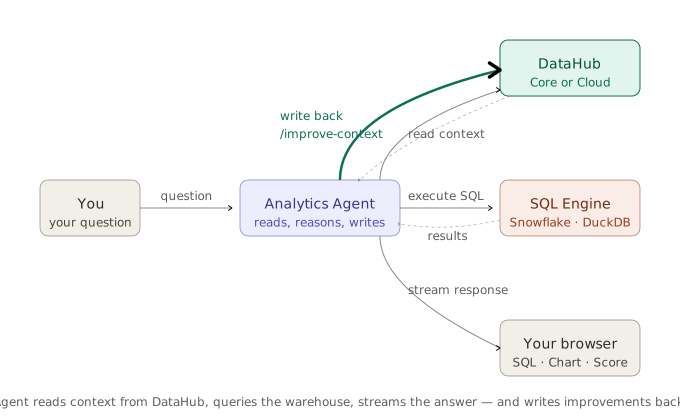
The agent follows a strict priority order every time you ask something:
- Search business documentation first — DataHub for definitions, metrics, domain knowledge. What your docs say is authoritative over naming conventions.
- Discover datasets — searches the asset catalog for relevant tables, dashboards, or pipelines.
- Inspect schemas and metadata — column descriptions, owners, tags, classifications.
- Check lineage — picks the right table (e.g. a
PRODview instead of aSTAGINGsource). - Review query history — sees how a dataset has been queried before.
- Write and execute SQL — only after gathering context.
If the agent finds a conflict between what your docs say and what the data shows — for example, a metric defined as "trailing 30 days" but no recent rows in the data — it stops and asks you rather than silently overriding your documentation.
Configuration reference
LLM model defaults
Defaults are set per-provider. The agent uses the same provider for all four model tiers.
| Provider | Main agent (LLM_MODEL) | Chart / Quality / Delight |
|---|---|---|
| Anthropic (recommended) | claude-sonnet-4-6 | claude-haiku-4-5-20251001 |
| OpenAI | gpt-4o | gpt-4o-mini |
gemini-2.0-flash | gemini-1.5-flash | |
| AWS Bedrock | us.anthropic.claude-sonnet-4-5-20250929-v1:0 | us.anthropic.claude-haiku-4-5-20251001-v1:0 |
Model tiers:
| Tier | Env var | Used for |
|---|---|---|
| Main | LLM_MODEL | SQL reasoning, agent thinking |
| Chart | CHART_LLM_MODEL | Vega-Lite chart generation |
| Quality | QUALITY_LLM_MODEL | Context quality scoring |
| Delight | DELIGHT_LLM_MODEL | Conversation titles, time-of-day greetings |
For complex multi-table queries or large schemas, try a stronger model on LLM_MODEL (e.g. claude-opus-4-7 if using Anthropic). The other three tiers don't need a large model.
All environment variables
# ── DataHub ──────────────────────────────────────────────────────────
DATAHUB_GMS_URL=https://your-org.acryl.io/gms    # overrides ~/.datahubenv
DATAHUB_GMS_TOKEN=eyJhbGci...                     # overrides ~/.datahubenv

# ── LLM ──────────────────────────────────────────────────────────────
LLM_PROVIDER=anthropic                  # anthropic | openai | google | bedrock | openai-compatible
ANTHROPIC_API_KEY=sk-ant-...
LLM_MODEL=claude-sonnet-4-6
CHART_LLM_MODEL=claude-haiku-4-5-20251001
QUALITY_LLM_MODEL=claude-haiku-4-5-20251001
DELIGHT_LLM_MODEL=claude-haiku-4-5-20251001
# For OpenAI-compatible endpoints (LiteLLM, vLLM, Ollama):
# LLM_PROVIDER=openai-compatible
# OPENAI_COMPATIBLE_BASE_URL=https://your-proxy/v1
# OPENAI_COMPATIBLE_API_KEY=sk-...

# ── SQL engines ───────────────────────────────────────────────────────
ENGINES_CONFIG=./config.yaml
SQL_ROW_LIMIT=500                       # max rows returned per query

# ── Storage ───────────────────────────────────────────────────────────
DATABASE_URL=sqlite+aiosqlite:///./data/dev.db    # .env.example local-dev value
# Code default when DATABASE_URL is unset: ~/.datahub/analytics-agent/data/agent.db
# DATABASE_URL=postgresql+asyncpg://user:pass@host:5432/analytics

# ── Server ────────────────────────────────────────────────────────────
LOG_LEVEL=INFO
SSE_KEEPALIVE_INTERVAL=15
make commands
| Command | What it does |
|---|---|
make install | Install all Python and Node dependencies |
make start | Build the frontend (if stale) and start the backend at :8100 |
make start PORT=8102 | Start on a custom port |
make stop | Kill the backend process |
make dev | Build frontend if stale, start backend with auto-reload at :8101 |
make dev-full | Backend with auto-reload at :8101 + Vite HMR frontend at :5173 |
make nuke | Wipe the SQLite database (server stays stopped — run make start after) |
make logs | Tail /tmp/analytics_agent.log |
make test | Run unit tests |
make build | Force a frontend rebuild |
Production deployment
Switch to PostgreSQL
The default SQLite database is fine for local use and testing. For production, switch to PostgreSQL so conversation history survives restarts and scales across multiple users:
# .env
DATABASE_URL=postgresql+asyncpg://user:pass@your-db-host:5432/analytics
Migrations run automatically on server startup against whatever database is configured.
Run as a service
uv run uvicorn analytics_agent.main:app \
  --host 0.0.0.0 \
  --port 8100 \
  --workers 2
Use a process manager like systemd or supervisord to keep the server running after reboots, and put an HTTPS termination proxy (nginx, Caddy) in front of it.
Docker
Build and run from source:
docker build -f docker/Dockerfile -t analytics-agent .
docker run -p 8100:8100 --env-file .env analytics-agent
Or pull the pre-built image from GitHub Container Registry:
docker pull ghcr.io/datahub-project/analytics-agent:main
docker run -p 8100:8100 --env-file .env ghcr.io/datahub-project/analytics-agent:main
Available tags: :main (latest from main branch), :sha-<short-hash> (specific commit), :<version> (release tags).
Updating
git pull
uv sync
cd frontend && pnpm install && pnpm build && cd ..
make stop && make start
Troubleshooting
Backend won't start
Symptom: Server exits immediately or throws an import error.
Check:
.envexists and has at minimumLLM_PROVIDERand the matching API key- Your Python version is 3.11+:
python --version - Dependencies are installed:
uv sync
# Surface import errors explicitly
uv run python -c "import analytics_agent.main"
"Connection refused" on DataHub
Symptom: The agent returns errors about not being able to reach DataHub.
Check:
- Run
datahub check serverto verify your DataHub CLI credentials - If you set
DATAHUB_GMS_URLin.env, confirm the URL includes/gms(e.g.https://your-org.acryl.io/gms, not justhttps://your-org.acryl.io) - Test the connection directly:
curl -s -X POST http://localhost:8100/api/settings/connections/datahub/test
Low context quality scores
Symptom: Score is consistently 1–2 even for questions about your core metrics.
Cause: The agent can't find relevant documentation in DataHub for the tables or metrics you're asking about.
Fix: Type /improve-context after any low-scoring answer. The agent will give you a numbered list of specific documentation to add. Approve the proposals you want, and the score will rise on future questions.
More troubleshooting
SQL errors on execution
Symptom: The agent writes SQL but execution fails.
Check:
- Open Settings → Connections and click Test next to the engine
- Confirm the warehouse, database, and schema in your config match what exists in the warehouse
- For Snowflake: verify the user has
USAGEon the warehouse andSELECTon the tables
Charts not rendering
Symptom: The agent returns a text answer but no chart appears.
Check:
- Expand the SQL step in the conversation to verify the query returned rows. If the result is empty, the chart generator has nothing to plot — refine your question or check your date filters.
- If rows are present but no chart appears, check the browser console for JavaScript errors.
AWS Bedrock ValidationException
Symptom: Requests to Bedrock fail with ValidationException: The provided model identifier is invalid.
Cause: Bedrock requires full inference-profile IDs, not native Anthropic model IDs.
Fix: Use the full inference-profile ID for your region. For example:
us.anthropic.claude-sonnet-4-5-20250929-v1:0   ✓
claude-sonnet-4-6                               ✗
Find the correct IDs in the AWS Bedrock documentation.
/improve-context proposals show as markdown instead of writing to DataHub
Symptom: After you approve proposals, the agent shows copyable markdown blocks instead of writing changes to DataHub.
Cause: The Save correction skill has been toggled off.
Fix: Open Settings → Connections → click your DataHub connection card → toggle Save correction back on.
If Save correction is enabled but writes still fail, check:
- The DataHub user/token in your config has permissions to edit entity descriptions and manage documentation
- For DataHub Cloud, verify the token hasn't expired (
datahub initto refresh)
"Unexpected tool_use_id" errors in logs
Symptom: You see tool_use_id errors in the server logs, often after restarting mid-conversation.
Cause: LangChain requires that every ToolMessage in history matches a tool_use block in the preceding AIMessage. This can get out of sync if a conversation was interrupted.
Fix: Start a new conversation. If the issue persists across all conversations, run make nuke followed by make start to reset the database.
FAQ
How long does the quickstart take?
Plan for 15–25 minutes on a fresh machine. Most of that time is Docker pulling DataHub images on first run (3–5 GB). Subsequent runs take 3–6 minutes since images are cached.
Can I connect multiple warehouses?
Yes. Add multiple connections in Settings → Connections. Each conversation lets you choose which engine to use from the welcome screen.
Does it work with my existing DataHub catalog or do I need to add documentation first?
It works with any DataHub instance. Without documentation, the agent falls back to schema introspection and naming conventions — scores will be lower but it will still function. Documentation improves accuracy significantly, and /improve-context helps you figure out exactly what to add.
Can multiple people use one instance?
Yes. Analytics Agent is a shared server. Each browser session gets its own conversation history. For production multi-user deployments, use PostgreSQL and put authentication in front of it.
More FAQ
Is conversation history saved?
Yes. All conversations are stored in the configured database and accessible from the sidebar across restarts.
Can I self-host the LLM?
If your LLM is accessible via an OpenAI-compatible API (LiteLLM, vLLM, Ollama, and similar), set LLM_PROVIDER=openai-compatible and configure it in .env:
LLM_PROVIDER=openai-compatible
OPENAI_COMPATIBLE_BASE_URL=https://your-proxy/v1   # required
OPENAI_COMPATIBLE_API_KEY=sk-...                   # optional
LLM_MODEL=your-model-name                           # as your proxy expects it
You can also set the provider, base URL, and model from Settings → Model in the UI.
Can I use Analytics Agent without DataHub?
Analytics Agent is designed around DataHub as its metadata context layer. Without a DataHub connection, the agent falls back to schema introspection only — there's no business documentation, no lineage, and no quality score. It'll still generate SQL, but the accuracy on business-level questions drops significantly.
Does Windows work?
Not natively. Use WSL2 — the bash-based quickstart script won't work in PowerShell or CMD. (make is available inside WSL.)
How do I reset everything and start fresh?
make nuke
make start
make nuke wipes the local SQLite database (conversations, connections, settings) and stops the server. Run make start after to launch it clean.
Next steps
- Improve your catalog — Run
/improve-contextafter a few conversations to identify which DataHub documentation will have the biggest impact on answer quality. - Connect your warehouse — If you used the quickstart, replace the sample data connection with your own in Settings → Connections.
- Customize the agent — Edit
backend/src/analytics_agent/prompts/system_prompt.mdto add org-specific business rules and table naming conventions. - Contribute — Analytics Agent is open source. Issues, PRs, and discussions welcome at github.com/datahub-project/analytics-agent.