Microsoft Copilot Studio
Build Copilot Studio agents that can find trustworthy data, trace lineage, look up ownership, and answer data questions grounded in your enterprise context from DataHub.
Prerequisites
- A Microsoft Copilot Studio account
- A DataHub instance: Cloud (OAuth on v1.0.2+, PAT on v0.3.12+) or self-hosted with the MCP server running
Setup
1. Create or Open an Agent
In Copilot Studio, click + Create a blank agent or open an existing one.
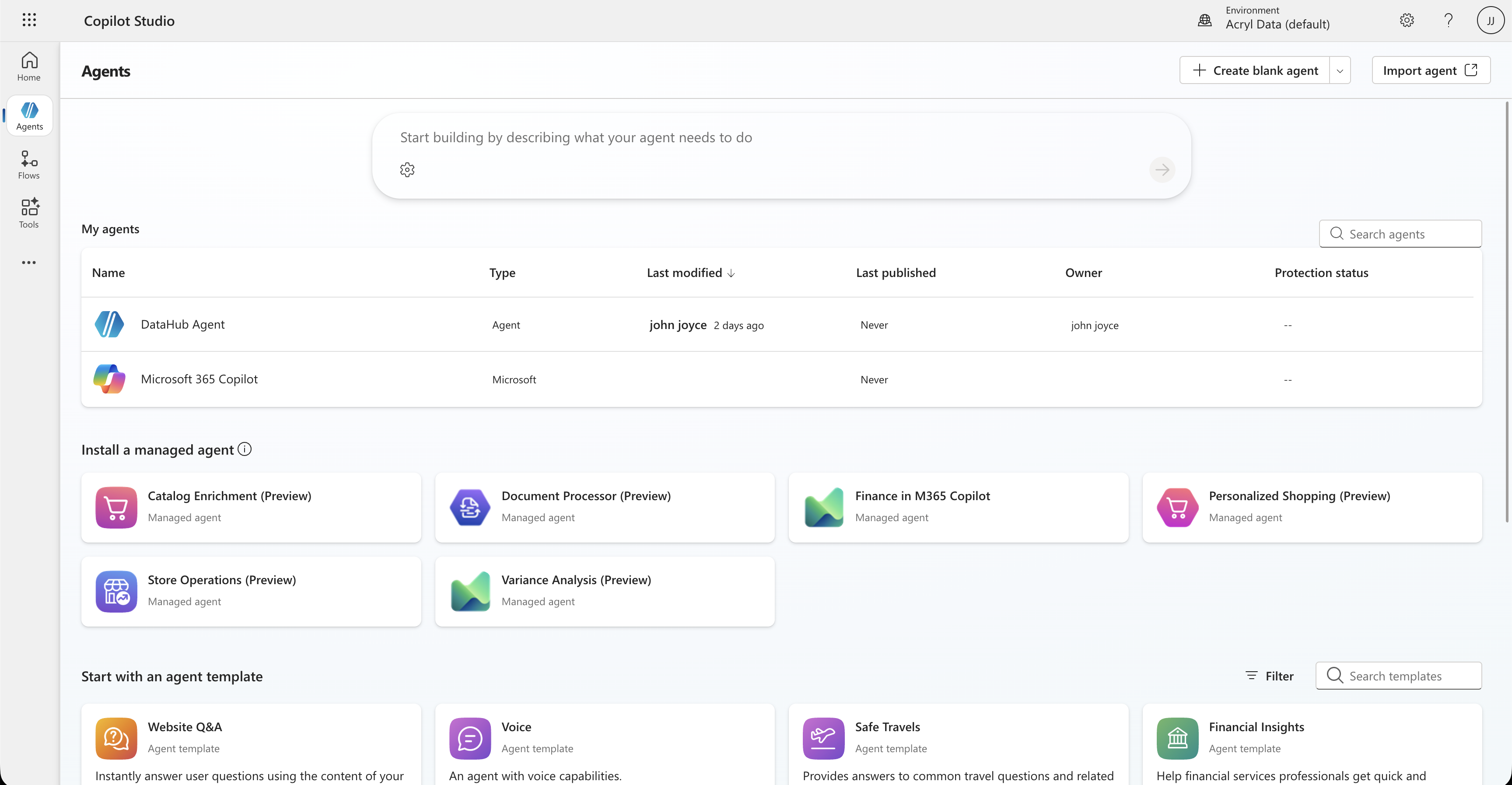
2. Add an MCP Tool
From your agent's overview, scroll to Tools and click + Add tool. Select Model Context Protocol under "Create new".
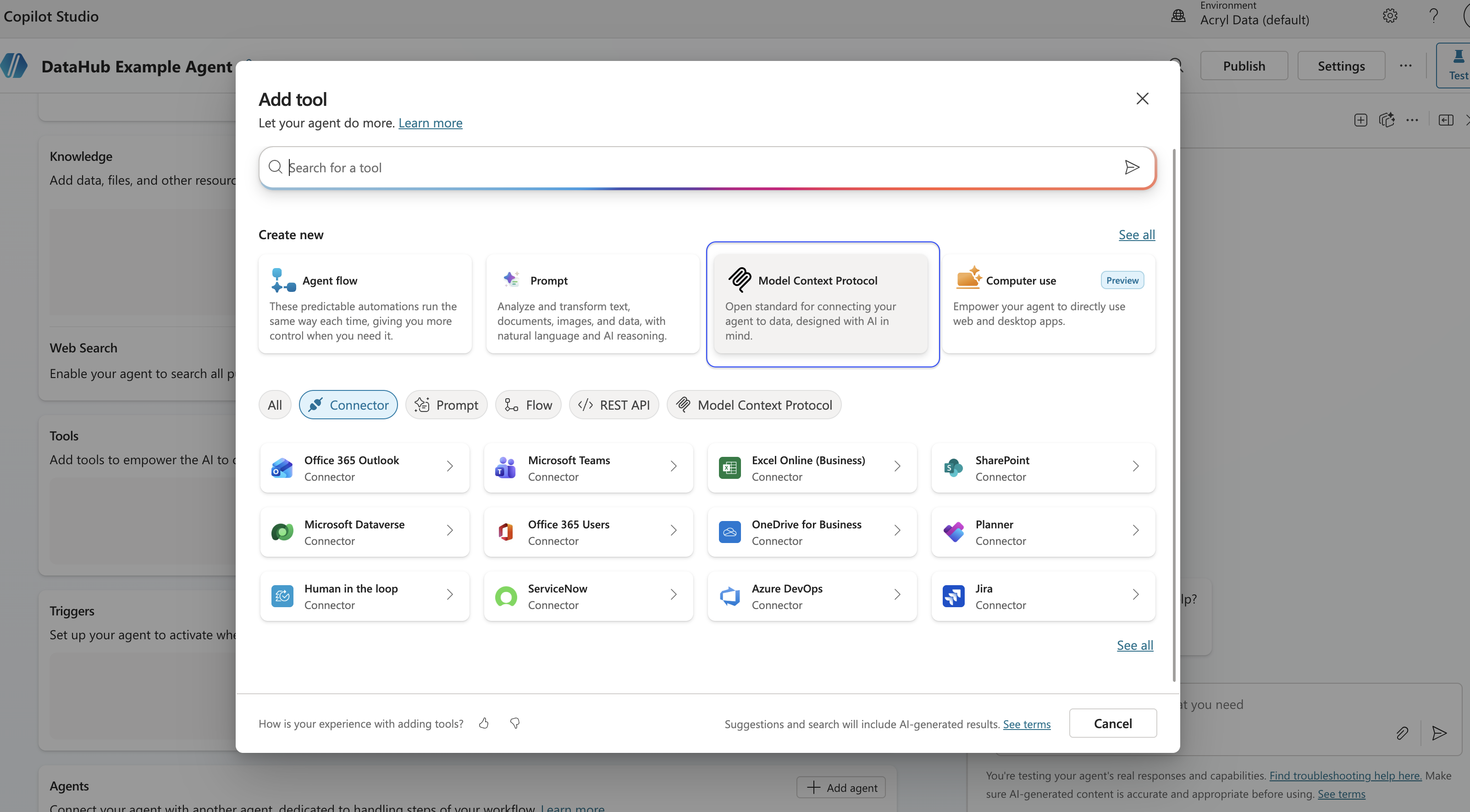
3. Configure the MCP Connection
DataHub Cloud — OAuth (Recommended, v1.0.2+)
On DataHub Cloud v1.0.2+, Copilot Studio can connect with OAuth2 and Dynamic Client Registration (DCR). Each agent user signs in with their own DataHub account (including SSO such as Okta or Azure AD). No personal access token to mint or paste.
Fill in the MCP server fields:
Field Value Server name DataHub MCP ServerServer URL https://mcp.datahub.com/mcpAuthentication OAuth 2.0 · Dynamic discovery Click Create. Copilot Studio discovers DataHub's OAuth metadata and registers itself via DCR — leave Client ID / Client secret empty.
On Add tool, click Create a new connection (or Connect). A browser window opens for the DataHub OAuth flow.
Enter your DataHub domain when prompted (e.g.
<tenant>forhttps://<tenant>.acryl.io), sign in, and approve the connection. Copilot Studio can only retrieve DataHub's tools after this step completes.Click Add to agent.
Prefer your tenant URL directly? Use https://<tenant>.acryl.io/integrations/ai/mcp as the Server URL instead — both endpoints support OAuth2 + DCR. With the tenant URL you skip the domain prompt and go straight to login.
If Dynamic discovery fails, try Dynamic and enter the Authorization and Token URLs from the auth server's /.well-known/oauth-authorization-server document. Prefer Dynamic discovery when it works — you should not need a Client ID or Client secret.
DataHub Cloud — Personal Access Token (v0.3.12+)
For service accounts, unattended agents, or DataHub Cloud versions prior to v1.0.2, use a personal access token:
| Field | Value |
|---|---|
| Server name | DataHub MCP Server |
| Server URL | https://<tenant>.acryl.io/integrations/ai/mcp |
| Authentication | API key · Header · Authorization · Bearer <token> |
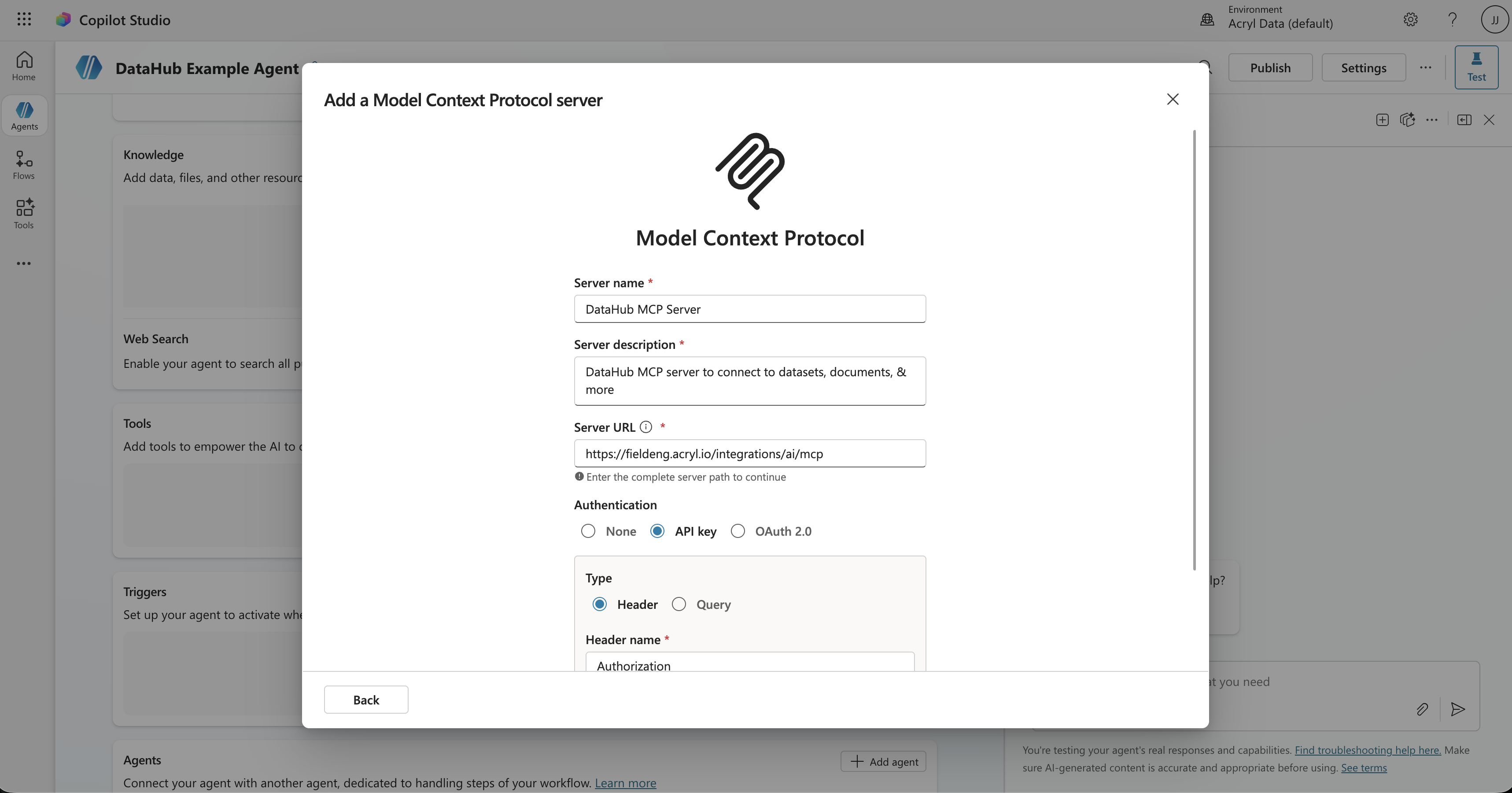
Include the Bearer prefix in the API key value. Click Create, create the connection with your token, then Add to agent.
For DataHub Core instances, OAuth DCR for the managed MCP path is a DataHub Cloud capability. Expose the MCP server via a publicly accessible URL, use that as the Server URL, and authenticate with a personal access token (API key · Header · Authorization · Bearer <token>).
4. Enable Tools
After the connection succeeds, Copilot Studio discovers DataHub's tools automatically. Click Add and configure, then toggle on the tools you want.
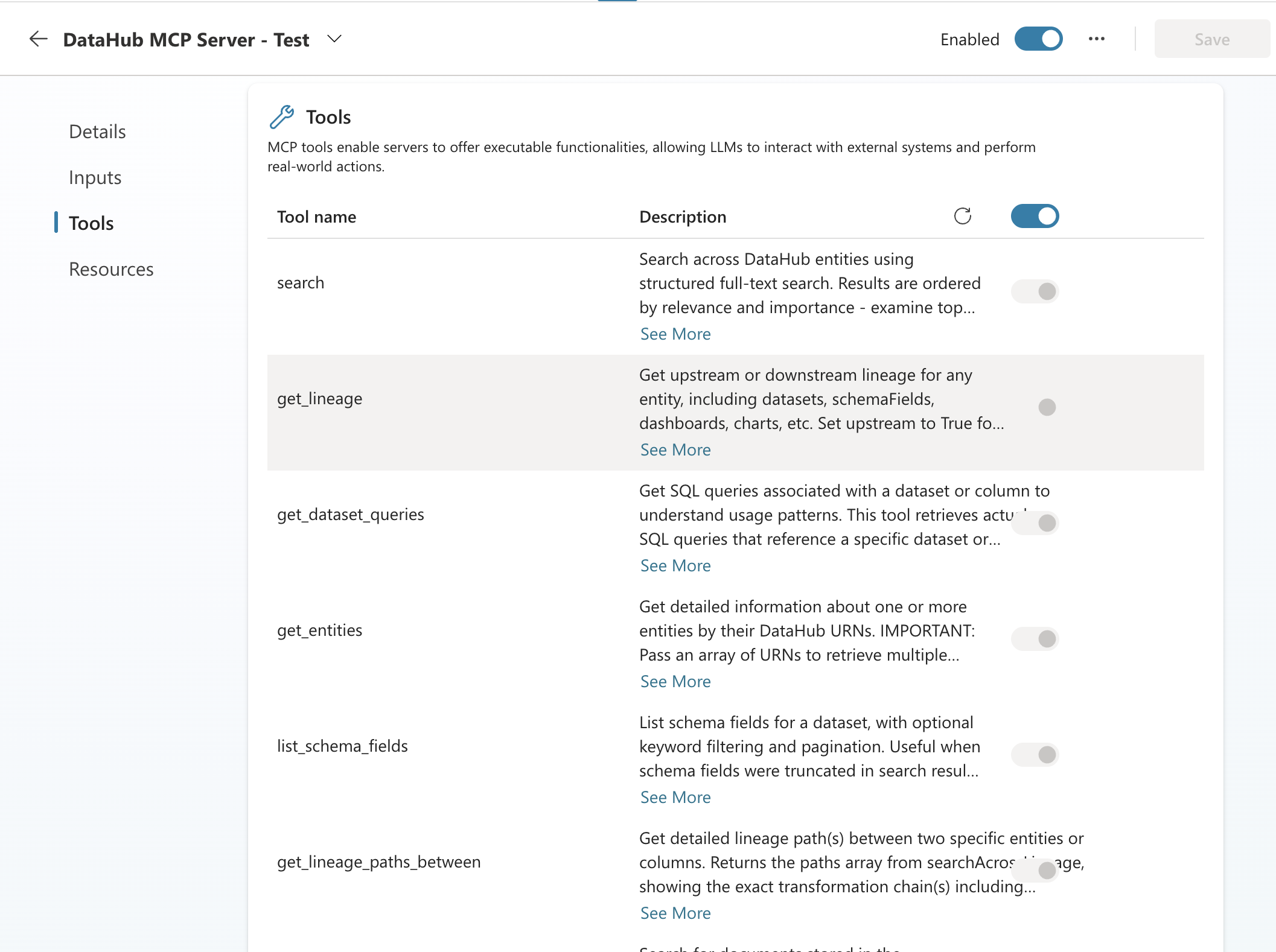
If no tools appear, go back and complete Connect / Create a new connection — tool discovery requires an authenticated connection.
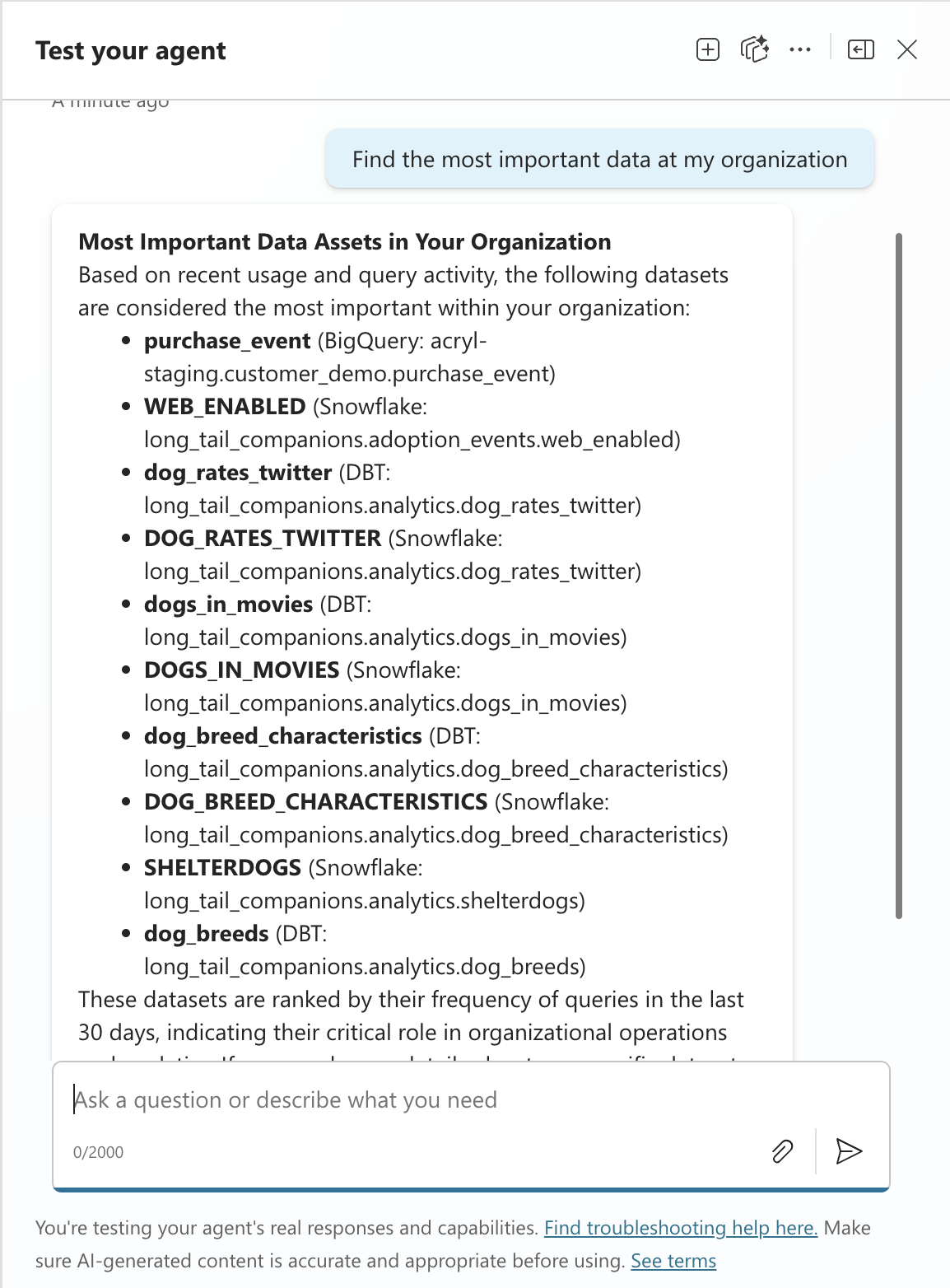
5. Test
Click Test in the top-right corner and try:
- "What datasets does the analytics team own?"
- "Show me the lineage for the revenue dashboard"
Tips
- Use the Instructions field to guide behavior — e.g., "Always search DataHub before answering data questions."
- Publish your agent to Teams, your website, or other channels when ready.
- Prefer OAuth for interactive Copilot agents so each user acts as themselves in DataHub. Keep PATs for service accounts and unattended workflows.
Troubleshooting
- Can't connect with OAuth? Confirm the tenant is on DataHub Cloud v1.0.2+, the Server URL is
https://mcp.datahub.com/mcp(or your tenant MCP URL), and authentication is OAuth 2.0 with Dynamic discovery. Click Create a new connection / Connect, enter your DataHub domain (e.g.<tenant>) when prompted, sign in, and approve. - Can't connect with a PAT? Verify the DataHub URL, check the token hasn't expired, and confirm auth is set to API key (not OAuth). Include the
Bearerprefix. - Tools not appearing? Finish the Connect step first — Copilot Studio only lists DataHub tools after the connection authenticates. Then refresh the Tools page. Verify the MCP server is running and the connection has the right permissions.
- Empty results? Check that your DataHub instance has ingested metadata. Try broader search terms.
Links: Copilot Studio Docs · Agent Context Kit · MCP Server Guide