Glean Plugin
Note: Ask DataHub Plugins is currently in Private Beta. To enable this feature, please reach out to your DataHub customer support representative.
The Glean Plugin connects Ask DataHub to your organization's Glean instance, bringing enterprise knowledge search into your data conversations.
Why Connect Glean?
With the Glean plugin enabled, Ask DataHub can:
- Search organizational knowledge — find relevant documentation, wikis, Slack threads, and other content indexed by Glean
- Supplement metadata with context — answer questions that require both data catalog knowledge and organizational documentation
- Bridge the gap between your data ecosystem and your team's tribal knowledge stored across tools
Example prompts:
- "Find our internal documentation about the data retention policy"
- "Search for any runbooks related to the revenue pipeline"
- "What does our wiki say about the customer segmentation methodology?"
- "Find Slack discussions about the recent data migration"
Prerequisites
- A Glean account with the MCP server enabled (see Glean's MCP documentation)
- DataHub Cloud with Ask DataHub Plugins enabled
- Platform admin access in DataHub to configure the plugin
Admin Setup
The Glean plugin is the simplest to set up. DataHub supports OAuth discovery and automatic client registration for Glean — meaning DataHub will automatically discover the OAuth endpoints, available scopes, and register a client on your behalf. No manual OAuth configuration is required.
Step 1: Get the Glean MCP Server URL
Obtain the MCP server URL from your Glean instance. You can find this in your Glean settings under MCP Configurator (accessible from your profile settings), or refer to Glean's MCP setup guide.
Step 2: Create Plugin in DataHub
- Navigate to Settings > AI > Plugins in DataHub
- Click + Create and select Custom MCP
- Fill in the plugin details:
| Field | Value |
|---|---|
| Name | Glean |
| Description | A description for the plugin |
| MCP Server URL | Your Glean MCP server URL |
| Authentication Type | User OAuth (Each user authenticates) |
DataHub will automatically discover the OAuth configuration from Glean and register a client — no manual OAuth setup is required. This includes:
- Authorization and token endpoints
- Available scopes
- Client registration
Review the discovered scopes. All scopes are selected by default. Ensure the
mcpscope is selected — this is required for the plugin to function.
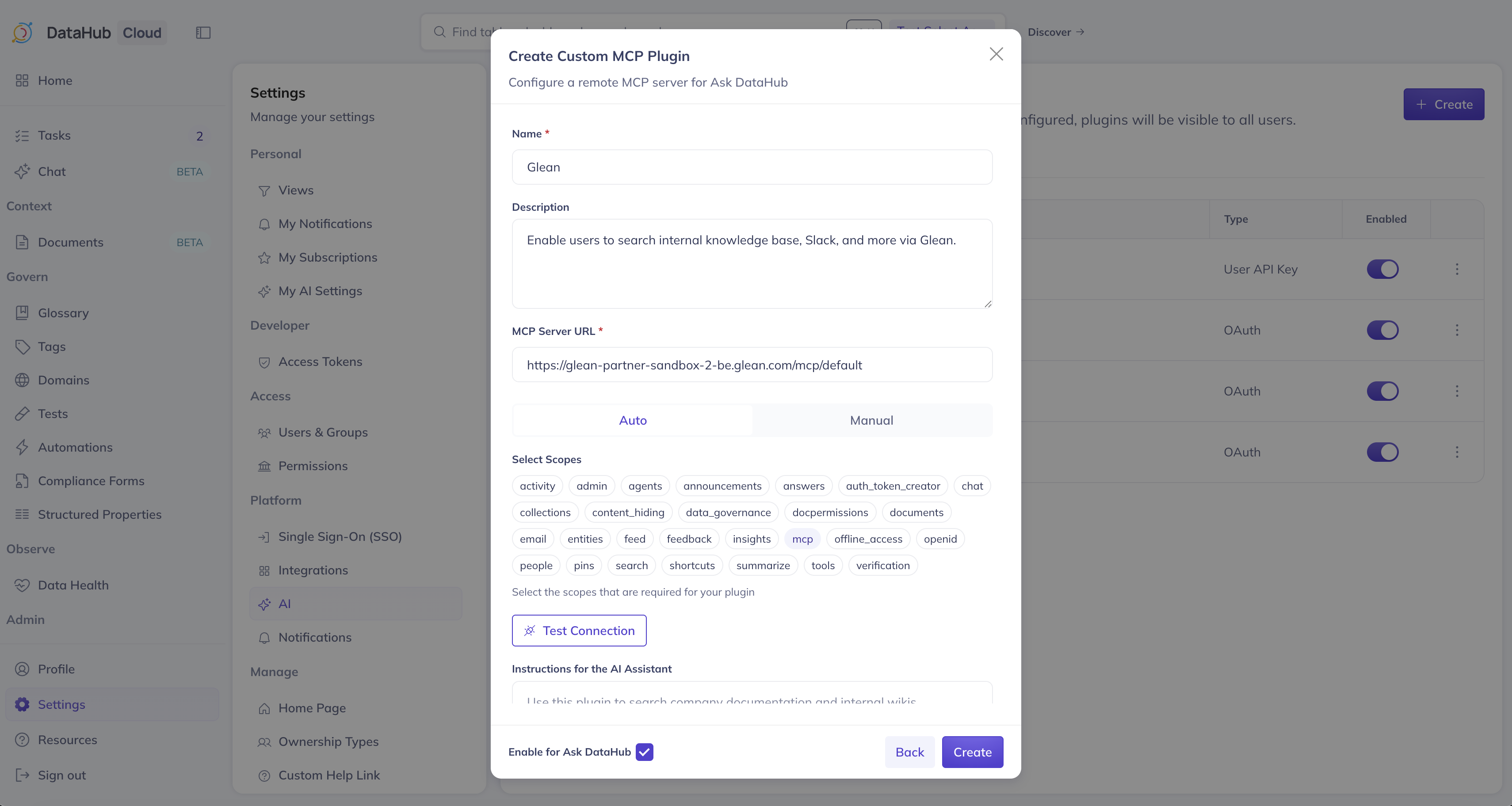
The mcp scope must be selected for the Glean plugin to work. Without it, the MCP server will return a 401 Unauthorized error when Ask DataHub tries to use the plugin. If you see this error after setup, edit the plugin and verify that the mcp scope is enabled.
- Optionally add Instructions for the AI Assistant, ensure Enable for Ask DataHub is on, and click Create
User Setup
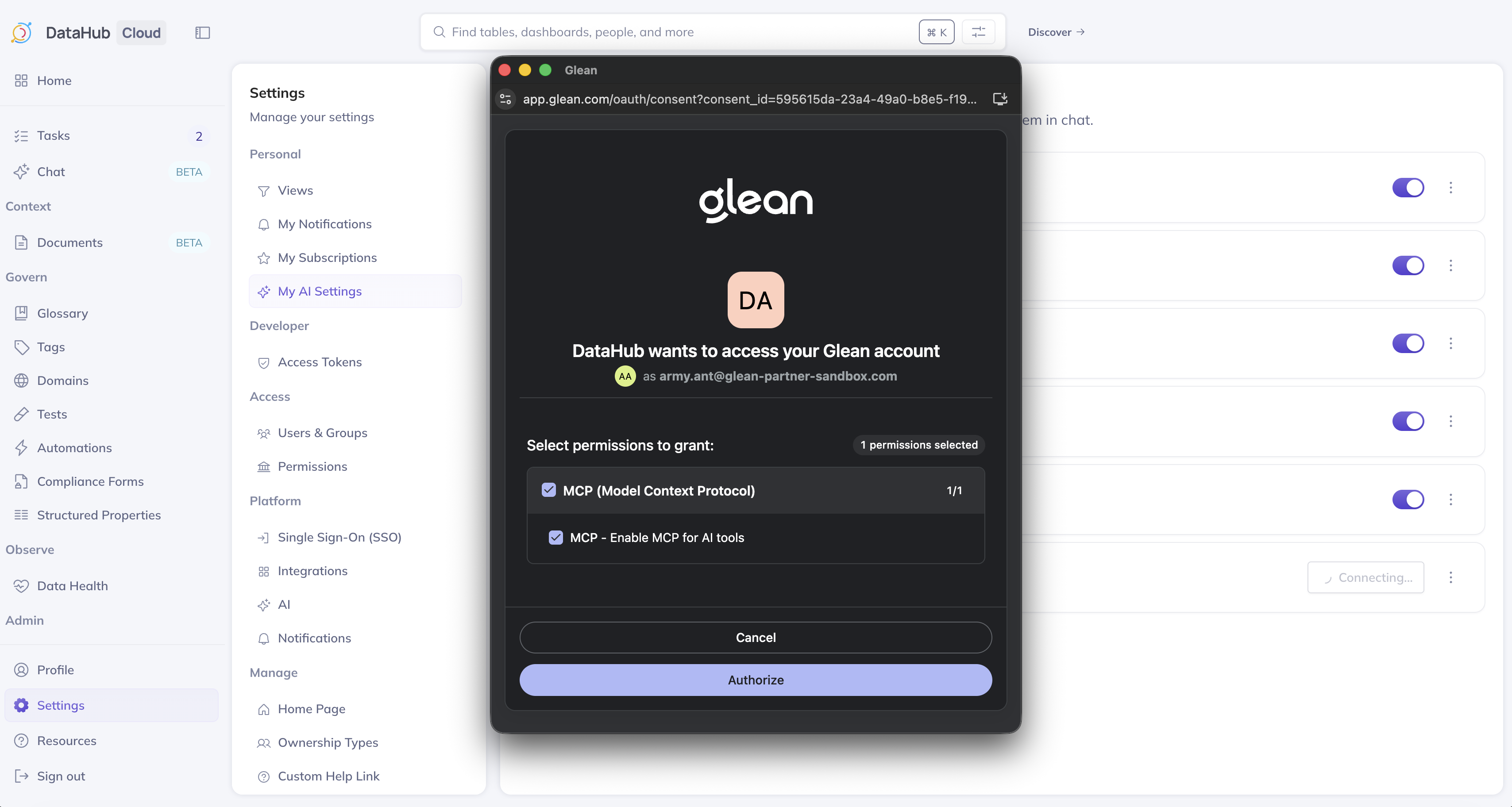
Navigate to Settings > My AI Settings, find the Glean plugin, and click Connect. You'll be redirected to Glean to authenticate, then back to DataHub. See the overview for more details.
Usage Tips
- Glean plugin complements DataHub's Context Documents — use Context Documents for curated, governable knowledge and Glean for broader organizational search
- The AI will automatically decide when to use Glean vs. DataHub's built-in search based on the question
- Be specific in your prompts about what kind of documentation you're looking for
Troubleshooting
401 Unauthorized Error
If you see OAuth succeeded but MCP server returned 401: Client error '401 Unauthorized', the mcp scope is not selected for the plugin. Edit the plugin in Settings > AI > Plugins, ensure the mcp scope is enabled, and save.
OAuth Discovery Fails
- Verify the Glean MCP server URL is correct and accessible
- Ensure your Glean instance supports OAuth discovery and dynamic client registration
- Contact your Glean administrator to verify MCP server access is enabled
No Results
- Verify that Glean has indexed the content sources you expect
- Try broader search terms
- Check that the authenticated user has access to the relevant content in Glean