dbt Cloud Plugin
Note: Ask DataHub Plugins is currently in Private Beta. To enable this feature, please reach out to your DataHub customer support representative.
The dbt Cloud Plugin connects Ask DataHub to your dbt Cloud environment via the dbt remote MCP server, giving the AI assistant visibility into job runs, model definitions, test results, and — with the right configuration — the ability to execute SQL queries on behalf of users.
Why Connect dbt Cloud?
With the dbt Cloud plugin enabled, Ask DataHub can:
- Check job run status — see whether recent dbt runs succeeded or failed
- Inspect model definitions — view the SQL and configuration behind dbt models
- Review test results — understand which tests passed or failed and why
- Execute SQL queries — run queries against your warehouse through dbt (with additional configuration)
Example prompts:
- "Did the latest dbt run for the revenue model succeed?"
- "Show me the SQL definition of the orders model"
- "Which dbt tests failed in the last 24 hours?"
- "Query the customers table to check for null emails"
Prerequisites
- A dbt Cloud account with AI features enabled and the remote MCP server active
- A dbt Cloud personal access token or service token with Semantic Layer and Developer permissions
- Your dbt Cloud production environment ID (and optionally a development environment ID for SQL execution)
- DataHub Cloud with Ask DataHub Plugins enabled
- Platform admin access in DataHub to configure the plugin
Admin Setup
Step 1: Enable the dbt Remote MCP Server
Follow the dbt remote MCP setup guide to enable the remote MCP server for your dbt Cloud project.
Step 2: Collect Configuration Details
You'll need the following from dbt Cloud:
MCP Server URL: Construct the URL using your dbt Cloud host:
https://<YOUR_DBT_HOST_URL>/api/ai/v1/mcp/
For multi-cell accounts, the host URL is in the format ACCOUNT_PREFIX.us1.dbt.com. See dbt's regions documentation for details.
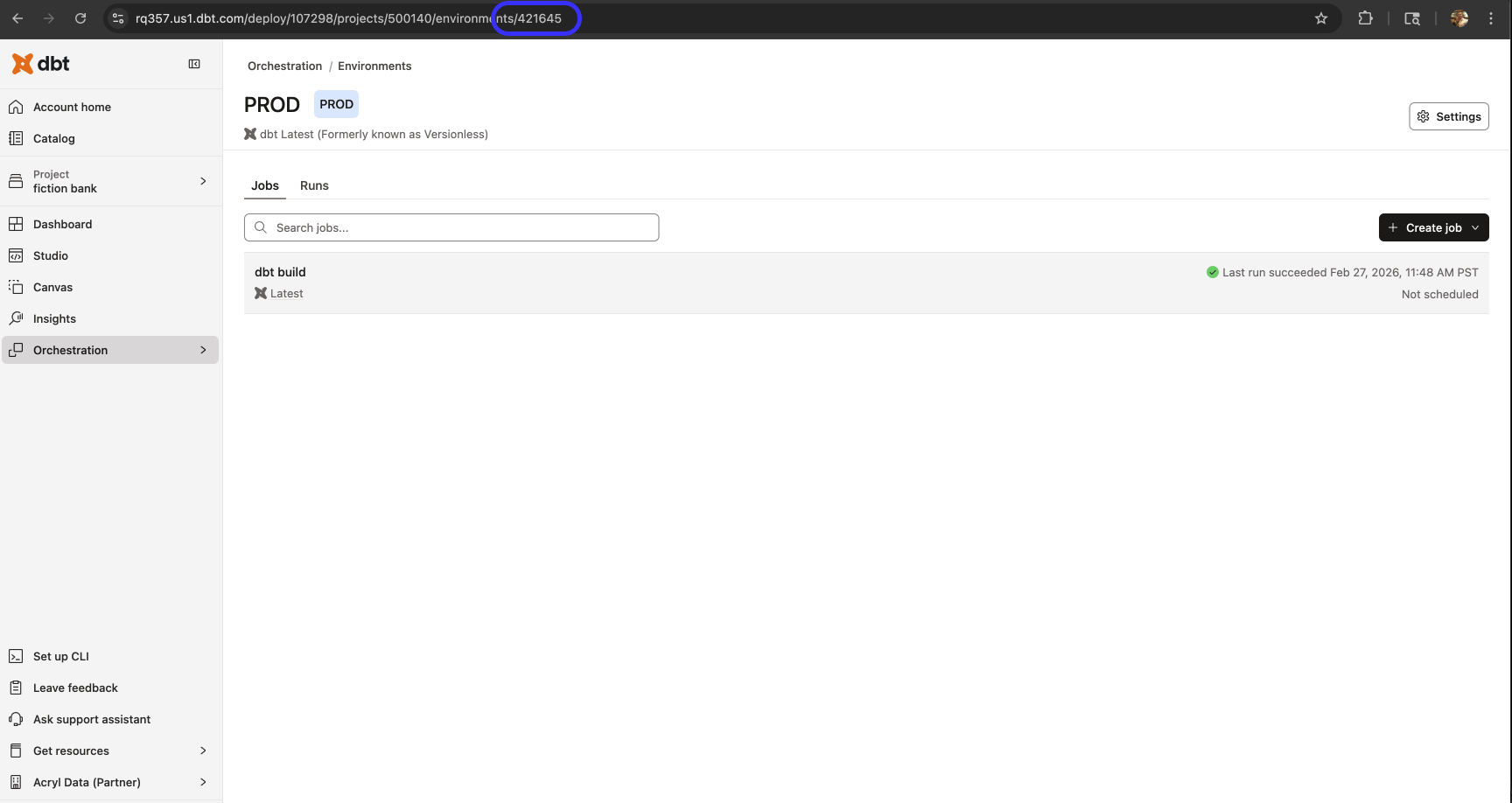
Production Environment ID: Navigate to Orchestration > Environments in dbt Cloud. Copy the environment ID from the URL.
API Token: Generate a personal access token or service token. The token needs Semantic Layer and Developer permissions.
Step 3: Create Plugin in DataHub
- Navigate to Settings > AI > Plugins in DataHub
- Click + Create and select dbt Cloud MCP
- Fill in the plugin details:
| Field | Value |
|---|---|
| Name | dbt Cloud |
| Description | A description for the plugin |
| MCP Server URL | https://<YOUR_DBT_HOST_URL>/api/ai/v1/mcp/ |
| Production Environment ID | Your production environment ID from Step 2 |
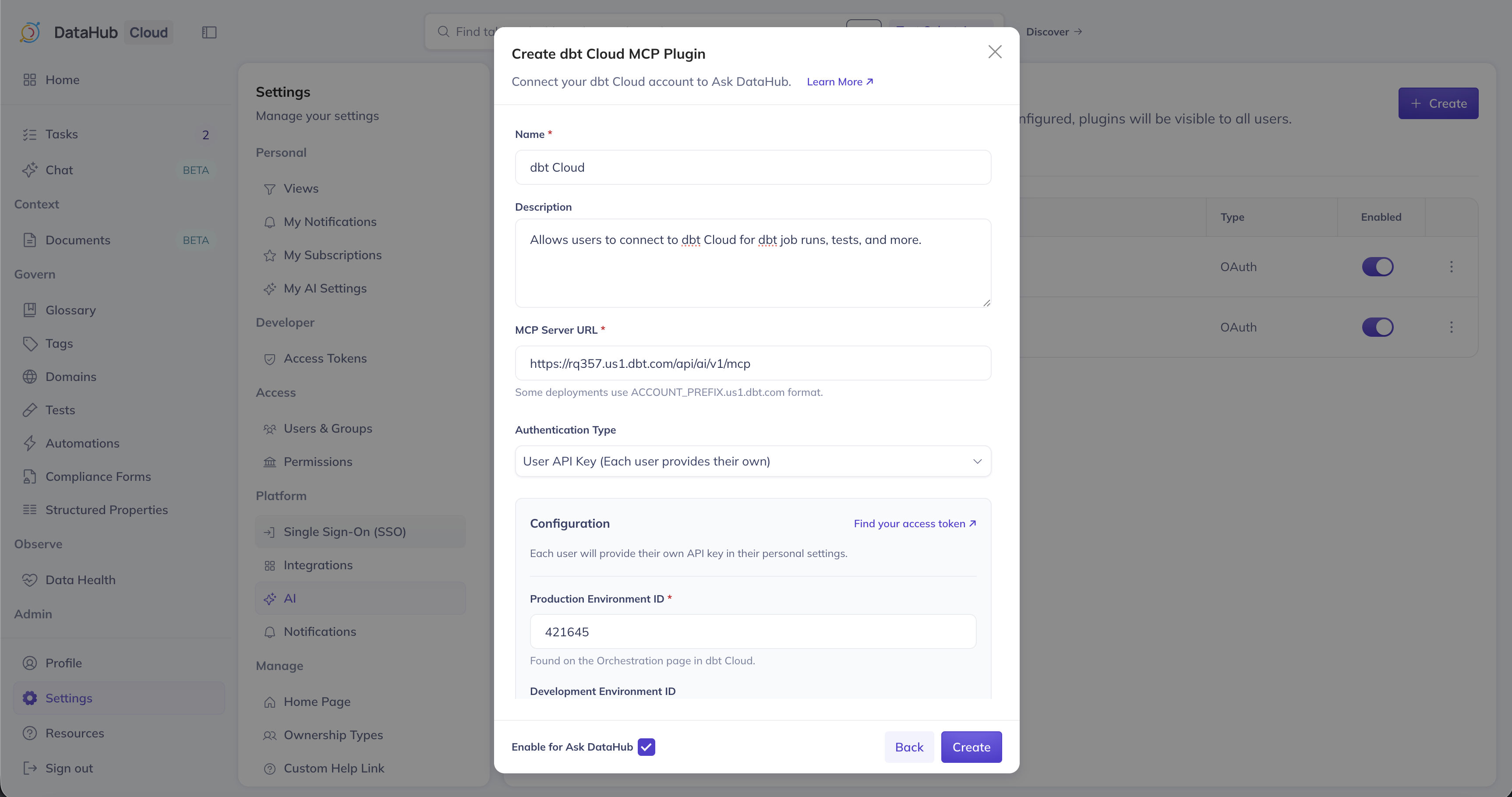
- Choose an authentication type:
| Option | How it works | Best for |
|---|---|---|
| Shared API Key | Admin enters a single service token used for all users | Centralized access with one service account |
| User API Key | Each user provides their own personal access token when connecting | Per-user audit trails and access control |
Step 4: Enable SQL Execution (Optional)
To let Ask DataHub execute SQL queries through dbt, provide the following additional fields:
| Field | Description |
|---|---|
| Development Environment ID | Your dbt Cloud development environment ID (found on the Orchestration > Environments page) |
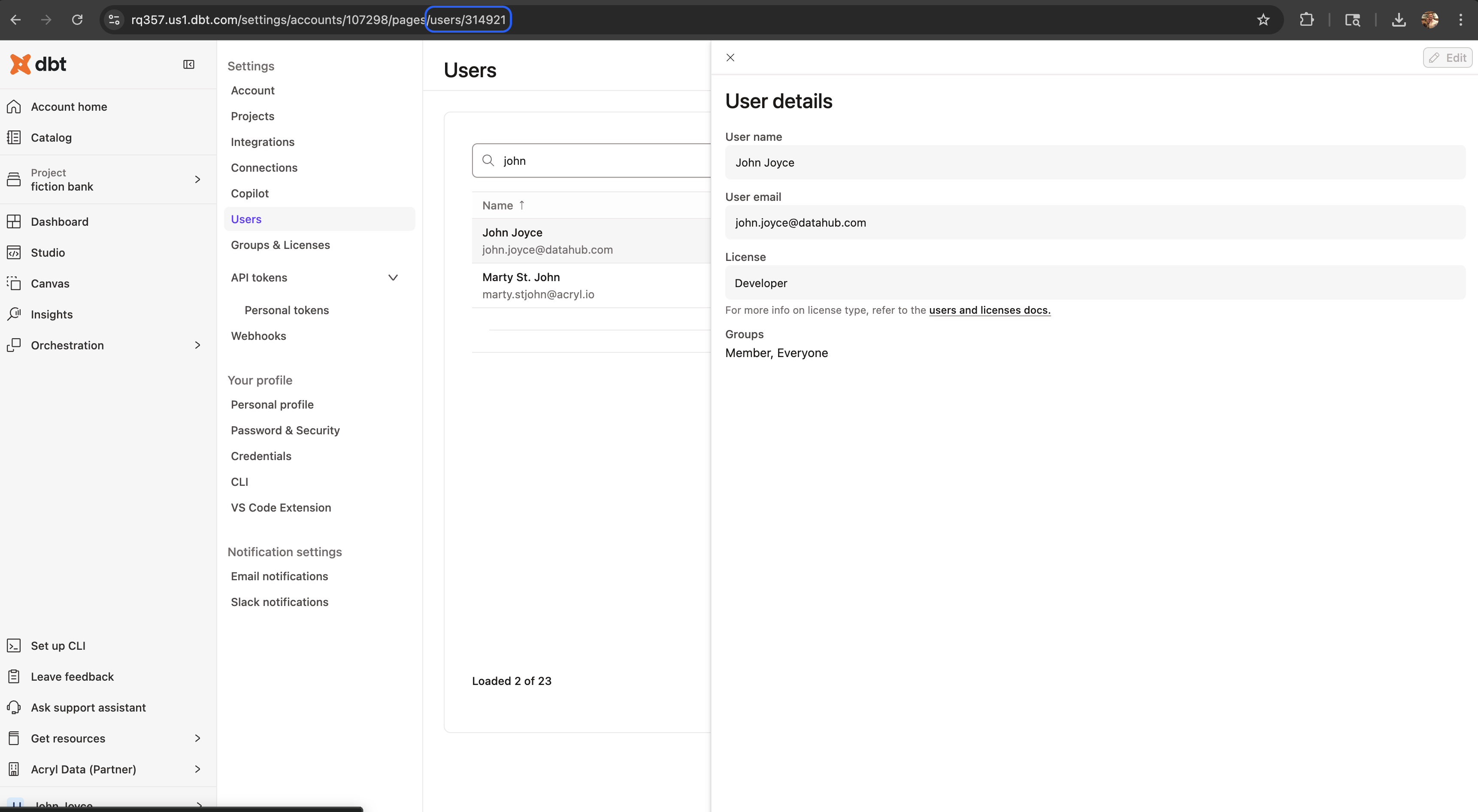
| User ID | Your dbt Cloud user ID (found in the URL at Settings > Users in dbt Cloud) |
If using a Shared API Key, the user ID is shared across all users — meaning queries will execute under a single identity. With User API Key auth, each user provides their own user ID when connecting.
You can find your dbt Cloud user ID in the URL when navigating to Settings > Users and selecting your profile:
Each user also needs development credentials configured in dbt Cloud (warehouse connection under their profile) for SQL execution to work.
- Optionally add Instructions for the AI Assistant, ensure Enable for Ask DataHub is on, and click Create
User Setup
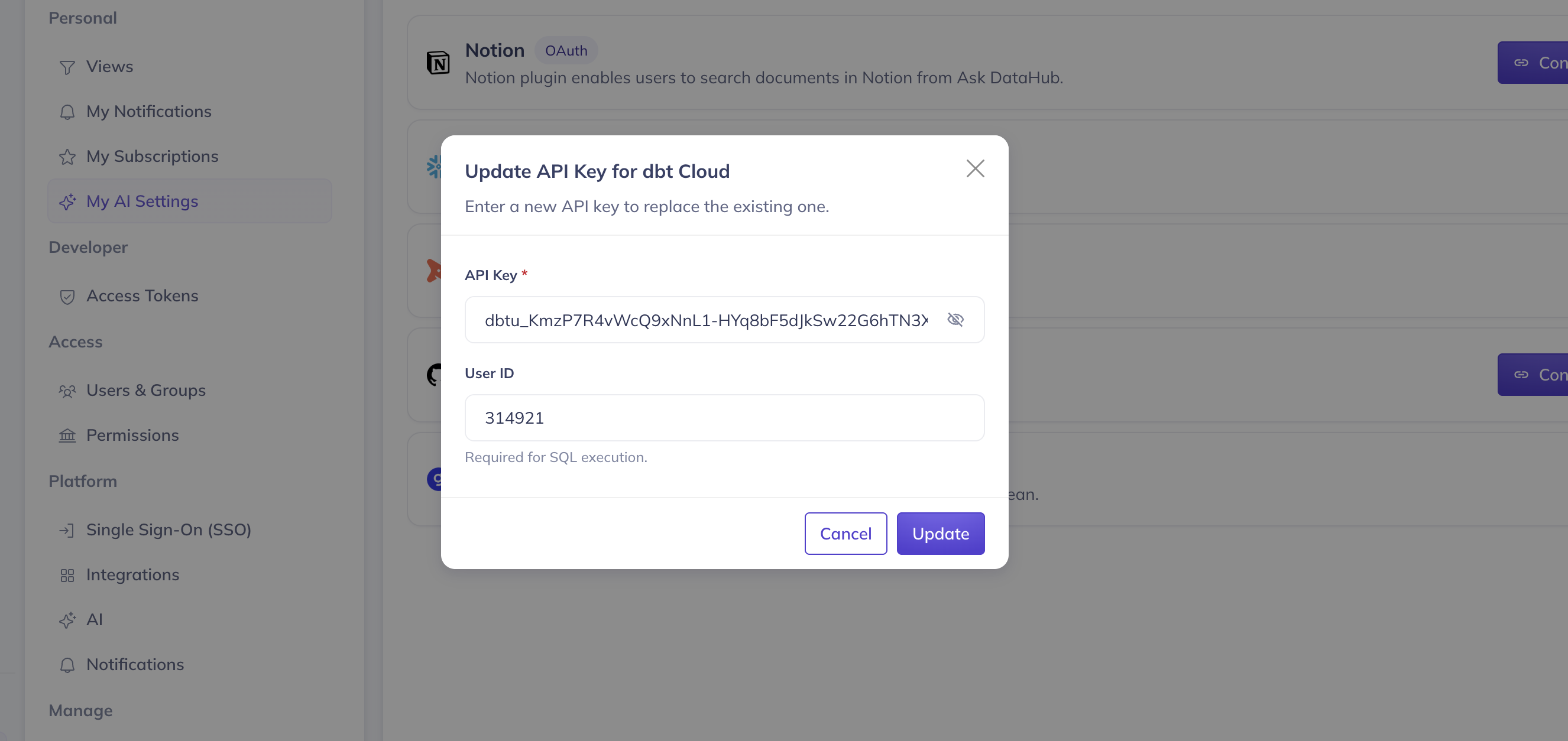
Navigate to Settings > My AI Settings and find the dbt Cloud plugin. If using User API Key auth, click Connect and enter your dbt Cloud API token and user ID. If using Shared API Key auth, simply toggle the plugin on. See the overview for more details.
Usage Tips
- Combine dbt Cloud with DataHub lineage for end-to-end debugging — trace a dashboard issue back through DataHub lineage to a failed dbt model
- Ask about specific environments (production vs. staging) to get targeted results
- Use dbt test results alongside DataHub assertions for a complete data quality picture
Only the text_to_sql tool consumes dbt Copilot credits. Other MCP tools (metadata discovery, semantic layer queries) do not. See dbt's documentation for details.
Troubleshooting
Connection Errors
- Verify your dbt Cloud API token is valid and has Semantic Layer and Developer permissions
- Ensure the remote MCP server is enabled in your dbt Cloud project
Wrong Project or Environment
- Verify the Production Environment ID is set correctly
- Double-check the environment ID matches what's shown in the dbt Cloud URL
SQL Queries Not Working
- Ensure development credentials are configured in dbt Cloud for the user
- Verify the Development Environment ID and User ID are set
- Check that the API token has permissions to execute queries