Agents
Starting in DataHub Cloud v1.0.1, Agents is in Private Beta and available only on DataHub Cloud. To enable this feature for your organization, contact the DataHub team.
Agents lets you create custom AI agents that can autonomously execute tasks against your metadata graph — on a schedule, in response to events, or on demand. Each agent can be configured with specific instructions, tools, plugins, and a scoped view of your data ecosystem.
Agents extends Ask DataHub from a conversational assistant into an automation platform with three core concepts:
- Agents — Custom, purpose-built AI agents with tailored instructions, tool access, and scope
- Tasks — Repeatable units of work assigned to an agent, triggered manually, on a schedule, or by events
- Decisions — Human-in-the-loop checkpoints where an agent pauses and requests input before continuing
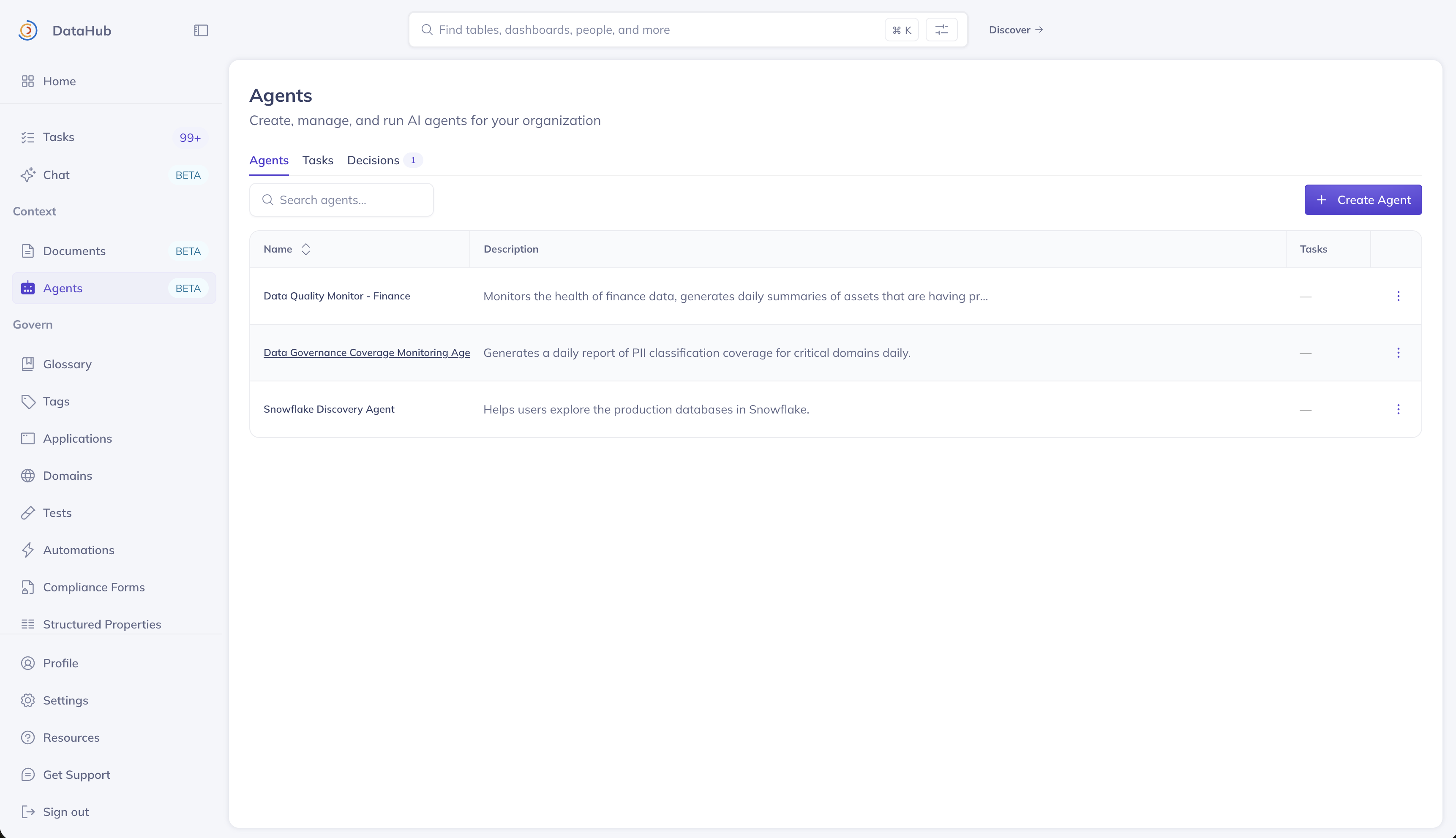
Example Use Cases
- Data discovery agents — Create agents scoped to specific parts of your ecosystem, such as a "Snowflake Production" agent or a "Marketing Domain" agent, helping users explore and browse relevant data assets through natural conversation.
- Data quality and governance reports — Schedule tasks that generate reports on documentation coverage, ownership gaps, classification status, or assertion health across your data assets.
- Data analytics and debugging agents — Build agents with AI Plugins to take action directly in tools like Snowflake, GitHub, and more — enabling workflows like query debugging, schema analysis, or cross-platform investigation.
Prerequisites
To manage agents, tasks, and decisions, a user must have the Manage Agents platform privilege. Without it, the Agents section is hidden from the navigation sidebar.
Users without this privilege can still interact with agents that have Show in Ask DataHub Chat enabled — they just cannot create or configure them.
Agents
An agent encapsulates a persona: who it is, what it can do, and what data it can see. Agents come in two flavors:
- Custom agents — Created by your team through the UI, fully configurable.
- Default agents — Pre-built by DataHub and shipped with the platform. These cannot be edited but can be used for tasks and chat.
Creating an Agent
Navigate to Context > Agents and click Create Agent.
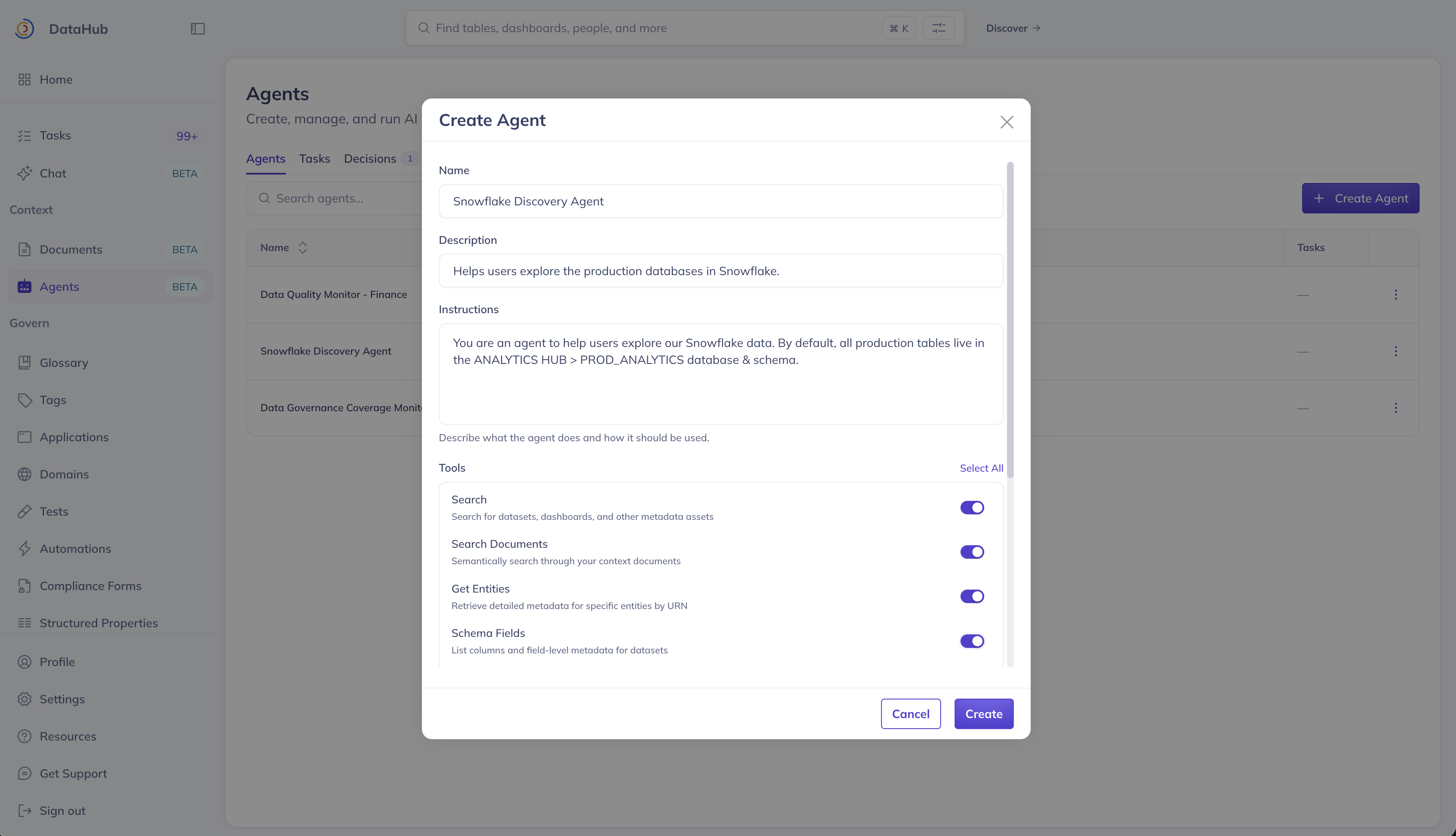
| Field | Description |
|---|---|
| Name | Display name for the agent. |
| Description | Optional summary of the agent's purpose. |
| Instructions | Detailed guidance for the agent's behavior. Supports @ mentions to reference specific assets. |
| Tools | Select which DataHub tools the agent can use (e.g. search, lineage, mutations). |
| AI Plugins | Connect external MCP servers (e.g. Snowflake, GitHub) to give the agent access to external tools. |
| View | Scope the agent's search to a specific View, limiting which assets it can discover. |
| Show in Ask DataHub Chat | When enabled, this agent appears as a selectable persona in the Ask DataHub chat interface. |
Agent Detail Page
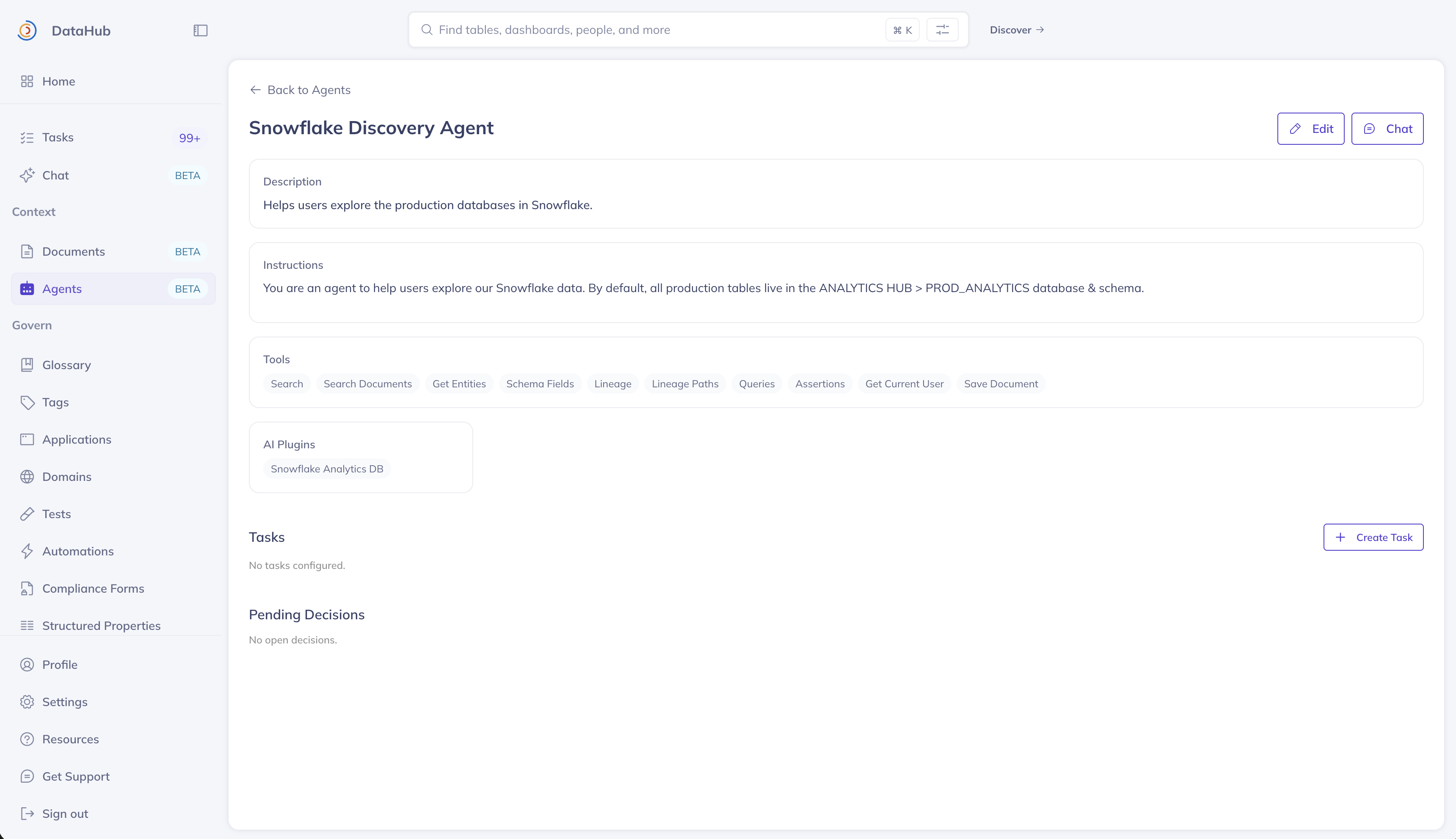
Click any agent to view its configuration, associated tasks, and pending decisions. From here you can:
- Edit the agent's configuration
- Chat with the agent directly via the chat drawer
- Create tasks assigned to this agent
- Review pending decisions the agent has requested
Tasks
A task is a repeatable instruction assigned to an agent. Tasks can run on demand, on a schedule, or in response to metadata events. Each task inherits its agent's base instructions, tool access, plugin access, and default view.
Creating a Task
Navigate to the Tasks tab or open an agent's detail page and click Create Task.
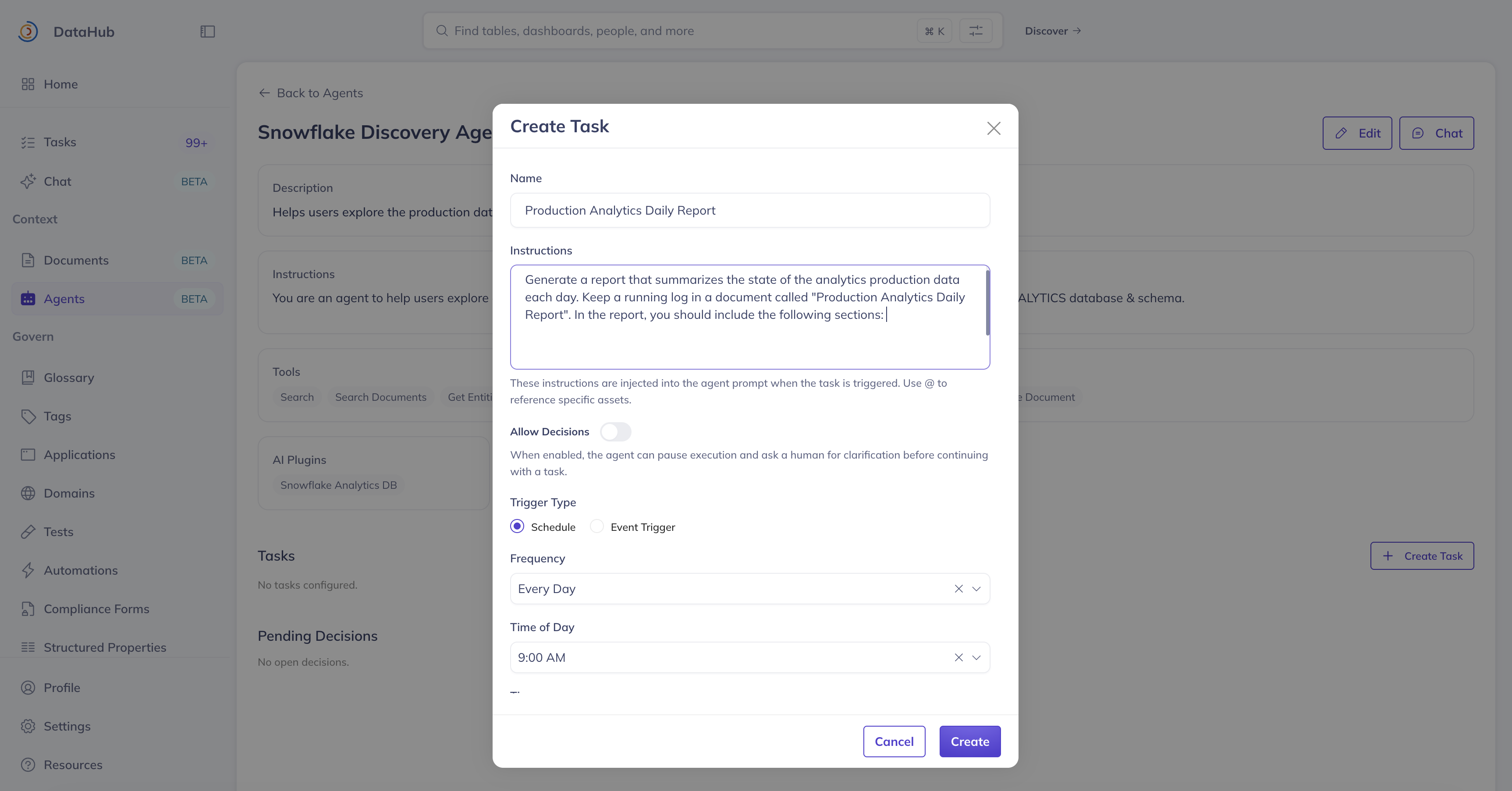
| Field | Description |
|---|---|
| Agent | The agent that will execute this task. |
| Name | Display name for the task. |
| Instructions | What the agent should do when this task runs. |
| Allow Decisions | When enabled, the agent can pause execution and ask a human for input. |
| Trigger | How the task is initiated — Schedule or Event. |
Schedule Triggers
Schedule triggers use a cron-based configuration:
- Frequency: Hourly, Daily, or Weekly
- Day of Week: (Weekly only) Which day to run
- Time of Day: (Daily/Weekly) Hour to run
- Timezone: Timezone for the schedule
Event Triggers
Event triggers fire when a specific metadata event occurs. Currently supported:
- Task Completion — Runs when another specified task completes, enabling task chaining
Additional event types will be added in future releases.
Running a Task
Regardless of how a task is triggered, you can always run it on demand by clicking Run Now from the tasks table or the task detail page. This is useful for testing a task's instructions and verifying its output before enabling a schedule or event trigger.
A modal shows real-time progress including the agent's thinking, tool calls, and results. Closing the modal does not cancel the run.
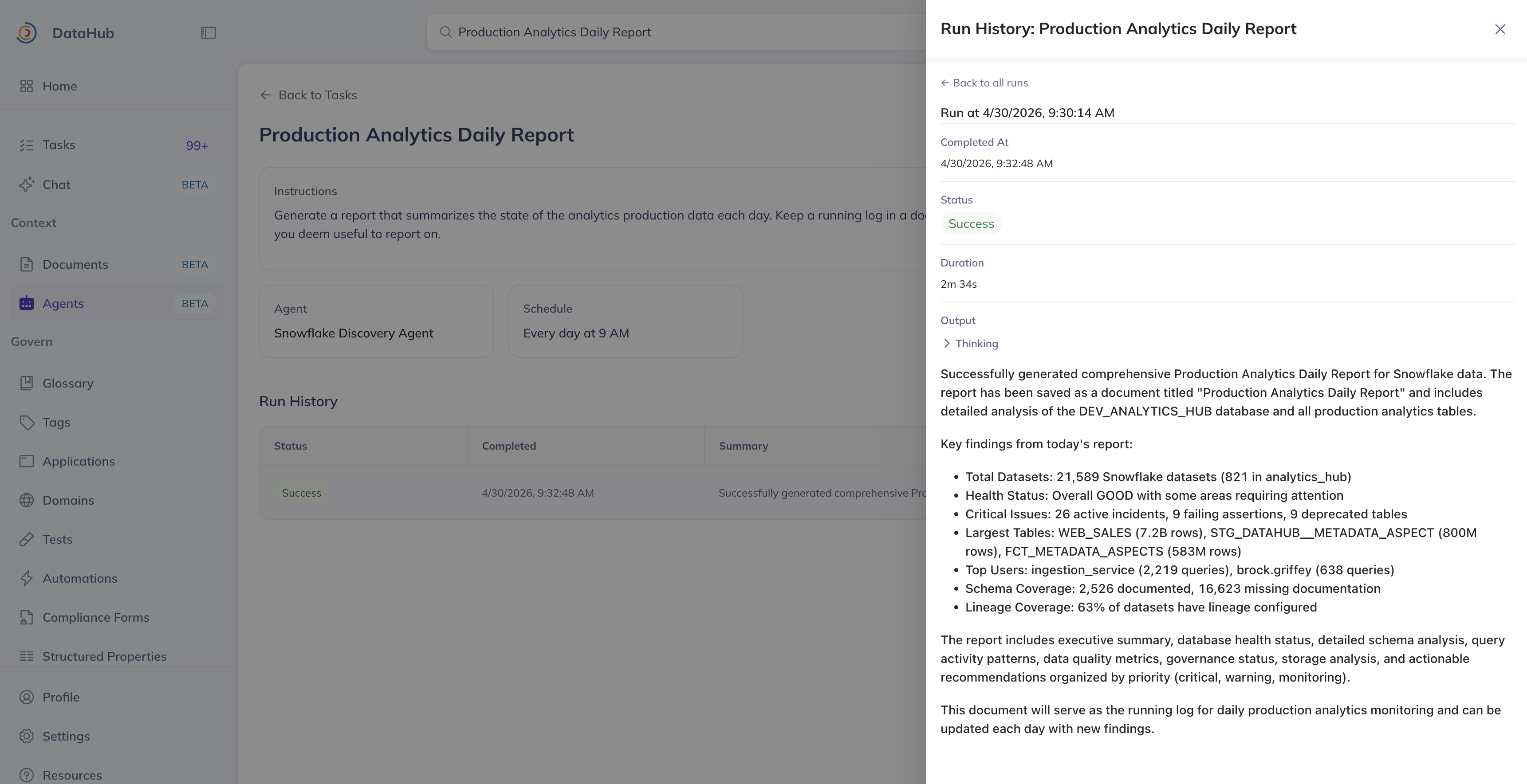
Task Detail Page
Click any task to view its configuration, run history, and pending decisions.
- Toggle Active/Inactive to enable or disable scheduled/event-triggered runs
- Edit the task configuration
- Run the task on demand
- View run history with status, duration, and output for each execution
Decisions
When a task has Allow Decisions enabled, the agent can pause mid-execution to request human input. These requests appear in the Decisions tab and on the relevant agent/task detail pages.
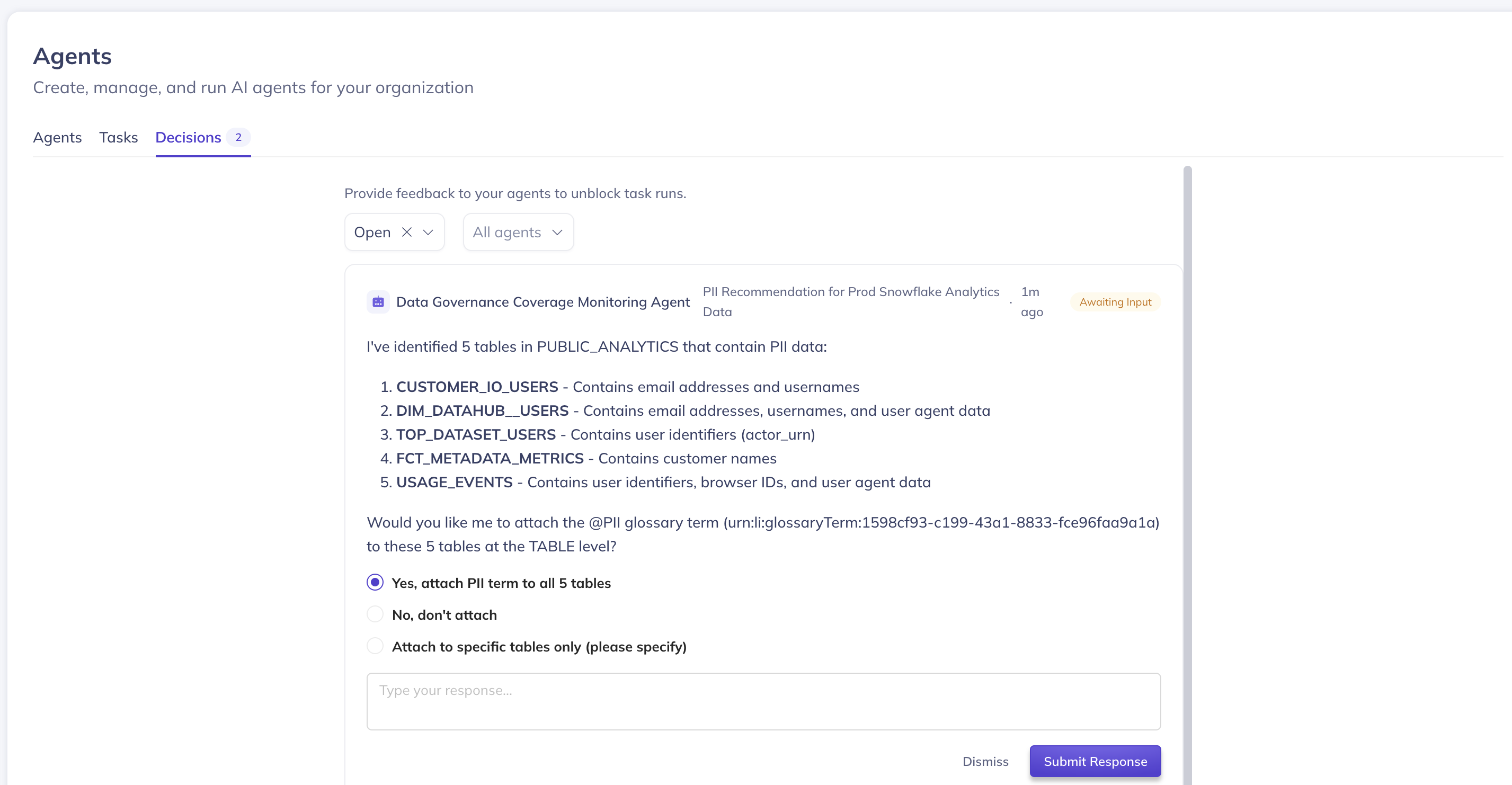
Each decision shows:
- The question the agent is asking
- Optional predefined choices to select from
- An optional free-text input field for additional context
Responding to a Decision
Click Respond to open the decision modal, select an option or provide free-text input, and submit. The agent will resume execution using your response.
You can also Dismiss a decision, which aborts the task run.
FAQ
Can I use Agents without DataHub Cloud? No. Agents is a DataHub Cloud-only feature currently in Private Beta.
Can multiple tasks share the same agent? Yes. An agent is a reusable persona — you can create as many tasks as you need, each with different instructions and triggers, all executed by the same agent.
What happens if no one responds to a decision? The task run remains paused in a "Waiting for Input" state until someone responds or dismisses it. Scheduled re-runs of the same task are not affected.
How do I control which tools an agent can access? Use the Tools selector when creating or editing an agent to enable or disable specific DataHub tools. For external tools, configure AI Plugins to connect MCP servers and scope access per agent.
When tasks run, whose permissions do they run with? Today, tasks run as the user who created the task. This means the task will inherit access to any AI plugins and privileges that the creator has. In the future, we intend to support running as a specific service account, which can have restricted permissions.
Can I audit the tool calls an agent made during a task run? Yes. Open the task run details from the run history and expand the thinking block. You will see a full trace of every tool call the agent made, including inputs and outputs. This provides a complete audit trail for compliance and governance purposes.
What happens if I close the task run modal while a task is running? The task continues running in the background. You can check its status and output from the task's run history.
Can I subscribe to be notified when a task completes via Email, Slack, or Teams? Not yet, but coming soon!