Using Group By
Group by is in Public Beta. Features, UI, and configuration options are subject to change.
This guide explains how to group an asset's lineage, navigate the grouped graph, and view the assets in each group.
Available in DataHub Cloud v2.4.0 and later.
Before and After
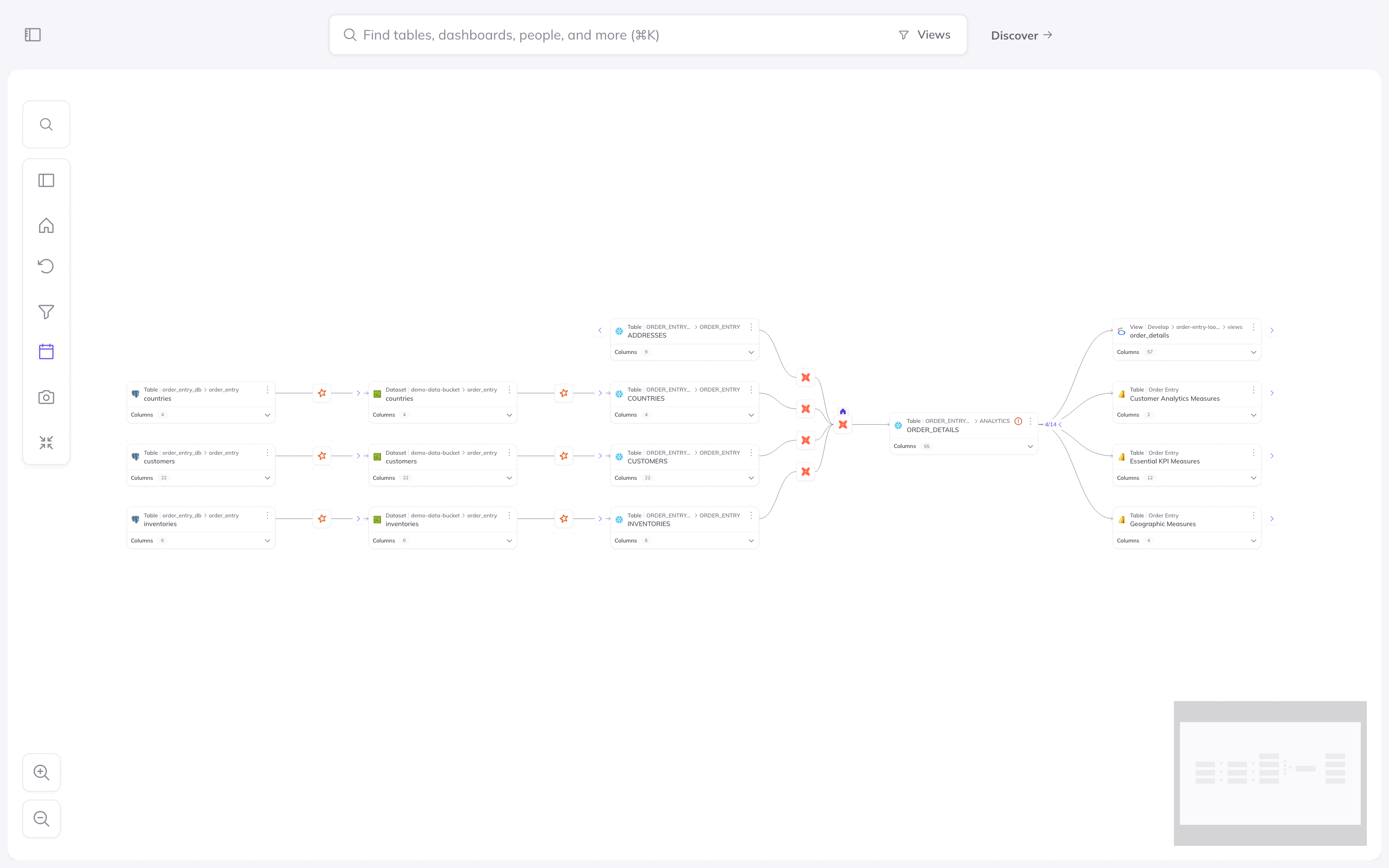
Below is part of the ungrouped lineage of the dbt model order_details. Each node represents a single asset. The full lineage contains over a hundred assets.
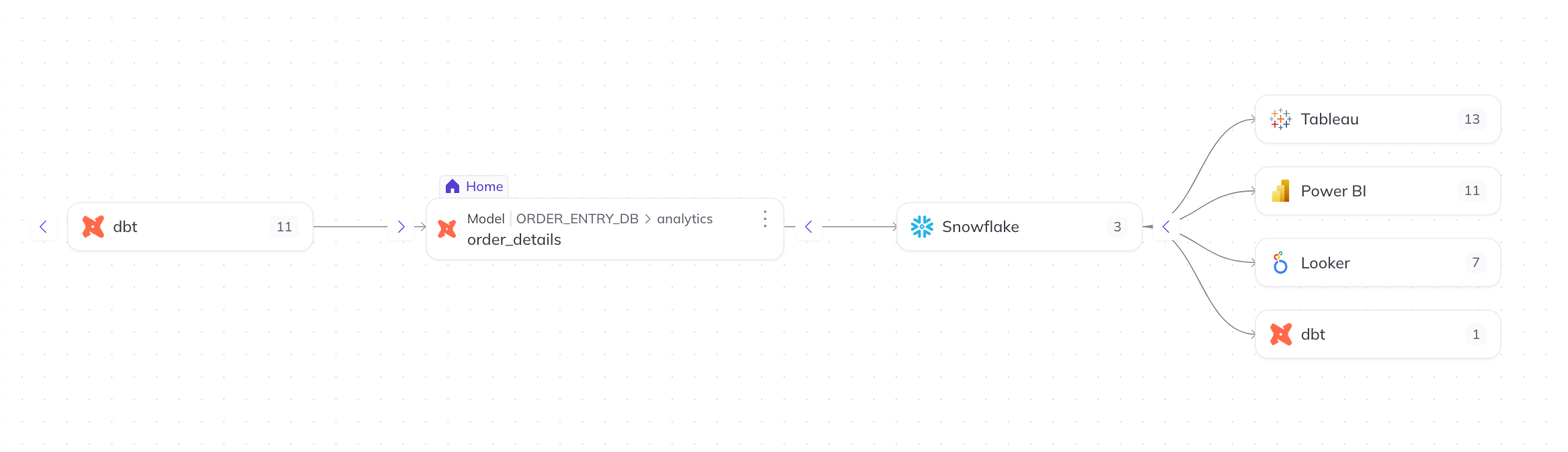
When grouped by Platform, the same lineage shows the path the data takes across systems: order_details is built from dbt sources, and its Snowflake table feeds Tableau, Power BI, and Looker.
Selecting a Lens
- Open any asset and go to its Lineage tab.
- Click the Filter icon in the toolbar on the left of the graph to open the controls panel.
- Under Group by, select a lens.
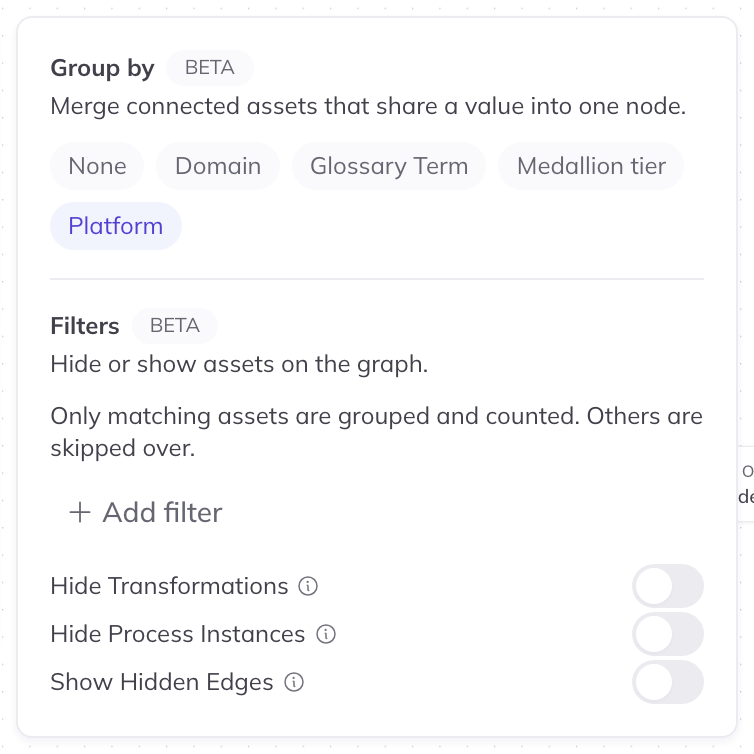
DataHub provides three built-in lenses:
| Lens | Groups Assets By |
|---|---|
| Platform | The asset's data platform, e.g. Snowflake, dbt, or Looker. Useful for seeing which systems data passes through. |
| Domain | The asset's domain. Useful for seeing which teams produce and consume data. |
| Glossary Term | The asset's glossary terms. Useful for seeing where certain data, e.g. PII or Gold-tier data, flows. |
Custom lenses created by your admins appear alongside the built-in lenses. Select None to return to the ungrouped graph.
Reading the Grouped Graph
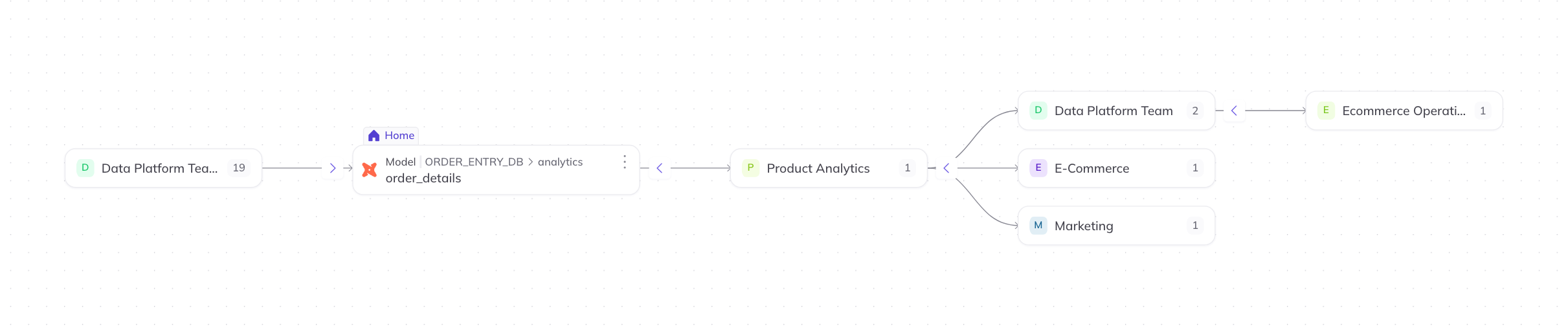
- The asset whose lineage you are viewing is the Home node, and is never grouped.
- Every other node is a group: a set of connected assets that share a lens value. The number on each group is the number of assets it contains.
- An edge between two groups means at least one asset in the first group feeds an asset in the second.
- An asset with no value for the lens, e.g. a table with no domain under the Domain lens, is passed through. It is not displayed or counted, but lineage continues through it, so the groups beyond it are still shown.
- A value may appear in more than one group. Grouping only merges assets that are connected, so if Engineering assets feed Sales assets, which in turn feed other Engineering assets, the graph shows two separate Engineering groups.
Expanding and Contracting Groups
Initially, the graph shows the groups one hop upstream and downstream of the Home node. Groups with further lineage have a caret on their outer edge.
- Hover over the caret to preview the groups it leads to.
- Click the caret to expand the group and display those groups. Repeat to explore further.
- Once a group is expanded, its caret flips. Click it again to contract the group and hide the groups it leads to.

For large lineage graphs, groups are computed incrementally, so a group's count may increase for a few seconds after it first appears.
Viewing the Assets in a Group
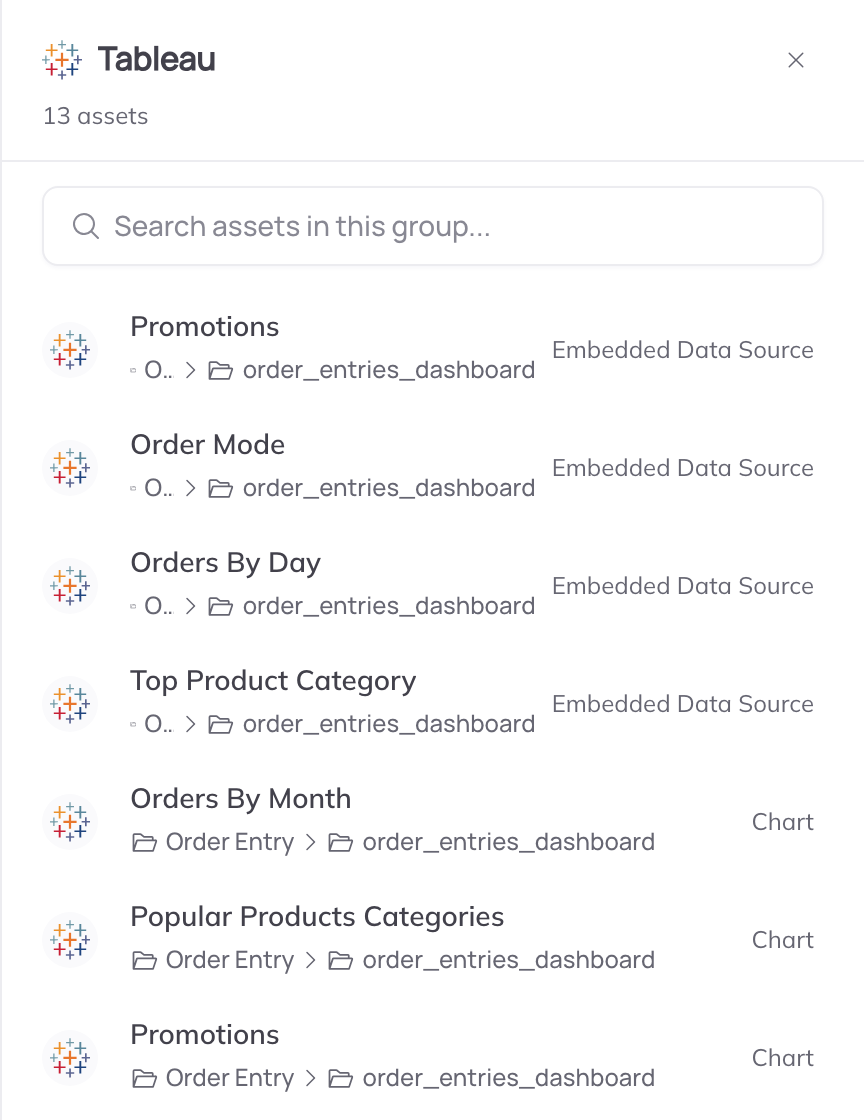
Click a group to open it in the sidebar. The sidebar lists the assets in the group, with a link to each one and a search box to find a specific asset.
Sharing a Grouped View
The selected lens is included in the page URL as group_by=<lens ID>, e.g. group_by=platform, group_by=domain, or group_by=glossary_term. Copy the URL to share the grouped view. If the lens in a link no longer exists, the link opens the ungrouped graph.
Special Groups
| Group | Description |
|---|---|
| Restricted | Assets you do not have permission to view. Only the count is shown; their values and members are hidden. Lineage continues through them. |
| Other | Assets with none of a custom lens's values, if the lens is configured to collect them. The group uses the name defined by the lens, e.g. Untiered. See Creating Custom Lenses. |
| Count with a "+" | The lineage was too large to explore fully, so the count is a lower bound. Expanding this group shows only part of the lineage beyond it. |
| Combination (A & B) | Assets with multiple values of a custom lens, grouped by their combination of values. See Creating Custom Lenses. |
Interactions with Other Controls
- Hide Transformations excludes queries and data jobs from groups and counts.
- Show Hidden Edges includes soft-deleted assets, which are otherwise excluded.
- Filters limit which assets are grouped. See Filtering Grouped Lineage.
Troubleshooting
"Lineage view refreshed" appears. Grouped lineage is cached on the server and expires after about ten minutes of inactivity. DataHub then recomputes it automatically, including any expanded groups.
"Grouped lineage stopped loading, so some counts are incomplete." Part of the lineage could not be loaded. Expand a group or change a filter to try again.
The Group by section is missing. Group by is not enabled on your instance. See Enabling This Feature.