Snowflake Metadata Sync Automation
This feature is currently in Public Beta in DataHub Cloud. Reach out to your DataHub Cloud representative to get access.
Introduction
Snowflake Metadata Sync is an automation that allows you to sync DataHub Glossary Terms, Tags, and Descriptions on both columns and tables back to Snowflake. This automation is available in DataHub Cloud only.
Capabilities
- Automatically Add DataHub Glossary Terms to Snowflake Tables and Columns
- Automatically Add DataHub Tags to Snowflake Tables and Columns
- Automatically Sync DataHub Descriptions to Snowflake Tables and Columns as Comments
- Automatically Remove DataHub Glossary Terms and Tags from Snowflake Tables and Columns when they are removed in DataHub
- Support for both Username/Password and Private Key authentication
Prerequisites
Permissions Required for Tag Management
CREATE TAG: Required to create new tags in Snowflake. Ensure the user or role has this privilege on the specific schema or database where tags will be created.APPLY TAG: Required to assign tags to Snowflake objects such as tables, columns, or other database objects. This permission must be granted at the ACCOUNT level - it cannot be granted on individual schemas, tables, or views.OWNERSHIPon objects: Required to apply tags to tables and columns, as well as to update comments/descriptions. This is the most comprehensive permission and is necessary for tag operations.
Permissions Required for Object Access
USAGEon the database and schema: Allows access to the database and schema to view and apply changes.SELECTon the objects (tables, views, etc.): Enables the automation to read metadata and verify existing tags.
Example Permission Grant Statements
To grant the necessary permissions for a specific role (DATAHUB_AUTOMATION_ROLE), you can use the following SQL commands:
-- Database and schema access
GRANT USAGE ON DATABASE your_database TO ROLE DATAHUB_AUTOMATION_ROLE;
GRANT USAGE ON SCHEMA your_database.your_schema TO ROLE DATAHUB_AUTOMATION_ROLE;

-- Tag management permissions
GRANT CREATE TAG ON SCHEMA your_database.your_schema TO ROLE DATAHUB_AUTOMATION_ROLE;
-- APPLY TAG must be granted at ACCOUNT level
GRANT APPLY TAG ON ACCOUNT TO ROLE DATAHUB_AUTOMATION_ROLE;

-- Object access and modification permissions
GRANT SELECT ON ALL TABLES IN SCHEMA your_database.your_schema TO ROLE DATAHUB_AUTOMATION_ROLE;
GRANT SELECT ON ALL VIEWS IN SCHEMA your_database.your_schema TO ROLE DATAHUB_AUTOMATION_ROLE;

-- OWNERSHIP is required for applying tags and updating comments/descriptions
GRANT OWNERSHIP ON ALL TABLES IN SCHEMA your_database.your_schema TO ROLE DATAHUB_AUTOMATION_ROLE;
GRANT OWNERSHIP ON ALL VIEWS IN SCHEMA your_database.your_schema TO ROLE DATAHUB_AUTOMATION_ROLE;

-- Future privileges for new objects
GRANT SELECT ON FUTURE TABLES IN SCHEMA your_database.your_schema TO ROLE DATAHUB_AUTOMATION_ROLE;
GRANT SELECT ON FUTURE VIEWS IN SCHEMA your_database.your_schema TO ROLE DATAHUB_AUTOMATION_ROLE;
GRANT OWNERSHIP ON FUTURE TABLES IN SCHEMA your_database.your_schema TO ROLE DATAHUB_AUTOMATION_ROLE;
GRANT OWNERSHIP ON FUTURE VIEWS IN SCHEMA your_database.your_schema TO ROLE DATAHUB_AUTOMATION_ROLE;
-- Note: APPLY TAG is granted at ACCOUNT level above and applies to all objects
Enabling Snowflake Metadata Sync
- Navigate to Automations: Click on 'Govern' > 'Automations' in the navigation bar.
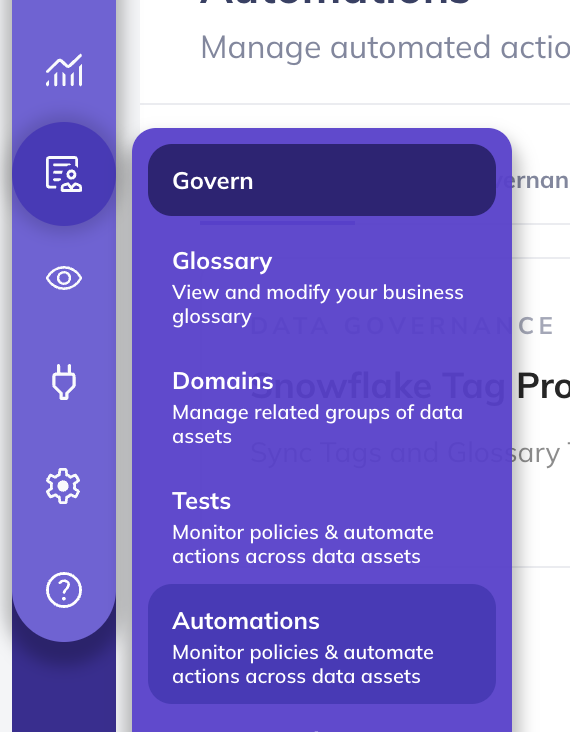
- Create An Automation: Click on 'Create' and select 'Snowflake Metadata Sync'.

Configure Automation: Fill in the required fields to connect to Snowflake, along with the name, description, and category.
Authentication Options:
- Username/Password: Traditional authentication using Snowflake username and password
- Private Key: Key pair authentication using RSA private key (more secure for automated processes)
Sync Options:
- Tags & Terms: You can limit propagation based on specific Tags and Glossary Terms. If none are selected, then ALL Tags or Glossary Terms will be automatically propagated to Snowflake tables and columns.
- Descriptions: Enable description sync to automatically update Snowflake table and column comments with DataHub descriptions.
Finally, click 'Save and Run' to start the automation

Propagating for Existing Assets
You can back-fill historical data for existing assets to ensure that all current column and table Glossary Terms are propagated to Snowflake. Note that it may take some time to complete the initial back-filling process, depending on the number of Snowflake assets you have.
To do so, navigate to the Automation you created in Step 3 above, click the 3-dot "More" menu
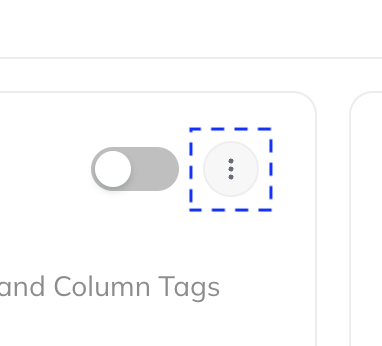
and then click "Initialize".
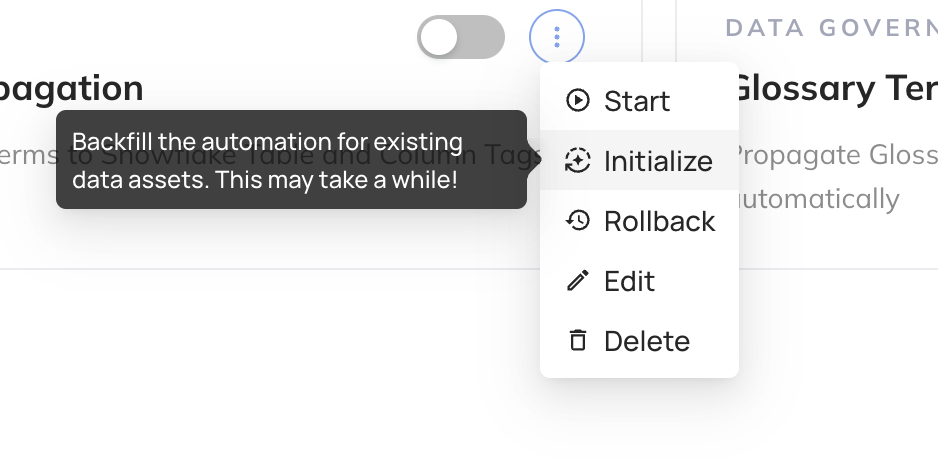
This one-time step will kick off the back-filling process for existing terms. If you only want to begin propagating terms going forward, you can skip this step.
The back-filling of tags will be available in a future release.
Viewing Synced Metadata
You can view propagated Tags, Terms, and updated Comments (and corresponding DataHub URNs) inside the Snowflake UI to confirm the automation is working as expected.
Tags and Terms
Tags and glossary terms will appear as Snowflake tags on your tables and columns:
Descriptions
DataHub descriptions will be synced as Snowflake comments on tables and columns, visible in the Snowflake UI and accessible via SHOW TABLES and DESCRIBE TABLE commands.
