Step 3: Generate Context
This step uses features from the DataHub Cloud Context add-on, currently in Public Beta.
Step 2 brought in what your team has documented. This step covers everything else, and solves the cold-start problem for business context.
Your analysts have already answered thousands of questions in SQL. Those queries show which tables belong together, how they join, and which of several similar tables people actually trust. Context Generation turns that analytics exhaust into context documents called Semantic Anchors, one for each business question your team answers repeatedly.
How it works
Context Generation works from metadata DataHub has already collected: your warehouse query history for the scope you choose, your BI and semantic definitions, and the descriptions, owners, and usage DataHub already knows. It finds the analyses your team runs repeatedly, and writes a context document for each one. It never reads the data in your tables.
Each Semantic Anchor describes one analysis: the business questions it answers, the metrics and dimensions involved, how the tables connect, and which tables to use.
Query history must be ingested by your warehouse's data source. See Before you start.
If you have a semantic layer, Context Generation fills in the long tail around it. If you don't, this step will likely produce most of your agent's context.
1. Create a job
Go to Settings > Context and click Create.
| Setting | What to choose |
|---|---|
| Name | Your domain's name, such as Finance |
| Scope | Your Domain, or specific databases or schemas under Containers. Split very large domains into several jobs. |
| Assign generated docs to | Your domain. Every document the job writes is assigned to it, so your domain agent and domain MCP server can see it. |
| Folder (optional) | A folder in Documents, such as Finance / Generated. By default, documents go to a shared Semantic Anchor folder. |
| Auto-publish | On. See Validate with evals. |
| Schedule | Off for now. You'll turn it on in part 4. |
Click Save & run.
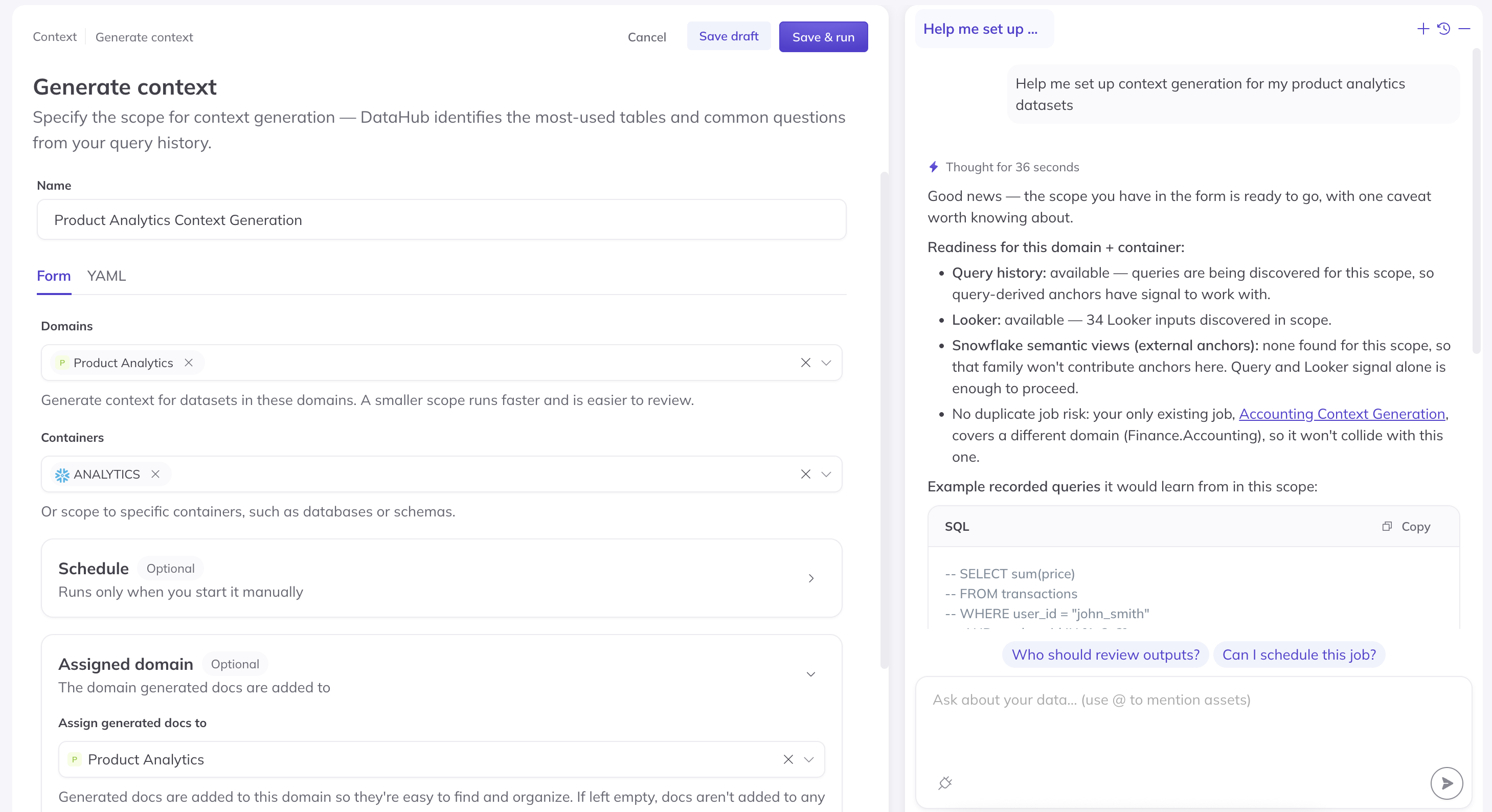
Screenshot: creating a context generation job, with the assistant on the right.
Not sure your warehouse is collecting queries? Ask the assistant in the side panel: "Is my warehouse set up to capture queries?"
2. Validate with evals
We recommend publishing generated documents right away and letting your evals confirm they help. A single run can produce dozens or hundreds of documents, and reviewing each one before publishing can take weeks. Evals give you a faster and more reliable answer.
When the run finishes:
- Click Run all DataHub evals. Your pass rate should rise well above your step 2 result.
- Open any eval that got worse or still fails, and check which documents the agent found.
- Correct what's wrong: edit the document, or unpublish it. If the right document doesn't exist, write one in Documents.
When you edit a generated document, it's detached from Context Generation. Later runs never overwrite it, and your version becomes the one agents use. See Editing generated documents.
Require approval before publishing
For sensitive domains, turn Auto-publish off and choose Reviewers: the users or groups who must approve new documents. If you leave reviewers empty, requests go to the owners of the tables and domains involved, plus your admins.
Reviewers receive a request in Tasks > Proposals, where they can run your evals against the new documents to see what they would fix or break before anything is published. See Reviewing Context Changes.
3. Grow your eval suite
With documents published, an admin can click Generate Evals on the Evals page. DataHub drafts eval questions from your documents, starting with the most common, and sends them to your admins, who can edit each question and answer before approving it. It's an efficient way to expand coverage from dozens of evals to a hundred or more.
4. Schedule the job
Turn on Schedule so your context keeps pace as your data and queries change. Weekly is a good starting point. With daily eval runs on, a drop in pass rate tells you if a refresh made anything worse.
Check your work
- Your pass rate is well above your step 2 result.
- Every remaining failure has a known cause: the right document doesn't exist yet, or it describes the question too vaguely to be found.
- The job runs on a schedule.
Next: Step 4: Activate context