Adding Custom Relationships
Ontology is currently in Private Beta. Features, UI, and configuration options are subject to change.
The built-in vocabulary — Inherits, Contains, Synonym, Antonym, Translates to, Valid value, Related to — covers general-purpose glossary modelling, but not vocabulary specific to your organization. For relationships like governed by, derived from, certified by, or supersedes, you can define your own relationship types.
You do this with a relationship Structured Property.
Available in DataHub Cloud v2.2.1 and later.
How it works
A Structured Property whose value type is a DataHub entity already points from one asset to another. Flipping the relationship switch on that property tells DataHub to also materialize each assignment as a real edge in the metadata graph — so the property starts behaving like a first-class relationship: it is drawn in the ontology graph, it is walkable by the traverse APIs, and it is reachable from SPARQL.
Two entities are involved, and it is worth knowing which does what:
- The structured property is the veneer. It is what users assign, and what shows up in the property UI.
- The relationship type (
urn:li:relationshipType:*) carries the predicate identity: the display name, direction semantics, transitivity, reverse label, and RDF predicate mapping. Graph edges are keyed by this, not by the property.
You do not normally create the relationship type by hand — the UI and the GraphQL create/update paths create it and wire up the pointer for you.
Creating a relationship property in the UI
- Go to Govern → Structured Properties and create a new property.
- Set the value type to a DataHub entity type, and restrict the allowed types to what the relationship should point at — for a term-to-term relationship, Glossary Term on both sides.
- Open Display Preferences and turn on Treat as Relationship.
- Configure the relationship's semantics (see below).
- Save.
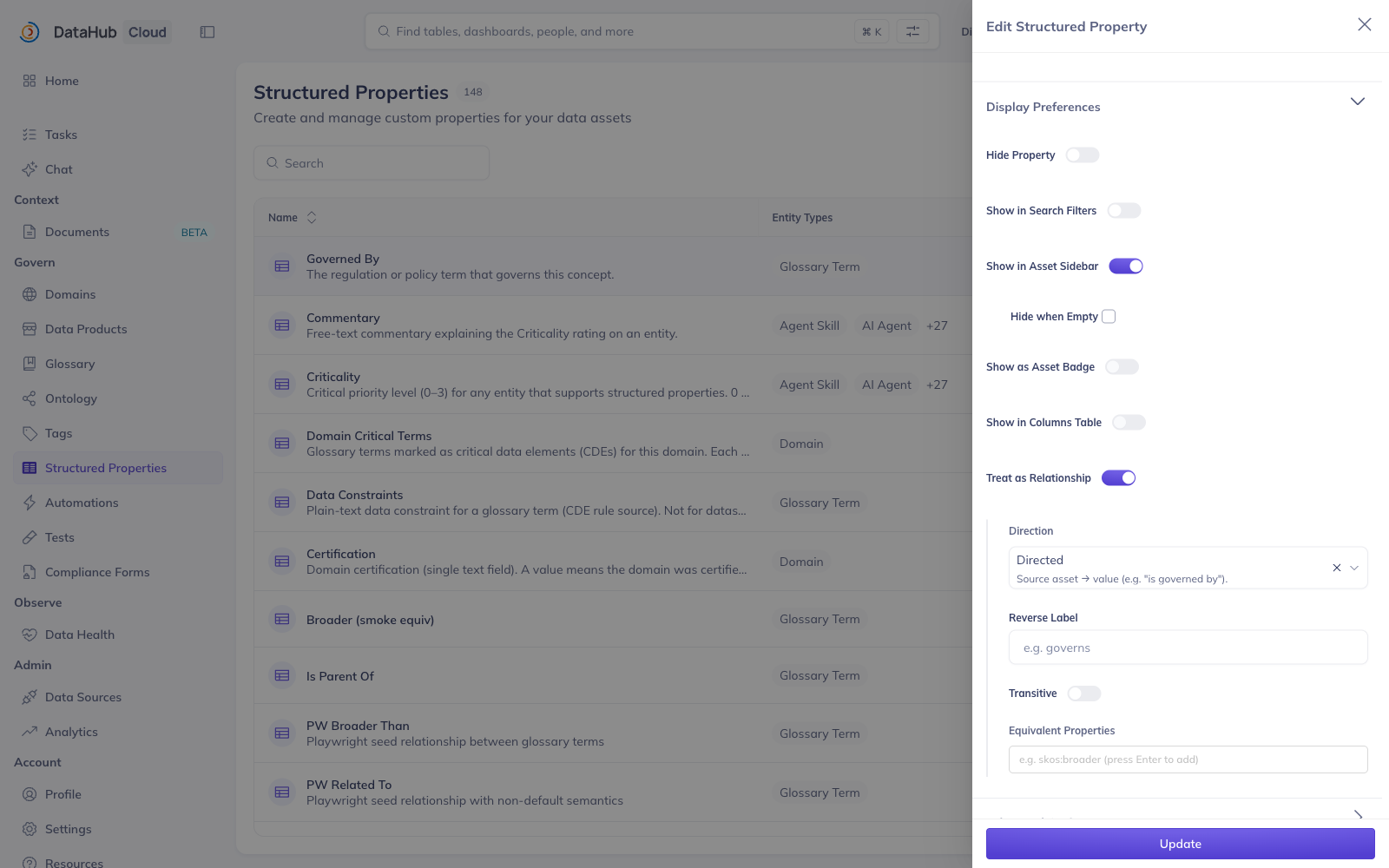
The Treat as Relationship switch is only available on entity-valued properties — there is nothing to point at otherwise. Switching a property's value type away from an entity type clears the relationship setting.
Relationship semantics
Once the switch is on, four settings define what the relationship means:
| Setting | What it does |
|---|---|
| Direction | Directed (default) runs source → destination. Undirected is symmetric — the walk traverses it both ways regardless of the direction requested. |
| Reverse Label | The label for reading a directed relationship backwards ("Governs" for a forward "Governed By"). Display only; it never creates a second edge. |
| Transitive | Declares that chaining over this relationship is meaningful — A → B → C implies A → C. Surfaced to traversal clients and used by SPARQL's RDFS regime. |
| Equivalent Properties | Standard-vocabulary predicates this relationship corresponds to, as CURIEs or IRIs (skos:broader, skos:exactMatch). Lets standards-based queries reach your edges. |
Set these carefully. Direction and transitivity affect how the relationship is traversed, so they change the results anything walking the graph gets back.
Creating a relationship property via the API
mutation {
  createStructuredProperty(
    input: {
      id: "governedBy"
      qualifiedName: "governedBy"
      displayName: "Governed By"
      description: "The regulation or policy term that governs this concept."
      valueType: "urn:li:dataType:datahub.urn"
      cardinality: MULTIPLE
      entityTypes: ["urn:li:entityType:datahub.glossaryTerm"]
      typeQualifier: {
        allowedTypes: ["urn:li:entityType:datahub.glossaryTerm"]
      }
      settings: {
        isRelationship: true
        relationshipSemantics: {
          directionMode: DIRECTED
          reverseDisplayName: "Governs"
          transitive: false
          equivalentProperties: ["skos:broader"]
        }
      }
    }
  ) {
    urn
  }
}
This creates both the structured property and the relationship type it points at
(urn:li:relationshipType:governedBy, sharing the property's id).
Assigning the relationship
Once defined, the property is assigned like any other structured property — the values are the URNs of the entities on the far end:
mutation {
  upsertStructuredProperties(
    input: {
      assetUrn: "urn:li:glossaryTerm:customer"
      structuredPropertyInputParams: [
        {
          structuredPropertyUrn: "urn:li:structuredProperty:governedBy"
          values: [{ stringValue: "urn:li:glossaryTerm:gdpr" }]
        }
      ]
    }
  ) {
    properties {
      structuredProperty {
        urn
      }
    }
  }
}
On a glossary term, custom relationships also appear in the Related Terms tab alongside the built-in ones, and can be added and removed there.
Edges are materialized asynchronously, so a newly assigned relationship takes a moment to appear in the graph and the traverse APIs.
Querying custom relationships
Custom relationship types are traversed exactly like built-in ones — pass the relationship type URN where you would pass a built-in name:
curl -H "Authorization: Bearer $DATAHUB_TOKEN" \
  "$DATAHUB_GMS_URL/openapi/v3/relationship/traverse\
?urn=urn:li:glossaryTerm:customer\
&relationshipTypes=urn:li:relationshipType:governedBy\
&direction=OUTGOING"
The structured property URN (urn:li:structuredProperty:governedBy) is accepted too and resolves to
the same relationship type. See Querying Your Ontology.
Modelling guidance
- One relationship per meaning. Resist reusing Related to with a comment explaining what was actually meant. A distinct type is what makes the edge queryable and reasonable-over.
- Name both directions. A reverse display name costs nothing and makes every reverse-direction view of your graph readable.
- Only mark transitive when it is true. Transitivity licenses inference; a wrong claim produces confidently wrong answers under closure.
- Map to standards where one fits. Declaring
skos:broaderorrdfs:subClassOfas an equivalent property means external tooling and standards-based queries can reach your relationship without knowing DataHub's naming. - Deleting the property removes the edges. Removing a relationship structured property reaps the graph edges it materialized.
Enabling this feature
Contact your DataHub representative to have this enabled for your instance.
Without the flag, DataHub rejects attempts to define a new relationship property rather than letting you declare a relationship that would silently never materialize any edges.
For self-managed deployments, set the flag and restart:
STRUCTURED_PROPERTY_GRAPH_EDGES_ENABLED=true
The flag has to match across GMS and, if you run standalone consumers, the MAE and MCE consumers: the MAE consumer materializes the edges and the MCE consumer gates defining relationship properties. Via Helm, the single global value covers all three:
global:
  datahub:
    structuredPropertyGraphEdgesEnabled: true